Wallet keys tab in Space General options
Overview
Wallet keys refer to digital keys that reside in the corresponding Wallet app on your mobile phone. By using NFC to communicate with electronic locks, the same technology used by contactless key fobs or keycards, they offer a fast and reliable digital key experience on Android and Apple devices.
You can select the following options from the Wallet keys tab:
- Transact: select only when integrating with the Transact system.
- Hospitality API: select when integrating with a Hospitality wallet key manager using the Hospitality API protocol (only Apple Wallet keys (iOS) supported).
The Hospitality API option only supports Apple Wallet keys for hotel guest rooms. Physical cards and staff keys are not supported through this option.
By configuring these options, Space will be able to communicate with Transact and Hospitality API environments, so they can be synchronized at all times. See Configuring Wallet keys settings in Space for more information on how to configure the SAM and issuing Wallet keys options.
Select System > General options > Wallet keys to view the tab.
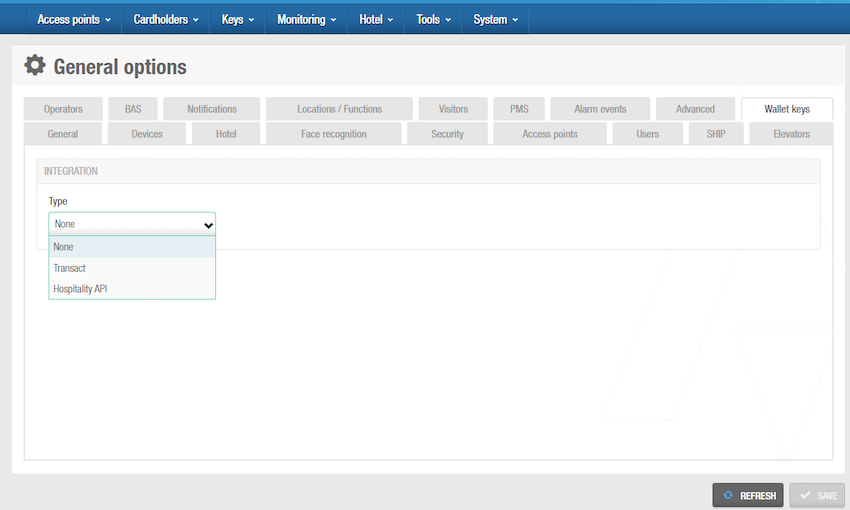 Screenshot showing some of the options available in the 'Wallet keys' tab
It is assumed that operators who configure Wallet keys settings are familiar with the technologies and associated terms mentioned in this section.
Prerequisites
Before configuring wallet keys, ensure the following requirements are met:
Hardware requirements
Wallet key functionality requires specific hardware and firmware versions. Consult with your usual Salto contact to understand the hardware this feature works with and to verify that your installation meets the necessary requirements.
In addition, you must have at least one NCoder working in dongle mode installed for wallet key provisioning. Multiple NCoder dongles are recommended in environments with heavy credential issuing traffic. See How to add encoders to the Salto Network for more information.
Licensing requirements
Wallet key functionality requires a separate license add-on. See Registering and licensing Space for more information or contact your Salto representative.
Network configuration
For Hospitality API integrations, your network firewall must be configured to allow incoming connections to the Space Hospitality API endpoint. See Connectivity considerations for the Hospitality API for detailed information about network requirements.
Transact
Transact communicates with Azure Event Grid to synchronize Space and Transact events, such as cloud events, user and key creation, etc. See Space server and Connectivity scheme for Space for more information.
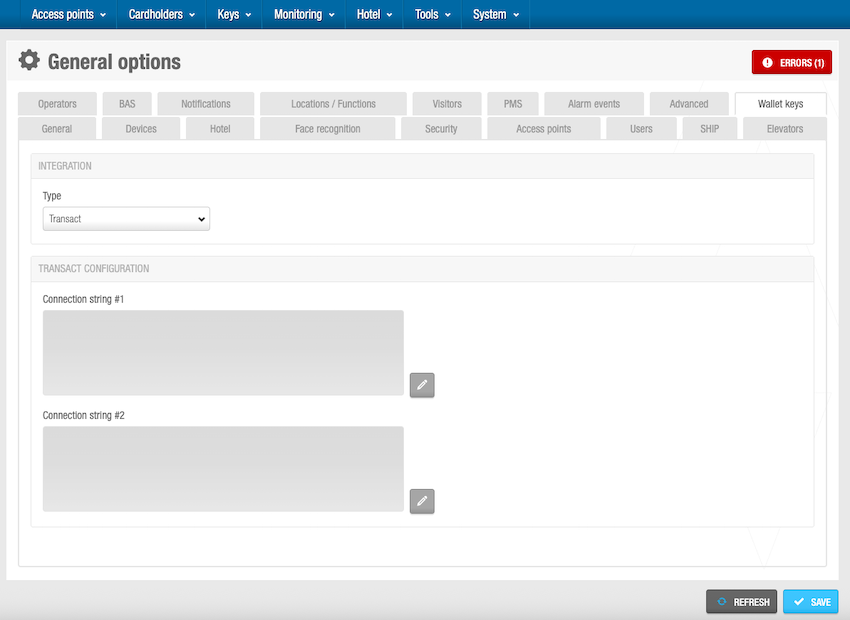 The 'Connection string' details are provided by Transact
To configure the Transact settings, do the following:
Select System > General options > Wallet keys.
Select the Transact integration type from the drop-down list.
In the Transact configuration panel, click the pencil edit button. The Connection string configuration dialog box is displayed.
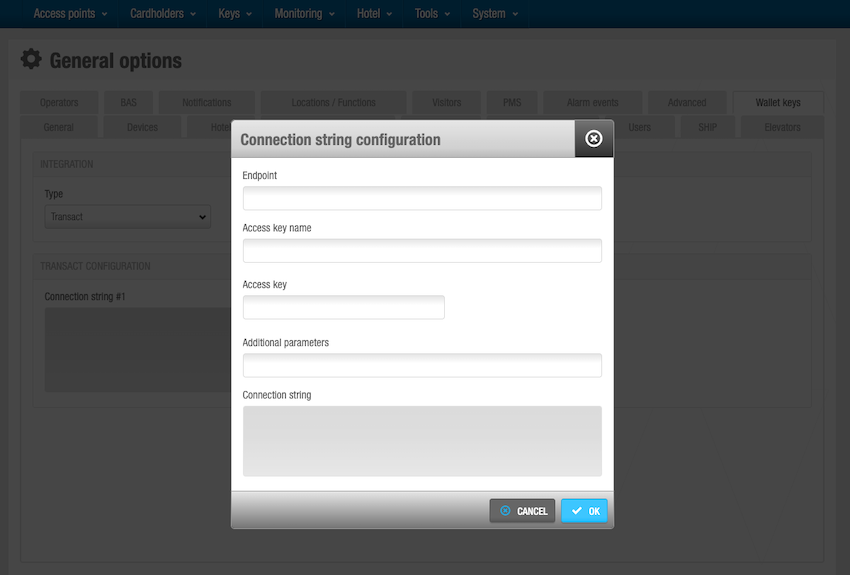 Connection string configuration dialog box
Fill every field in the Connection string configuration dialog box. This data is provided by Transact. Once all these details have been entered, a connection string is automatically generated.
Click OK.
Click Save. The Transact integration is now configured.
Hospitality API
The Hospitality API option is only used in Space hotel installations. See Hotels for information about hotel features in Space.
In this context, the Hospitality wallet key manager is the software that connects to Space via the Hospitality API to manage the guest's wallet key lifecycle.
Note that the Hotel and Hospitality API functionalities are license-dependent. See Registering and licensing Space for more information or contact your Salto representative.
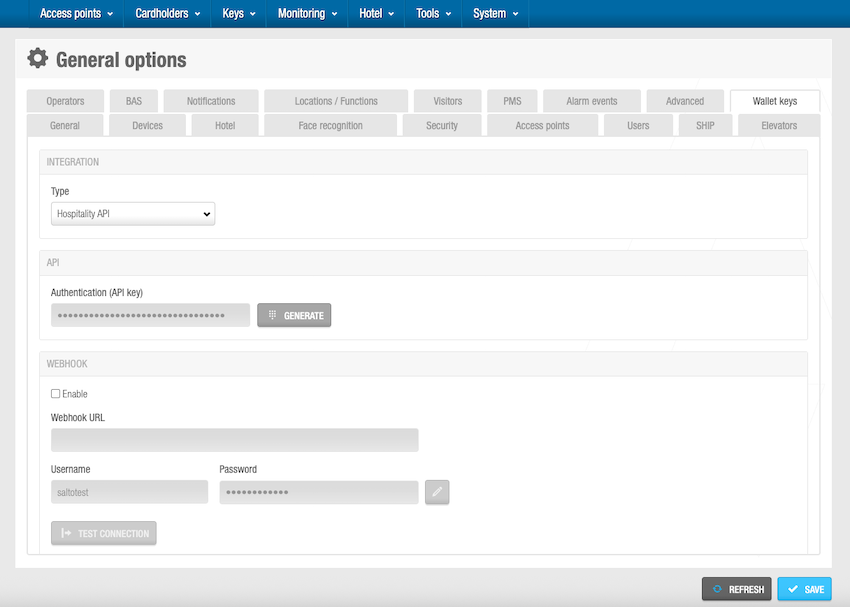 Hospitality API integration settings
To configure the Hospitality API settings, do the following:
Select System > General options > Wallet keys.
Select the Hospitality API integration type from the drop-down list.
API configuration
In the API panel, click on Generate. The Authentication (API key) is automatically generated. This authentication key allows the connection between Space and the Hospitality wallet key manager. You must share this key with the Hospitality wallet key manager.
Configure the Hospitality API port from the Advanced tab in the ProAccess Space Configurator. You can find it on the same Space client on which Space has been installed.
Configure the TLS certificate for the Hospitality API endpoint. Communication with the Hospitality API relies on Transport Layer Security (TLS) meaning that a certificate is required. You can use:
- A CA-issued TLS certificate with a matching CN for custom domains (the credential manager will verify this)
- A self-signed certificate
- A CA-verified certificate for public IPs (note: credential managers cannot verify these certificates)
See the section on connectivity considerations for the Hospitality API for more details on this configuration.
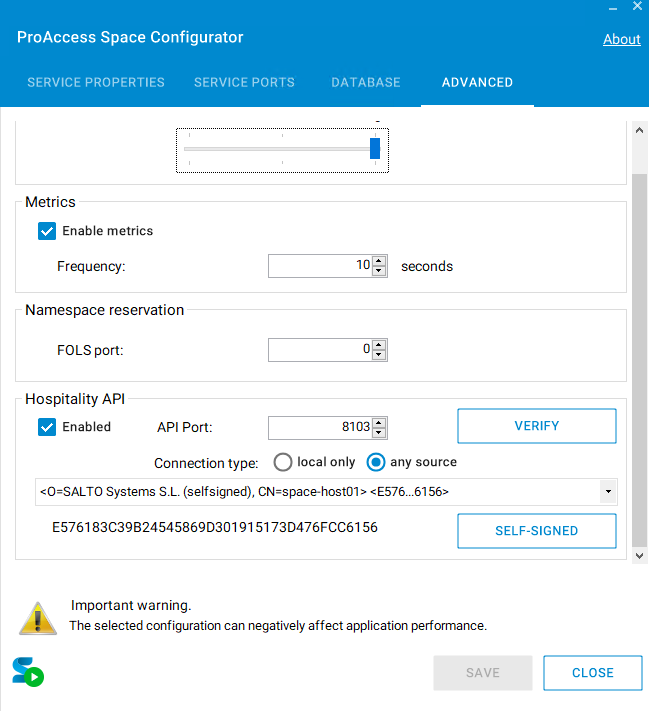 Configure the 'Hospitality API' port from the ProAccess Space Configurator
From Space 6.14 onwards, the Advanced tab in the ProAccess Space Configurator includes a Verify button for the Hospitality API.
Click Verify to send an HTTP request to localhost on the configured API port and confirm the API is running and responding correctly.
WebHook configuration (optional)
(Optional) Select the checkbox Enable in the WebHook panel of the Wallet keys tab in General options to activate it.
Complete the WebHook URL, Username and Password fields. This data is provided by your Hospitality wallet key manager.
Click Save.
Click the Test connection button to verify the WebHook data you have entered is correct.
You can use the webhook to send notifications to Hospitality wallet key managers implementing this option about changes affecting issued wallet keys. However, keep in mind that these notifications follow a best-effort approach, there is no guarantee they will work reliably in all scenarios.
WalletHub configuration
- In the WalletHub panel, enter the username and password. These details are provided by Salto. Get in touch with your Salto partner or usual Salto tech support contact to obtain these credentials.
If you don't yet have valid WalletHub credentials, you can temporarily enter placeholder values (For example, "Test" and "test1234") to enable the Save button and continue with the configuration. Replace these with valid credentials before activating the integration.
Click Save.
Click the Test connection button to verify the WalletHub data you have entered is correct.
Once the connection test is successful, click Activate. The Hospitality API (Salto) integration is now configured and the endpoint is ready for wallet key provisioning.
Troubleshooting
If you encounter issues when configuring wallet keys, try the following:
Test connection fails
If the Test connection button in the WalletHub panel fails:
- Verify that you have entered the correct username and password provided by Salto.
- Check that your network allows outbound connections to the WalletHub service.
- Ensure you have the required license add-on active in your Space installation.
- Contact your Salto partner or tech support contact for assistance.
Activation fails after successful test
If the Test connection succeeds but clicking Activate fails:
- Verify that all configuration steps have been completed, including:
- API key generation and sharing with the Hospitality wallet key manager
- Hospitality API port configuration in ProAccess Space Configurator
- TLS certificate configuration
- Network firewall rules allowing incoming connections
- Check that the required license add-ons are active.
- Verify that at least one NCoder dongle is properly connected and functioning.
Unable to provision wallet keys
If wallet keys cannot be provisioned after successful activation:
- Verify that your SAM & Issuing options are correctly configured with the TCI value provided by your credential manager. See Configuring Wallet keys settings in Space for more information.
- Ensure that at least one NCoder dongle is connected and functioning correctly.
- Verify that the hardware in your installation meets the wallet key requirements. Contact your Salto partner for assistance with hardware verification.
- Check that the reader firmware has been updated to the required versions.
Getting help
If you continue to experience issues, contact Salto tech support and provide the following information:
- Screenshots of the complete Wallet keys configuration (all panels expanded and visible)
- Screenshots of any error messages displayed
- Your Space version and license information
- Details about your hardware installation
This information will help tech support diagnose and resolve the issue.
 Back
BAS
Back
BAS