Core concepts in Salto Homelok
Overview
This section explains key technical concepts in Salto Homelok that affect how your access control system functions. Understanding these concepts will help you configure your installation effectively and troubleshoot issues when they arise.
Key renewal duration
Key renewal duration defines the maximum time a key remains valid before requiring an update. Physical keys and app keys use different update methods.
How it works
- Physical keys must be presented at a compatible online updating point or encoder within the renewal duration period to maintain access
- Each time a key is updated, the renewal period resets
- Default setting is 7 days, but can be configured to 14 days
- This is a global setting that applies to the entire installation
Digital keys
App keys update as follows:
- App keys are updated automatically each time the app is opened with an internet connection. They do not need to be presented at an updating point.
Security implications
Key renewal duration is crucial for system security:
- Ensures users update their access on a regular basis
- Limits the validity period of lost or stolen keys
- Helps access changes reach users when their keys update
Extending the key renewal duration to 14 days means that if a key is lost or stolen and not reported, it will continue to be valid for up to 14 days. Note that this duration could extend to 30 days with auto-extension in offline scenarios.
See the settings section for configuration details.
SVN-Flex
SVN-Flex is Salto's proprietary technology that allows compatible online doors with Card key updater enabled to act as updating points for physical keys.
Core functionality
Based on Salto's BLUEnet wireless communications technology and Salto's SVN core technology, SVN-Flex:
- Extends updating capabilities to compatible online doors with Card key updater enabled
- Updates keys with new access when users present them
- Synchronizes physical key data with the cloud in real-time
- Uploads stored events from physical keys to the cloud when used at an online updating door
- Works with physical keys only (not digital keys)
Card key updater
The Card key updater option controls whether a specific door performs SVN-Flex updates. This setting has the following characteristics:
- Disabled by default when creating a door in Homelok web
- Availability depends on the associated device, so check the setting after device configuration
- Can be enabled or disabled per compatible door
- Only applies to physical keys (not digital keys)
- It requires the door to be online and connected to function
When to disable:
- High-traffic common areas where update delays affect user experience
- Doors where users always pass through a main entrance that is configured as a card key updater
- Amenity spaces that don't require frequent access updates
Disabling card key updater on multiple doors reduces system security. While doors continue to report real-time activity and allow remote unlocking, they won't update access permissions written on physical keys, nor will they update the key renewal duration. This means users may be denied access if their key has not been updated within the required renewal period, even if their access permissions have not changed.
See the card key updater section in the doors guide for configuration details.
Online and offline doors
Understanding door connectivity states is essential for system management.
Online doors
Online doors are connected to the cloud through BLUEnet wireless via a gateway.
Online doors can:
- Update physical keys in real-time via SVN-Flex when the device supports it and Card key updater is enabled
- Report activity events
- Be operated remotely by owners and property managers with the correct access, subject to connectivity and hardware requirements
- Allow app key remote operations for unit managers and keyholders when both the door and app key settings allow them
- Receive configuration changes instantly
- Synchronize with cloud
Offline doors
Doors can be offline for two reasons:
Temporary connectivity loss:
- Network issues
- Wi-Fi password changes
- Cloud service interruptions
Configured as offline (standalone):
- Intentionally set to operate without cloud connection
- Cannot perform SVN-Flex updates
- Stores events locally: these events can only be collected manually by an installer or maintainer during an on-site configuration or reset. Standalone locks will never connect to the cloud automatically.
Auto-extension for offline locks
If an online updating lock temporarily loses connectivity, Homelok's auto-extension feature maintains functionality for physical keys:
How auto-extension works
When a physical key is presented at an online updating lock that is temporarily offline, auto-extension applies if the key is expired or has less than 3 days of validity remaining. The new expiry is 3 days from presentation, capped at 30 days since the last successful online key update.
- For example, your key renewal duration could be set at either 7 or 14 days. When auto-extension applies, it sets a new expiry rather than adding 3 days to the previous expiry.
- Keys will stop working after 30 days without any online update, no matter how often auto-extension applies.
Auto-extension does not apply to locks that are configured as offline (standalone). It only applies to online updating locks that have temporarily lost connectivity (marked as Not connected in the software).
The renewal period and 30-day limit reset after a successful online key update. Restoring lock connectivity alone does not reset them.
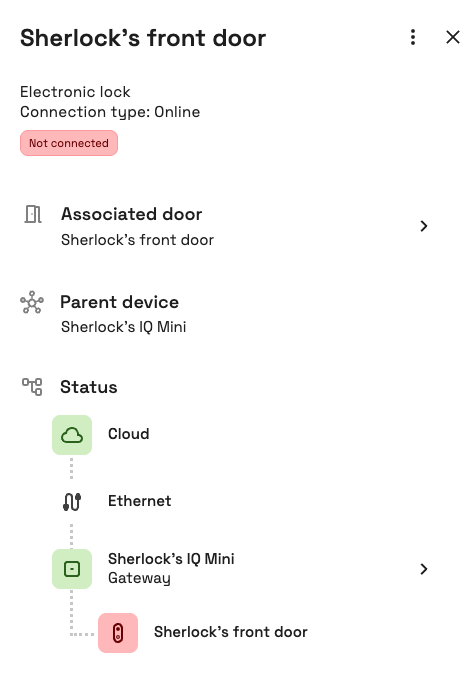 Auto-extension only applies to online locks marked as 'Not connected'
Example scenario
Example 1: Key renewal duration is set to 7 days. The main entrance updating lock temporarily loses its internet connection.
- The user can continue to use their key at this lock. If the key is expired or has less than 3 days remaining, its new expiry is 3 days from presentation, subject to the 30-day cap.
- If the lock stays offline, later presentations can set a new expiry under the same rule, but never beyond 30 days since the last successful online key update.
- Once the lock is back online and successfully updates the user's key, the renewal period and 30-day limit reset.
Auto-extension is only applied if your physical key is already expired or has less than 3 days of validity remaining. If more than 3 days remain, no extension is applied. When auto-extension is applied, the key's new expiry is set to 3 days from the moment it is presented at the lock (it's not added to the previous expiry), unless this exceeds the 30-day maximum since the last online update. That's to say, if the key does not receive a successful online update within 30 days, it will stop working until it is updated again.
Example 2:
- If you have 2 days left and present the key, the new expiry is 3 days from now (not 5).
- If you have 1 day left, the new expiry is 3 days from now (not 4).
Exception:
If the 30-day maximum is exceeded, the expiry is capped at the 30-day limit.
Alternative scenario - prolonged offline period:
If connectivity issues persist beyond the 30-day limit:
- Keys will stop working at that lock
- Users must find an alternative online updating point (different entrance, amenity room, encoder, etc.)
- Once the key is updated at an online point, its validity is renewed even if the original updating lock remains disconnected
- If no online updating point is accessible, users must contact property management for key re-encoding
After 30 days without an online update, physical keys will stop working regardless of any auto-extensions. Users must present their keys at an online updating point to reset both the renewal duration and the 30-day absolute limit.
Changes to access stored on physical keys take effect after the keys receive an update at an online updating point. The original disconnected lock does not need to reconnect for the key to receive that update elsewhere. Monitor device connectivity to ensure updates and maintain security.
Access propagation
How changes to user access and device configuration reach keys and locks:
| Key or device type | Update method | Timing |
|---|---|---|
| App keys | Internet connection through the Homelok app | When the app connects and updates the key |
| Physical keys | SVN-Flex update | Next use at an online updating point (regardless of access granted) |
| Temporarily disconnected online locks | Cloud connection | Device configuration updates when the lock reconnects |
| Standalone locks | Nebula Commissioning app | Device configuration updates during an on-site update; standalone locks do not reconnect automatically |
Physical key updates and device configuration updates are separate. Presenting a physical key at an online updating point updates the key's access data, not the standalone lock's configuration.
Key update flow
The following diagram illustrates the physical key update flow at a compatible SVN-Flex updating point for different connectivity scenarios:
Visual and audio signaling patterns vary by device type. The colors shown in this diagram are representative - actual signaling may differ depending on whether you're using escutcheons, cylinders, wall readers, or other device types. Consult your device documentation for specific signaling patterns.
Understanding the flow
Initial check:
- Door determines if the key needs new data based on renewal duration and last update time
No update needed:
- Door reads existing key data and grants or denies access
- Access granted: green signal
- Access denied: rejection signal (typically two red flashes)
Update needed - online door:
- Door requests updated key data from cloud
- SVN-Flex process signaling (yellow indicator)
- If data received, door compares it with key's current data
- Only writes to key if data has changed
- Analyzes updated data and grants or denies access
Update needed - offline door (connectivity lost):
- Door checks if auto-extension is possible (within 30-day limit)
- Extends key validity according to the auto-extension rules (3 days, up to 30-day maximum)
- Updates key data locally
- Analyzes data and grants or denies access
Key writing failures:
- If door cannot write new data to the key, it shows red signal
- Door still analyzes existing key data to determine if access should be granted
When you change a user's access, the update timing depends on their key type and which doors they use. App keys update through an internet connection, while physical keys update when presented at an online updating point, regardless of whether access is granted. Not every online door acts as an updating point.
Troubleshooting common issues
Access denials without activity entries
If users report access denials but no events appear in activity, see the section on access denied reasons to troubleshoot possible causes.
 Back
Best practices
Back
Best practices