Electronic locks in Homelok
Overview
An electronic lock is a physical electronic locking device such as an electronic escutcheon, cylinder or motorized lock. It differs from a door in that an electronic lock is a specific model of a device like a Salto Neo cylinder or an XS4 escutcheon.
Doors, meanwhile, like apartment doors, lockers, turnstiles, car park barriers or any point of entry or exit, are the logical entities that manage the physical devices. Doors must always be associated with at least one electronic lock.
In Homelok, you use doors to manage the behavior of electronic locks within your installation's access plan. That's to say who enters where and when. A door can either represent one individual electronic lock or a collection of devices capable of granting or denying access to a user.
You manage electronic locks via Devices and by selecting Electronic locks in the Type list when creating a new device. All the settings that govern a door's behavior, such as opening mode, calendars, card key updater and remote operations, are configured on the door itself, not on the electronic lock.
Creating electronic locks
Go to Devices and select Create. Then select Electronic lock from the Type drop-down menu.
Every electronic lock must be associated with a door. Use the Associated door field to select an existing door from the list, or select Create door to create a new one without leaving the dialog. See how to configure doors for details on the settings available when creating a door this way.
Note that while you can create electronic locks and associate them with doors in Homelok web, you set up and configure the physical electronic lock devices using the Nebula Commissioning app.
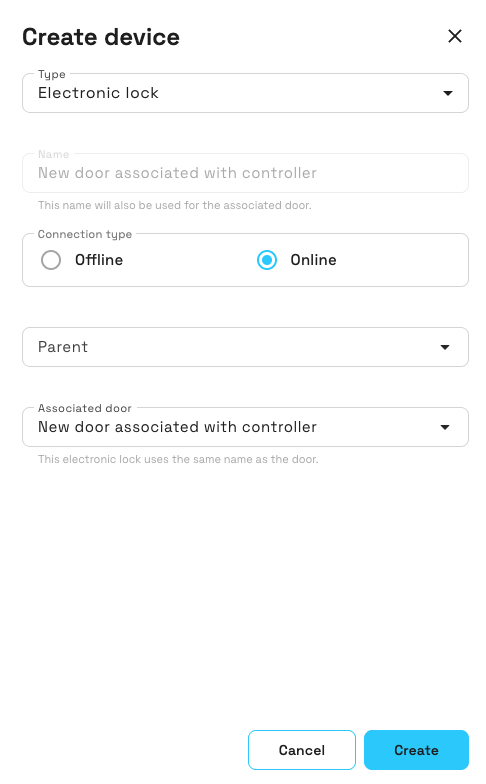 Creating an electronic lock in Homelok web
Connection type
Connection type is a property that applies specifically to the electronic lock associated with the door. In Homelok, electronic locks can have two connection types, online or offline.
Online
Online electronic locks can be either hardwired to the Salto network or wireless. If an electronic lock is online, then it needs a parent device, generally a gateway, like the IQ3 or IQ3 Mini. If you're creating an online electronic lock, select Online in the connection type. This activates a Parent field with a list of previously created parent devices, if available.
It's recommended that you create the parent device in the Devices section before creating the electronic lock that you want to associate with it.
Offline
Offline electronic locks are not connected to the Salto network and you need to update them using the Nebula Commissioning app if you want to make a change to them like a firmware update, for example. An offline electronic lock does not need a parent device. See the electronic lock status section for more information on connection statuses.
Name
The Name field is not editable as the electronic lock inherits its name from the associated door. This means when you view a list of doors in Homelok, for example, they will have the same names as the electronic locks in the Devices section.
For settings such as opening mode, calendars and card key updater, see how to configure doors.
Viewing device details
Once you've created an electronic lock and associated it with a door and any other devices, select its name from the Electronic locks list to open its detail panel. This panel lets you check the lock's associations and connectivity at a glance:
- Connection type, along with a status badge such as Connected - see the status descriptions below for what each badge means.
- Associated door: select this to go to the associated door's own detail panel.
- Parent device: for online locks, this could be the gateway that connects the lock to the Salto network.
- Status: a diagram of the connectivity chain between the cloud, the parent device and the lock, useful for identifying where a connectivity issue might be occurring.
- Firmware: see the Firmware section below.
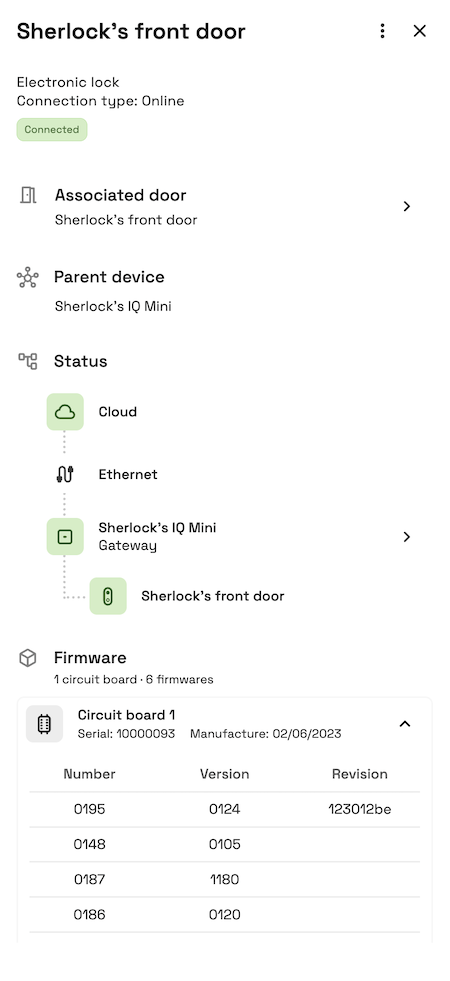 The detail panel for an electronic lock, showing its associated door, parent device, connectivity status and firmware
Firmware
Once an electronic lock has been configured by the Nebula Commissioning app, you can see the firmware number and version of the device in the Firmware section of the side panel.
The Firmware heading summarizes the number of circuit boards fitted to the lock and the total number of firmwares installed across them, for example "1 circuit board · 6 firmwares". Select a circuit board to expand or contract it and see its serial number, manufacture date, and a table listing the number, version, and revision of each firmware installed on it.
See also the section on updating firmware for more information about firmware updates.
Electronic lock status
Once you've created electronic locks and their associated doors, the Electronic locks tab of the Devices section details a list of all the electronic locks in your installation. The name of the electronic lock displayed in this list is the same name you've given to its corresponding door in the previous step. The list also indicates whether the door belongs to the installation or a unit.
This section also displays the different statuses such as Low battery or Update required that your electronic locks may indicate at any given moment. See the following table for a description of electronic lock statuses.
Status descriptions
| Status | Description |
|---|---|
| Connected | Indicates that an online electronic lock is connected to the internet. |
| Not connected | Indicates if an online electronic lock is not connected to the internet. |
| Low battery | The battery status of an electronic lock can be either normal (green) or low (red). If the Low battery status is indicated you should change the lock's batteries. Low battery is also indicated on the physical device when a user unlocks it. The device's LED will blink red 4 times before blinking green (permission granted). Note that if the lock's batteries are flat, the status prior to flat will display. |
| Update required | Indicates that an update is required because of some change in the system, like a modification to a schedule, for example. Note: these updates are generally carried out automatically for online locks. |
| Not initialized | Indicates that although the lock has been created, it is not yet ready for use until it's configured using the app. This status is also reported if a previously-configured lock is reset. Note that the Not initialized status implicitly indicates that the lock is also Not connected. |
If you replace an electronic lock's batteries, you need to reconfigure the device using the Nebula Commissioning app to ensure the lock reports the correct battery status. See also the section on changing batteries for more information.
Door groups
Door groups are a specified collection of doors and their associated electronic locks that are grouped together to make them easier to manage.
You create door groups from the Settings > Door groups section of Homelok. You do not manage them from the Devices screen. For more information on door groups, see the dedicated section in the user guide.
 Back
Overview
Back
Overview Motorized locks