Best practices for setting up a Homelok installation access plan
Overview
The purpose of this guide is to help property managers, owners and Salto technology partners onboard to the Salto Homelok platform. You should read this before setting up a Nebula or Homelok installation for the first time.
The way you set up the access plan for your installation can depend on a variety of factors. For example:
- The size of your installation
- The kind of devices you're using
- The types of keys you assign to your users
- Whether your installation contains units or not
This section aims to provide a series of best practices when it comes to setting up your Homelok access plan. Specifically it refers to the order in which you should create the different system entities such as devices, access, users, keys, etc. to ensure a smooth set up and ongoing management.
Homelok architecture
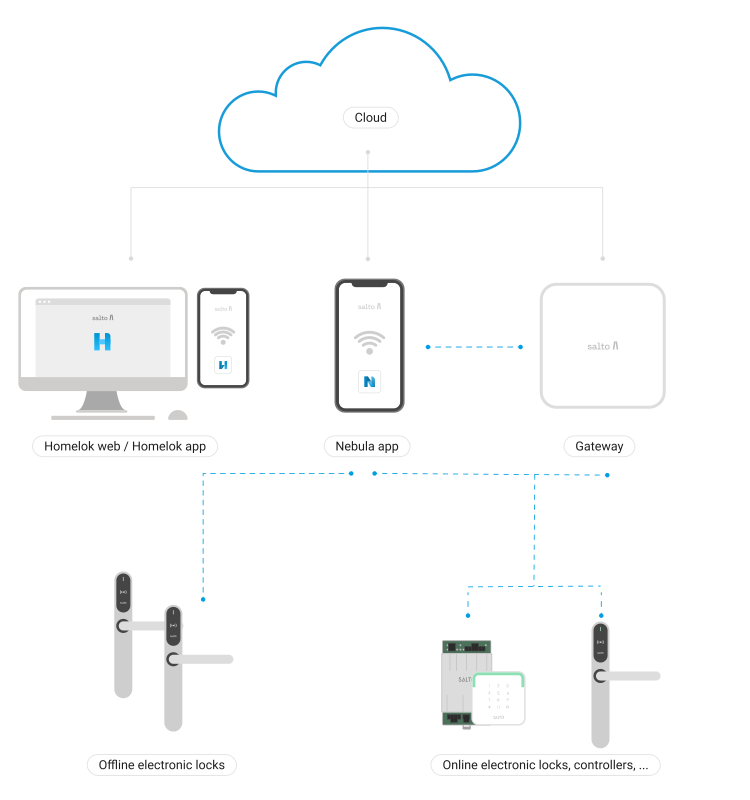 Basic overall Homelok architecture
This is an opinionated guide and not the only way you can set up an installation's access plan. It is, however, the recommended way for a large majority of installations, in particular for first-time setups and in installations that use units.
Before you create the installation's access plan, you must first create an installation. A certified installer can configure the access plan before transferring the installation to the customer, who then completes the subscription workflow. See also the sections on creating installations and subscriptions.
Entity relationship
The following is a simplified diagram outlining some of the key entities in a Homelok installation and how they are related. Note that an installation can contain both installation users and unit users.
Installation
- Represents the overarching structure, such as a building or facility.
- Main attributes: Name, address, time zone, digital key art, billing info.
Units
- Sub-groupings within an installation. For example, a complex of buildings (installation) containing a number of individually owned or rented apartments or houses (units).
- Main attributes: Name, access, activity, privacy settings and associated management roles.
Doors
- Represent physical or logical points of entry, such as doors or gates.
- Main attributes: Name, calendar, connection type, opening mode, parent device. Can belong to a specific installation or unit and interact with digital keys.
Users
- Represents people who interact with the system, such as residents, employees, or visitors.
- Main attributes: Name, email, access and linked key/credential types like, for example, app keys, card keys, passcodes, etc.
Access
- Defines permissions and roles granted to users for accessing installations or units.
- Main attributes: Roles, associated units and linked entities like app keys or card keys.
Relationships
- Installations <-> Units: An installation can have many units, forming a one-to-many relationship.
- Installations <-> Doors: An installation can also have multiple doors, forming a one-to-many relationship.
- Users <-> Units: Users can be associated with one or more units via access.
- Users <-> Access: A user may have multiple sets of access, linking them to specific permissions or doors.
- Doors <-> Access: Doors belong within the permissions defined in the access.
Creating and configuring devices
The first, and most important part of any installation set up, is creating and configuring the devices that belong to the installation.
There are two ways to create and set up devices in Homelok:
- Create the devices in Homelok web first, then set up and configure them via the Nebula Commissioning app.
- Use only the Nebula Commissioning app to create, set up and configure the devices.
For larger installations it's generally recommended that you create the devices with their names and properties (for example, connection types, parent devices, opening modes, etc.) using Homelok web, before configuring them using the Nebula Commissioning app.
A large installation is considered to be one that contains over 100 electronic locks. For these kinds of installations it's assumed that you have a map of all the doors and a clear and coherent naming system worked out prior to installing "locks on the doors".
This means it's easier to envisage a high-level layout of the installation and replicate this plan in Homelok web. Within that plan it's also helpful to envisage where you will locate any other device types, such as gateways or controllers.
For smaller installations, however, you might find it more "agile" for an installer to directly create and configure the devices at the same time as they're installing them. This kind of set up might be useful for small aparthotels, or residences that have a small number of doors with Salto locks on them.
Whichever path you choose, remember that you should first create and configure devices before creating the other elements that make up the system's access plan.
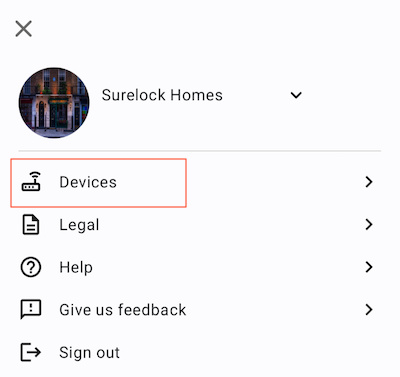 You use the 'Devices' section of the Nebula Commissioning app to configure items of Hardware
Even if you do create, set up and configure devices using only the Nebula Commissioning app, once created, these devices will then display in Homelok web. This means that certain device configurations can subsequently be carried out in the web application.
This guide for property managers and owners generally assumes that the locks are "on the doors". Nevertheless, you can find more information about device configuration in the installer section.
Creating electronic locks
An electronic lock represents a physical electronic locking device such as an electronic escutcheon, cylinder or motorized lock. Meanwhile, doors, like apartment doors, lockers, turnstiles, car park barriers or any point of entry or exit, are the logical entities that manage the physical devices. Doors must always be associated with at least one electronic lock.
You might find it useful to consider that while doors enable the composition of the installation's access plan, electronic locks are the actual physical locking devices that allow or deny a user access.
Although not a best practice as such, be aware that when you create an electronic lock in the Devices section of Homelok web, you must associate it with a door - either by selecting an existing one or by creating a new one on the fly, without leaving the dialog.
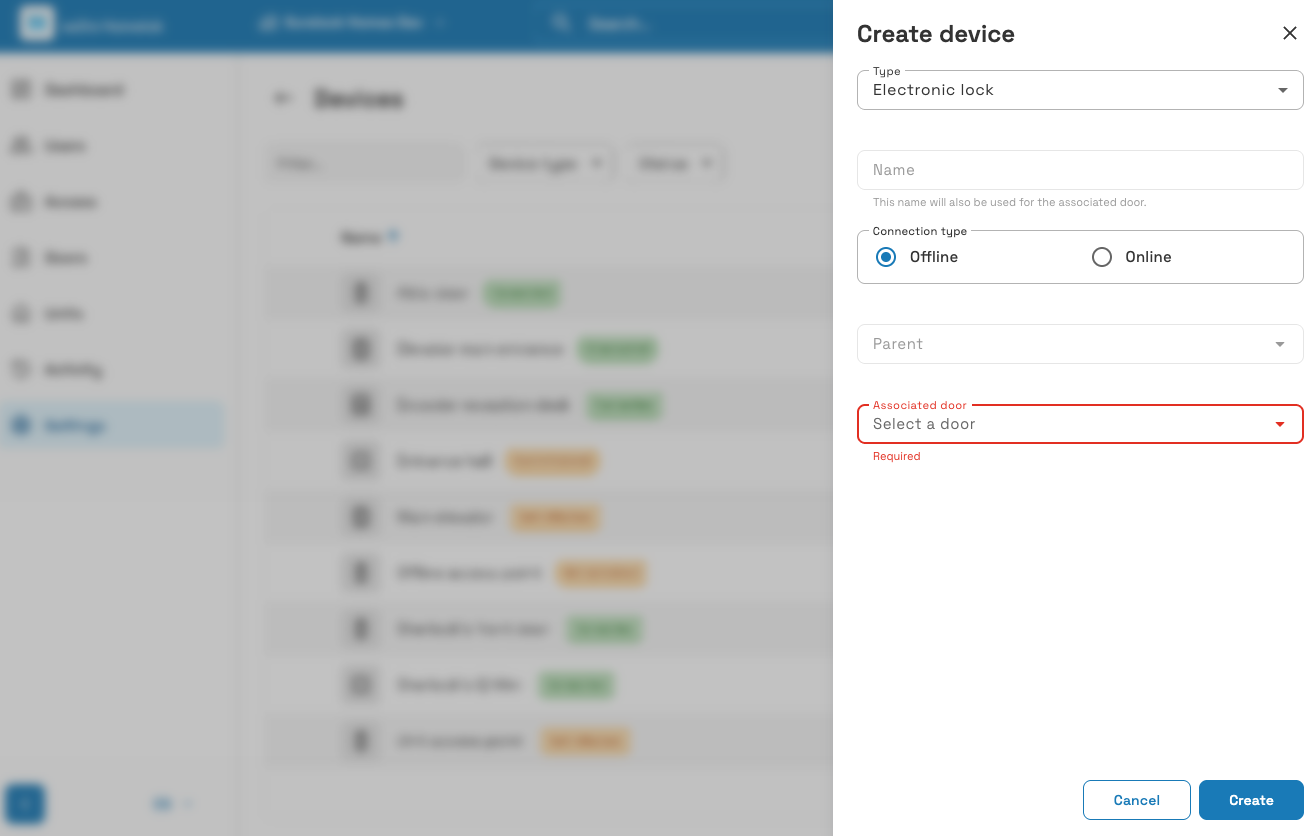 When you create an electronic lock in Homelok, you need to ensure it's associated with a door
See the section on creating electronic locks for more information.
Creating controllers
Creating a controller works differently from creating an electronic lock. In Homelok web, you cannot create the door at the same time as the controller. Create the door first, in the Doors section, and then associate it with the controller's relay when you create the controller.
If you use a controller with destinations instead of a door, you must also create the destinations first.
See the section on creating controllers for more information.
Creating access
Once your locks are on the doors and correctly configured, you can then create the installation's access. You should do this before adding any users to the system.
For the purposes of this section, the term "users" here refers primarily to keyholders. Users with management roles like other property managers can be added to Homelok before creating access for keyholders.
You should consider access in Homelok as groups of permissions that can be given to users to simplify the management of access to and within your installation.
Some examples of access could be the following:
- Access to all perimeter doors
- Access to car park and main entrances
- Access to restricted areas
- Access to maintenance areas
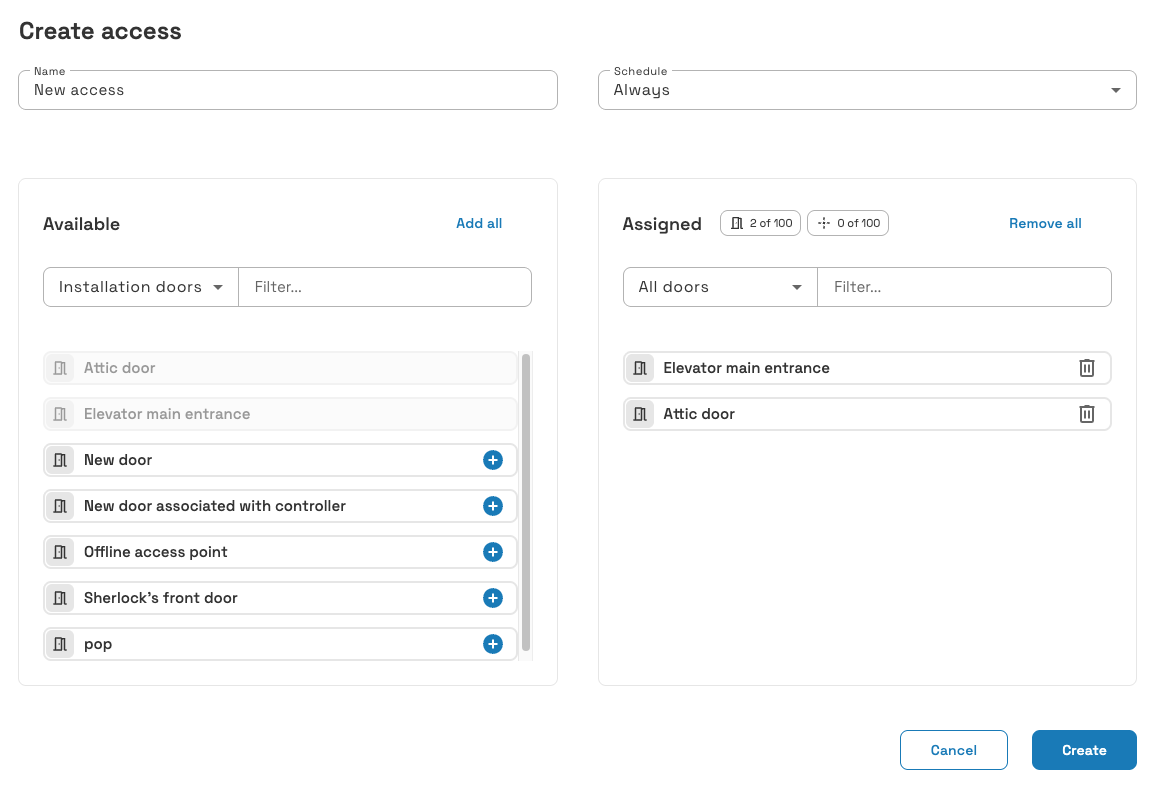 First create the access by adding the necessary doors and schedules
Deleting access is not considered to be a task that you'll frequently carry out. However, if an access is actively being used by users, the system will block you from deleting it.
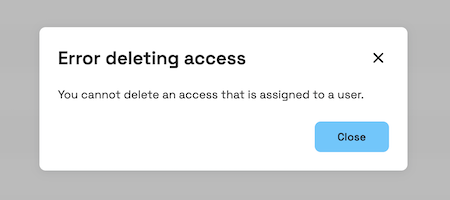 If you try to delete an access that's already been assigned to a user, this message will display
See the section on access for more details.
Creating users
Only once you've created access should you then create users in your installation.
You should add access to users BEFORE you assign any type of key to them. If you assign a key first, you may find that users receive notifications indicating that they have a key, but their key won't work if there's no access assigned to that user.
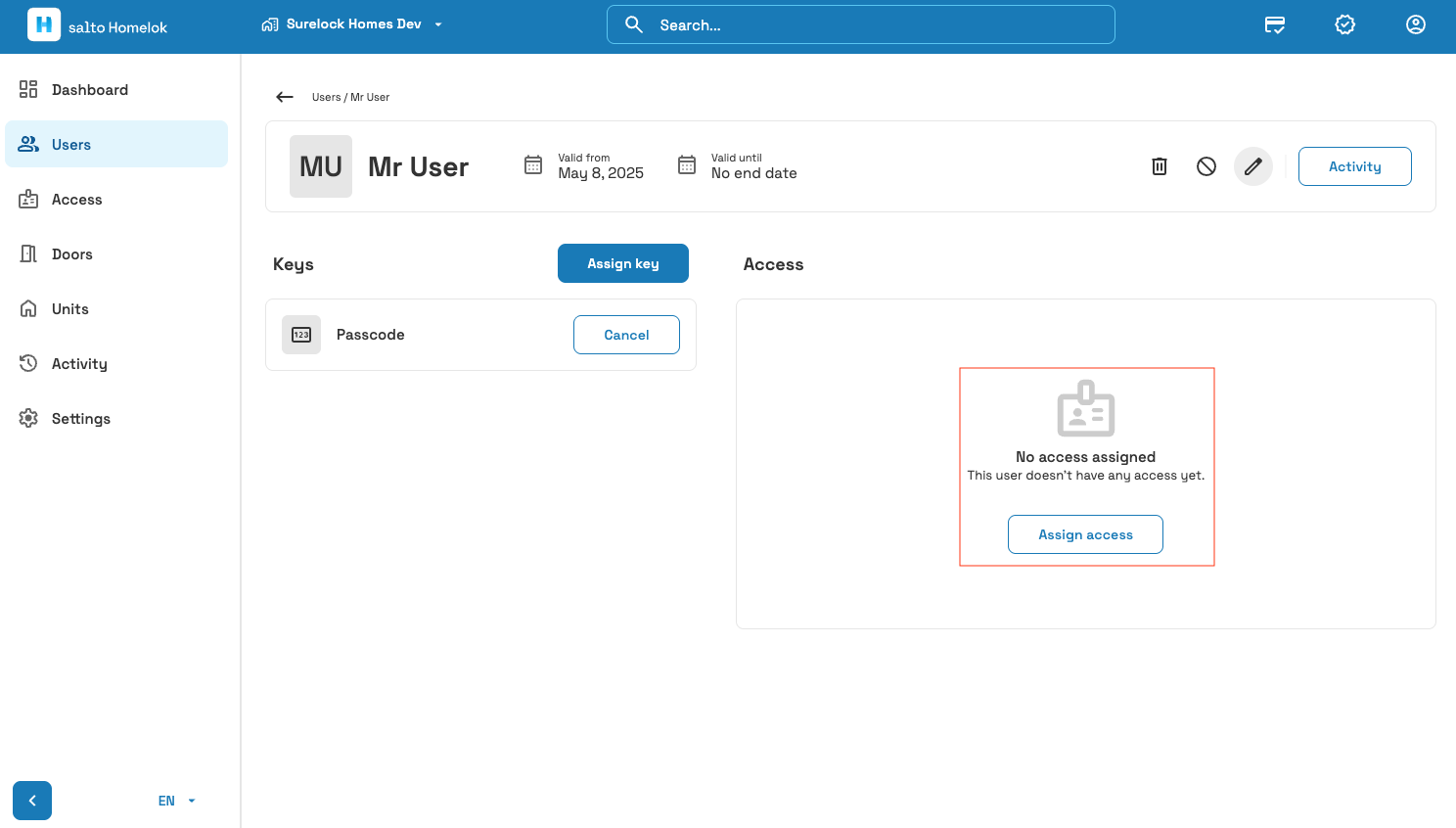 Assign access to users before assigning them a key
It is possible for users to have multiple types of keys. Use the supported key types when planning which keys to assign.
The ability to manage other users' permissions, access, and the configuration of devices depends on the management role you grant to a user. Maintain an installation administrator, such as the owner or a property manager, to manage the installation. Grant the Property manager role only to users who need installation-wide administrative permissions. Ordinary keyholders do not need a management role.
See the section on creating users in the Homelok user guide for how to create admin users.
Creating units
If your installation contains units, ensure you create them after the initial installation set up.
A key best practice when creating units is to separate out access. That's to say, separate access that relates to communal access points and access that's unit-specific. This will give the unit manager more granular control when it comes to giving access to unit users.
See the section on units for more information on best practices for creating and managing units.
System limitations
The following table details some of the system limitations to bear in mind when setting up an installation. This is important when taking into consideration the memory available on physical keys like keycards or fobs as well as digital keys like app keys.
| Limitation | Description |
|---|---|
| Key capacity | Key capacity depends on the key type and the access data it stores, including doors, door groups, calendars and schedules. The per-access limit below is not a universal key memory limit. |
| Maximum doors per door group | Each door group can contain a maximum of 100 doors. A door group bundles all door entities into one, reducing the number of elements in the key from N to one. Door groups are preferable in large installations as they increase the number of doors contained in an access. |
| Individual doors in different door groups | A single door can belong at the most to 20 door groups. This means, for example, if you wanted to add that same door to 21 door groups, the system won't allow it. |
| Maximum doors and door groups per access | An access in Homelok, at either the installation or unit level, can contain up to 100 individual doors and door groups combined. For example, 60 individual doors and 40 door groups. |
| Maximum destinations per access | An access can contain up to 100 destinations, separate from the combined limit for doors and door groups. |
| Maximum access per user | Users can have a maximum of five sets of access assigned to them at any one time. |
| Maximum doors per user | When using the Homelok app key carousel feature, users can have a maximum of 1000 doors assigned to them. If this limit is exceeded, the app falls back to a more generic single card appearance when unlocking doors. |
These limitations may also be affected by the amount of calendars, schedules and opening modes that are attached to the door, access or door group. Be aware that the more elements you add, the more memory they take up on the key.
Unlocking
Physical keys
If the users in your installation use physical keys (cards or fobs), you should make sure that they hold their key in front of the lock's reader until it blinks green (access granted) or red (access denied). When unlocking, make sure that they hold their key at the lock long enough so that the lock blinks green, allowing for it to be unlocked. The LED light on the lock may display short yellow blinks initially, before blinking green to indicate access granted.
This is highly important at compatible online locks with Card key updater enabled because the lock can transfer new data to the user's key using Salto's SVN-Flex technology. This data could include, for example, new access permissions or an extension of the key's expiration time.
Digital keys
For digital keys like app keys, it's not necessary to hold the key at the lock. Mobile devices can unlock doors at a greater distance, although the length of that distance can depend on a variety of factors such as the device type, whether there are any obstacles between the phone and the lock, or whether the phone uses NFC or Bluetooth Low Energy to unlock.
The Homelok app displays a carousel containing information cards of all the nearby doors that keyholders have access to. This carousel updates as keyholders move around the installation and doors come in and out of range. Keyholders can use the refresh button to view the doors closest to them.
Also, unlike with physical keys, data is sent over the air to the user's mobile phone. This means that the updating of data like access permissions, for example, takes place any time the user has a working internet connection on their phone.
You can also refer users to the section on unlocking for keyholders for a more detailed explanation of unlocking.
Summary
The process for creating an access plan in Homelok is broadly as follows:
Example set up
A simplified example of a possible access plan set up could be the following (note that this specifically refers to installations that include units):
- Create users with management (admin) roles (property managers)
- Create devices and doors (also known as access points) - a certified installer would do this. (Note: in Homelok web, you cannot create a door at the same time as a controller. Create the door first, then create the controller)
- Give access to admin users
- Create units
- Add unit access
- Create unit users using the move in functionality. (Note: unit users can also be unit managers)
- Assign keys to users
- Edit users
- Block, delete and move out users
Integrations
If you are integrating with the Homelok platform, use the Nebula API to do this. See the API documentation for Nebula over on the Salto developer portal for more information about integrations.
 Back
High level overview
Back
High level overview Core concepts