Doors in Homelok
Overview
In Homelok, a door is a logical entity that represents a physical point of entry or exit - such as an apartment door, locker, turnstile, or car park barrier. Doors are what you use to manage the behavior of electronic locks within your installation's access plan: who enters where and when.
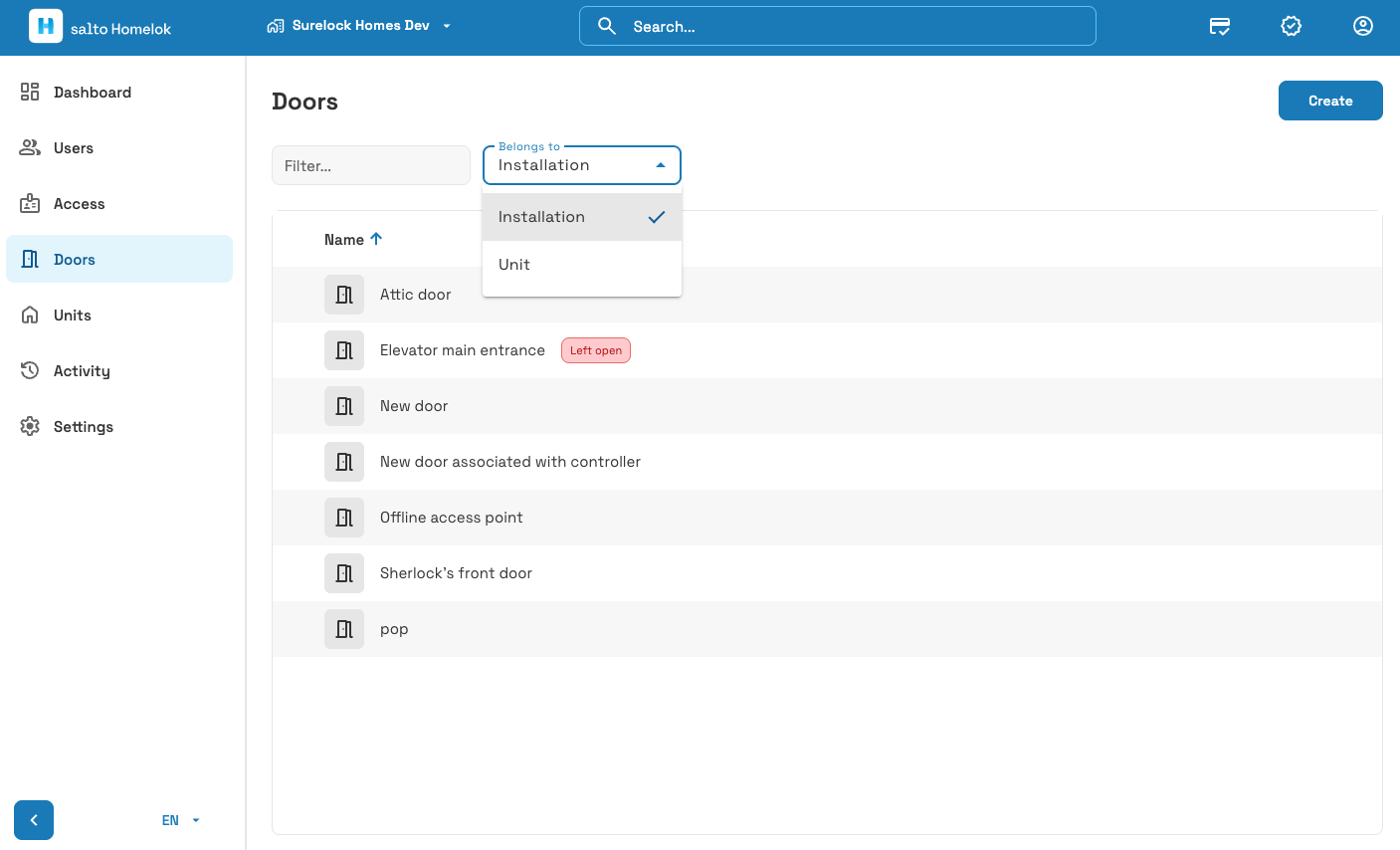 The 'Doors' section displays a list of all doors in your installation
A door is distinct from an electronic lock. An electronic lock is a specific physical device, such as a Salto Neo cylinder or an XS4 escutcheon. A door, by contrast, is the logical layer that controls one or more of those physical devices. A door must always be associated with at least one electronic lock before it becomes functional.
There are currently two ways of creating doors in Salto Homelok:
- Explicitly, in the Doors section of Homelok. This is the recommended way of creating doors. Once the door is created, go to the Devices section to create and associate an electronic lock with it. This is the workflow described in this guide.
- From the Devices section, when you create an electronic lock. The electronic lock creation screen lets you select an existing door from the Associated door list, or create a new door on the fly without leaving the dialog.
Creating doors
The Doors section in Homelok displays one list of the doors available in your installation. Use the Belongs to filter to show doors that belong to the installation or to individual units.
To create a door, select Create and configure its settings:
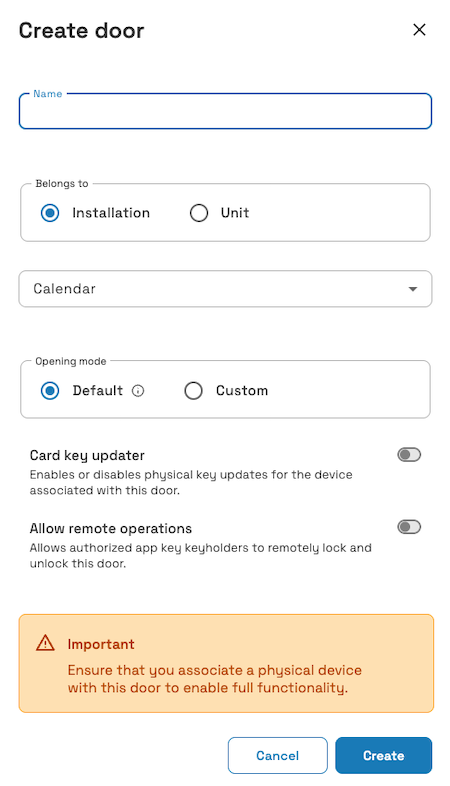 Creating a door in the 'Doors' section of Homelok
- Name: a unique name for the door.
- Belongs to: see the Belongs to section below.
- Calendar: see the Calendar section below.
- Opening mode: see the Opening mode section below.
- Card key updater: see the Card key updater section below.
- Allow remote operations: see the Allow remote operations section below.
A door isn't functional until you associate it with at least one physical device. Once you've created a door, go to the Devices section to associate it with a controller, or create an electronic lock and associate it with this door.
Belongs to
Use the Belongs to field to choose whether a door belongs to the installation as a whole, or to a specific unit. If your installation contains units, selecting Unit displays a list of units to choose from. This allows you to create the door at the unit level and associate it with a specific unit.
Opening mode
Use the Opening mode field to choose between Default and Custom. Selecting Custom lets you add a opening mode to a door to define how you want the associated electronic lock to behave. The following opening modes are available in Homelok:
- Autolock (formerly standard)
- Office
- Toggle
An opening mode can either be applied to a door 24/7, or you can schedule opening modes to allow the lock to behave in different ways across specific times and days of the week.
Selecting Default means the lock remains in default or factory mode. Default mode can vary depending on the type of lock. You should check with your usual Salto contact if you're not sure which is the default mode of your lock.
To use opening mode schedules, you must first set them up in Settings > Opening mode schedules. See the section on opening modes for a full description of this feature and how to set up opening mode schedules.
Unlock duration
Unlock duration lets you configure how long a door stays unlocked after a valid credential is presented, from 1 to 30 seconds. It becomes available when you select Custom as the opening mode and set it to autolock, or when you select an opening mode schedule. This setting isn't available when the opening mode is set to Office or Toggle.
For motorized locks, such as the DLok, this setting is called Autolock timer and uses a different range of values.
Default unlock durations vary by device type:
- CU controllers: 3 seconds
- DLok: 30 seconds
- All other devices: 7 seconds
Calendar
You can add a calendar to a door to indicate days such as public holidays, company holidays, or company shutdowns that are specific to your installation. You can mark these days as either Holidays or Other days. Calendars are applicable across the entire installation.
To select a calendar and apply it to a door you need to first create the calendar in Settings > Calendars. See the Calendars section of the documentation for more information.
Card key updater
Card key updater is a toggle that can be enabled or disabled on individual doors. It refers to SVN-Flex updates that are activated by an electronic lock when a user presents a physical key such as a keycard, fob, or wristband. In Homelok web, the Card key updater toggle is disabled by default when you create a door. The option's availability depends on the associated device. Check the setting after device configuration and enable it on compatible online doors that should update physical keys. The door must be online and connected to perform SVN-Flex updates.
See also the section on core concepts in Homelok.
Allow remote operations
The Allow remote operations toggle determines whether authorized app key keyholders can remotely lock and unlock this door. This toggle works together with a matching setting on the user's app key - both must be enabled for a keyholder to remotely operate the door. The toggle is disabled by default.
This toggle only affects keyholders using an app key. Owners and property managers do not need this toggle enabled, but remote operations still require the correct door access, connectivity and supported hardware. See the section on remote unlocking and locking below.
See the section on remote actions for keyholders for a full description of this feature.
User access
To give users access to a door, once the door has been created you must add it to an access and then assign that access to a user. You can do this either at the installation or unit level.
Remote unlocking and locking
You can lock or unlock online doors "remotely", i.e.: directly from Homelok web, rather than using a key at the door. This might be useful if you want to give immediate access to a user who has lost their key, or doesn't have one. You can also lock a door remotely if you want to ensure that it is secure.
Only users with the role of owner and property manager can lock or unlock doors remotely, provided they have the correct access to the door in question. This is separate from the Allow remote operations toggle, which only controls whether keyholders can remotely operate the door using their app key. See the section on remote actions for keyholders for details on extending remote locking and unlocking to unit managers and keyholders.
To remotely unlock or lock a door, go to Doors and click on the door you want to operate. Lock and/or Unlock buttons display at the bottom of the door's detail panel.
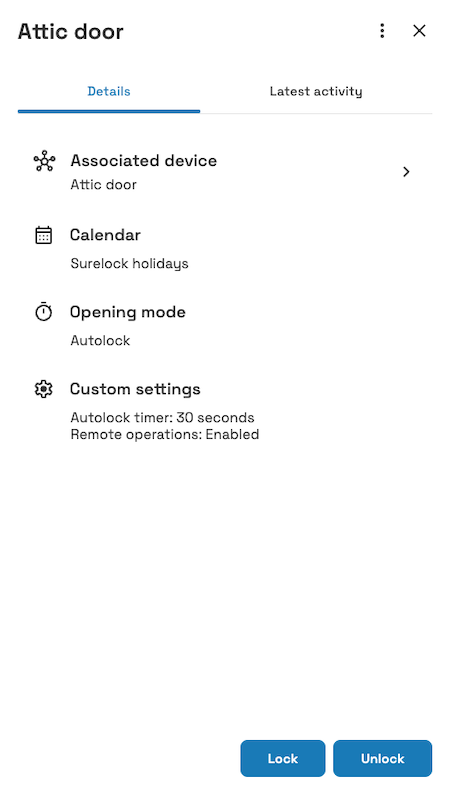 The 'Lock' and 'Unlock' buttons display at the bottom of a door's detail panel
Unlocking is only available for online and connected doors. To lock a door remotely, as well as being online and connected, the door must have a motorized lock attached to it.
See the section on motorized locks for more details about motorized locks and their capabilities.
You can also use the door's three-dot menu to lock or unlock it remotely. The feature is also available in the Devices section of the Homelok app.
Latest activity
A door's detail panel includes a Latest activity tab, showing a timeline of recent events involving that door, such as access changes and remote lock and unlock actions.
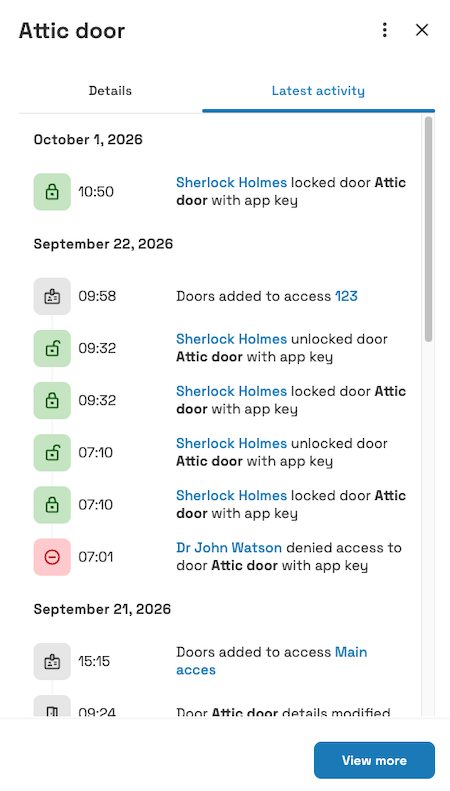 The 'Latest activity' tab shows a timeline of recent events for a door
Select View more to see the full history for the door in the Activity section.
 Remote operations