Core concepts in Salto Homelok
Overview
This section explains key technical concepts in Salto Homelok that affect how your access control system functions. Understanding these concepts will help you configure your installation effectively and troubleshoot issues when they arise.
Key renewal duration
Key renewal duration defines the maximum time a key remains valid before requiring an update. This applies to all types of keys - physical keys (keycards and fobs), Apple Wallet keys and app keys.
How it works
- Physical keys must be presented at an online updating point within the renewal duration period to maintain access
- Each time a key is updated, the renewal period resets
- Default setting is 7 days, but can be configured to 14 days
- This is a global setting that applies to the entire installation
Digital keys
- App keys are updated automatically each time the app is opened with an internet connection. They do not need to be presented at an updating point.
Security implications
Key renewal duration is crucial for system security:
- Ensures users update their access on a regular basis
- Limits the validity period of lost or stolen keys
- Guarantees that access changes propagate throughout the system
Extending the key renewal duration to 14 days means that if a key is lost or stolen and not reported, it will continue to be valid for up to 14 days. Note that this duration could extend to 30 days with auto-extension in offline scenarios.
See the settings section for configuration details.
SVN-Flex
SVN-Flex is Salto's proprietary technology that allows any online door in your installation to act as an updating point for physical keys.
Core functionality
Based on Salto's BLUEnet wireless communications technology and Salto's SVN core technology, SVN-Flex:
- Extends updating capabilities to every online door
- Updates keys with new access when users present them
- Synchronizes physical key data with the cloud in real-time
- Uploads stored events from physical keys to the cloud when used at an online door
- Works with physical keys only (not digital keys)
Card key updater
The Card key updater option controls whether a specific door performs SVN-Flex updates. This setting has the following characteristics:
- Enabled by default on all doors
- Can be disabled per door
- Only applies to physical keys (not digital keys)
- It requires the door to be online and connected to function
When to disable:
- High-traffic common areas where update delays affect user experience
- Doors where users always pass through a main entrance that is configured as a card key updater
- Amenity spaces that don't require frequent access updates
Disabling card key updater on multiple doors reduces system security. While doors continue to report real-time activity and allow remote unlocking, they won't update access permissions written on physical keys, nor will they update the key renewal duration. This means users may be denied access if their key has not been updated within the required renewal period, even if their access permissions have not changed.
See the card key updater section in electronic locks for configuration details.
Online and offline doors
Understanding door connectivity states is essential for system management.
Online doors
Online doors are connected to the cloud through:
- Direct Ethernet connection
- BLUEnet wireless via a gateway
Online doors can:
- Update keys in real-time via SVN-Flex
- Report activity events
- Be operated remotely (lock or unlock, only by owners and property managers with the correct access)
- Receive configuration changes instantly
- Synchronize with cloud
Offline doors
Doors can be offline for two reasons:
Temporary connectivity loss:
- Network issues
- Wi-Fi password changes
- Cloud service interruptions
Configured as offline (standalone):
- Intentionally set to operate without cloud connection
- Cannot perform SVN-Flex updates
- Stores events locally: these events can only be collected manually by an installer or maintainer during an on-site configuration or reset. Standalone locks will never connect to the cloud automatically.
Auto-extension for offline locks
If an online updating lock temporarily loses connectivity, Homelok's auto-extension feature maintains functionality for physical keys:
How auto-extension works
When a key is presented at an online updating lock that is temporarily offline, its validity is extended by 3 days each time it is used, up to a maximum of 30 days since the last online update.
- For example, your key renewal duration could be set at either 7 or 14 days. But when you use your key at a lock that has lost connectivity, each use will extend your key's validity by 3 days.
- Keys will stop working after 30 days without any online update, no matter how often 3-day extensions are applied.
Auto-extension does not apply to locks that are configured as offline (standalone). It only applies to online updating locks that have temporarily lost connectivity (marked as Not connected in the software).
Once connectivity is restored and/or the key is presented at an online door, all timers reset.
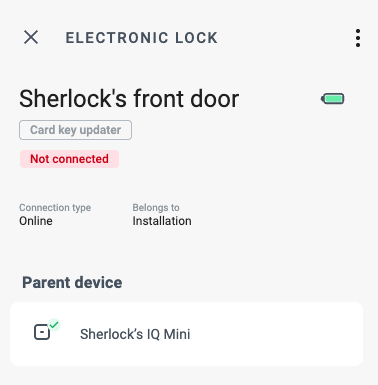 Auto-extension only applies to online locks marked as 'Not connected'
Example scenario
Example 1: Key renewal duration is set to 7 days. The main entrance lock temporarily loses its internet connection.
- The user can continue to use their key at this lock. Each time the key is used, its validity is extended by 3 days.
- If the lock stays offline, the user can keep extending their key's validity in 3-day increments, but only up to a total of 30 days since the last online update.
- Once the lock is back online and the user presents their key, all timers reset and normal operation resumes.
Auto-extension is only applied if your physical key is already expired or has less than 3 days of validity remaining. If more than 3 days remain, no extension is applied. When auto-extension is applied, the key's new expiry is set to 3 days from the moment it is presented at the lock (it's not added to the previous expiry), unless this exceeds the 30-day maximum since the last online update. That's to say, if the key is not updated at any online lock within 30 days, it will stop working until it is updated again.
Example 2:
- If you have 2 days left and present the key, the new expiry is 3 days from now (not 5).
- If you have 1 day left, the new expiry is 3 days from now (not 4).
Exception:
If the 30-day maximum is exceeded, the expiry is capped at the 30-day limit.
Alternative scenario - prolonged offline period:
If connectivity issues persist beyond the 30-day limit:
- Keys will stop working at that lock
- Users must find an alternative online updating point (different entrance, amenity room, encoder, etc.)
- Once the key is updated at an online point, it will work again when the offline lock comes back online (changes status from not connected to connected)
- If no online updating point is accessible, users must contact property management for key re-encoding
After 30 days without an online update, physical keys will stop working regardless of any auto-extensions. Users must present their keys at an online updating point to reset both the renewal duration and the 30-day absolute limit.
Access changes made during an offline period only take effect once connectivity is restored and keys are updated at an online point. Monitor device connectivity to ensure updates and maintain security.
Access propagation
How changes to user access reach different key types:
| Key type | Update method | Timing |
|---|---|---|
| Digital keys | Cloud sync | Automatically pushed to user's device when online |
| Physical keys | SVN-Flex update | Next use at an online updating point (regardless of access granted) |
| Offline locks | Data on lock | When lock comes online |
Key update flow
The following diagram illustrates the physical key update flow for different scenarios:
Visual and audio signaling patterns vary by device type. The colors shown in this diagram are representative - actual signaling may differ depending on whether you're using escutcheons, cylinders, wall readers, or other device types. Consult your device documentation for specific signaling patterns.
Understanding the flow
Initial check:
- Door determines if the key needs new data based on renewal duration and last update time
No update needed:
- Door reads existing key data and grants or denies access
- Access granted: green signal
- Access denied: rejection signal (typically two red flashes)
Update needed - online door:
- Door requests updated key data from cloud
- SVN-Flex process signaling (yellow indicator)
- If data received, door compares it with key's current data
- Only writes to key if data has changed
- Analyzes updated data and grants or denies access
Update needed - offline door (connectivity lost):
- Door checks if auto-extension is possible (within 30-day limit)
- Extends key validity according to the auto-extension rules (3 days, up to 30-day maximum)
- Updates key data locally
- Analyzes data and grants or denies access
Key writing failures:
- If door cannot write new data to the key, it shows red signal
- Door still analyzes existing key data to determine if access should be granted
When you change a user's access, the update timing depends on their key type and which doors they use. Digital keys update automatically, while physical keys update at the next online door unlock.
Troubleshooting common issues
Access denials without activity entries
If users report access denials but no events appear in activity, see the section on access denied reasons to troubleshoot possible causes.
 Back
Best practices
Back
Best practices