Gateways in Nebula Entry Beta
Overview
Gateways are hardware devices intended to be used with electronic locks where online connectivity is needed. Gateways connect to electronic escutcheons and cylinders enabling these offline locks to become connected devices. This allows functionality such as auto-assigning fobs, keycards and wristbands as well as the monitoring of activity within your installation.
Gateways used in Salto Nebula
The IQ is a specific gateway model and the link between Nebula Entry and the wireless electronic locks. This gateway, which comes in two models, the IQ3 and IQ3 Mini, acts as a bridge transferring information to and from the devices behind it to the software. It provides updates to the locks, and real-time information such as battery status and activity. The IQ is configured using the Nebula Commissioning app with a Bluetooth connection and the device connects to Nebula via an internet connection.
For more information on how an installer can configure a gateway see the section on configuring gateways.
Creating gateways
You can create gateways in Nebula via Nebula Entry web or using the Nebula Commissioning app during the configuration process. If you create gateways via Nebula Entry web, they still need to be configured using the app.
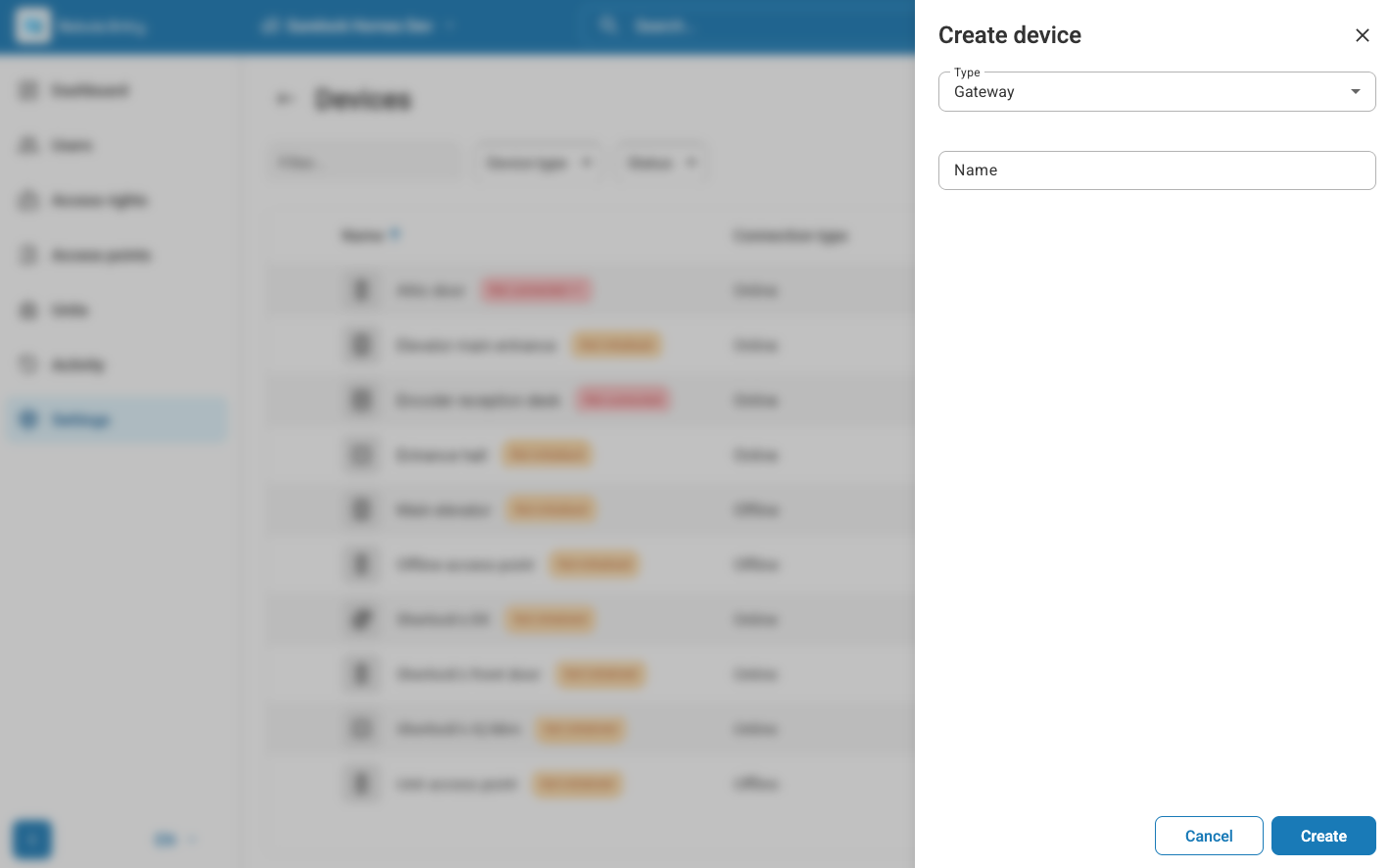 Create device dialog for a gateway
For a full description of how to create and configure gateways see the section on configuring gateways.
No matter whether you create gateways via the web or app, it's recommended that you create parent devices such as gateways before you create the online electronic locks that lie beneath them.
To create a gateway, go to Devices > Create and select Gateway from the Type drop-down menu. Enter a name for your gateway and select Create. Name your gateways in a coherent manner so you can find them in your system.
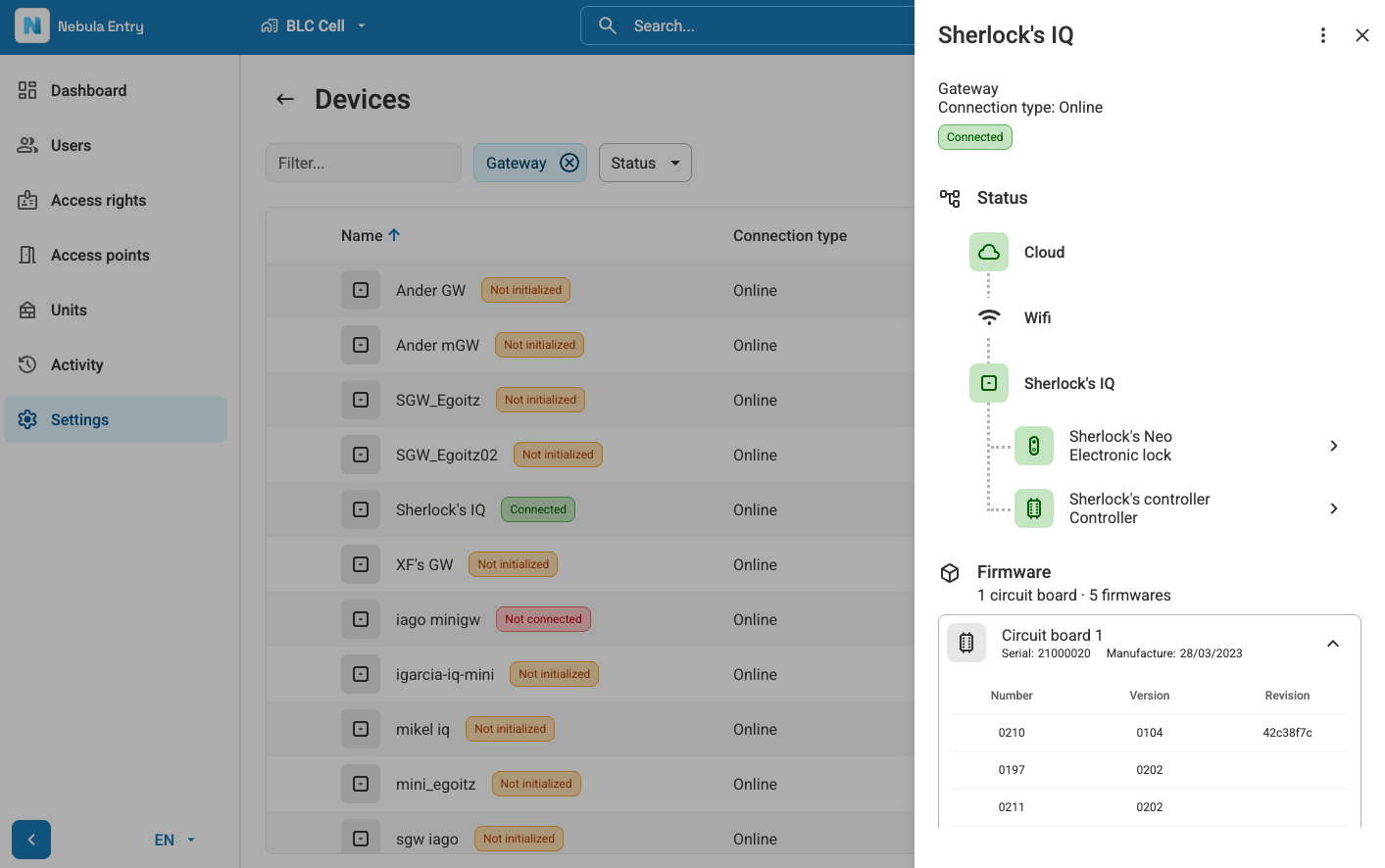 Gateway details dialog for a created gateway
Once you've created a gateway, you can select it as the Parent of the online devices that connect through that gateway. For more information on how to do this, see creating electronic locks.
The Status section shows the connectivity chain between the cloud, the gateway, and its connected locks. Use this diagram to identify where a connectivity issue might be occurring.
Select the gateway's name in the Devices list to view its details and manage its settings.
Firmware
Once a gateway has been configured by the Nebula Commissioning app, you can see the firmware number and version of the device in the Firmware section of the side panel.
Updating firmware
You can also update the firmware of gateway devices, like the IQ3, using Nebula Entry web.
This option is currently only available for gateways. Firmware updates can only be triggered one at a time and cannot be scheduled for a specific time or performed in batches.
To update the firmware use the Update firmware button on the device's detail page.
Note that firmware updates may take several minutes to complete and this action cannot be undone or interrupted. The page does not refresh automatically after the update, so you will need to close and reopen the device tab to see the updated firmware version.
See also the section on updating firmware using the Nebula Commissioning app for more information about firmware updates.
 Back
Encoders