Device overview in Nebula Entry Beta
Devices are pieces of hardware such as electronic locks, gateways and controllers. They can be any item of hardware used in the Nebula system.
It's useful to consider that electronic locks are the "core" types of device in Nebula. Other devices such as gateways, encoders could be considered more "peripheral" hardware items.
This overview section refers only to generic functionality that is applicable to all device types. For a full description of how to manage devices see the sections relating to each individual device type.
The options you see in the Devices section depend on the permissions of your management role.
Device list
Go to Devices to see the list of devices in your installation. The list shows the following columns:
- Name: the device name, its device type icon, and its status.
- Connection type: Online for devices that have a parent device, and Offline for devices that don't. This column shows a dash (-) for gateways, encoders, and extenders.
- Device type: for example, Controller or Electronic lock.
If a device has more than one status, the Name column shows the first status and the number of other statuses, for example Not connected +1. Hover over the status to see all of them.
To find a device, enter its name in the search field. You can also filter the list with the following filters:
- Device type: Controller, Electronic lock, Encoder, Extender, or Gateway.
- Status: Connected, Not connected, Low battery, Update required, or Not initialized.
To see the actions available for a device, select its three-dot menu.
If your installation doesn't have any devices yet, the list shows the message "No devices yet!". To add a device, select Create.
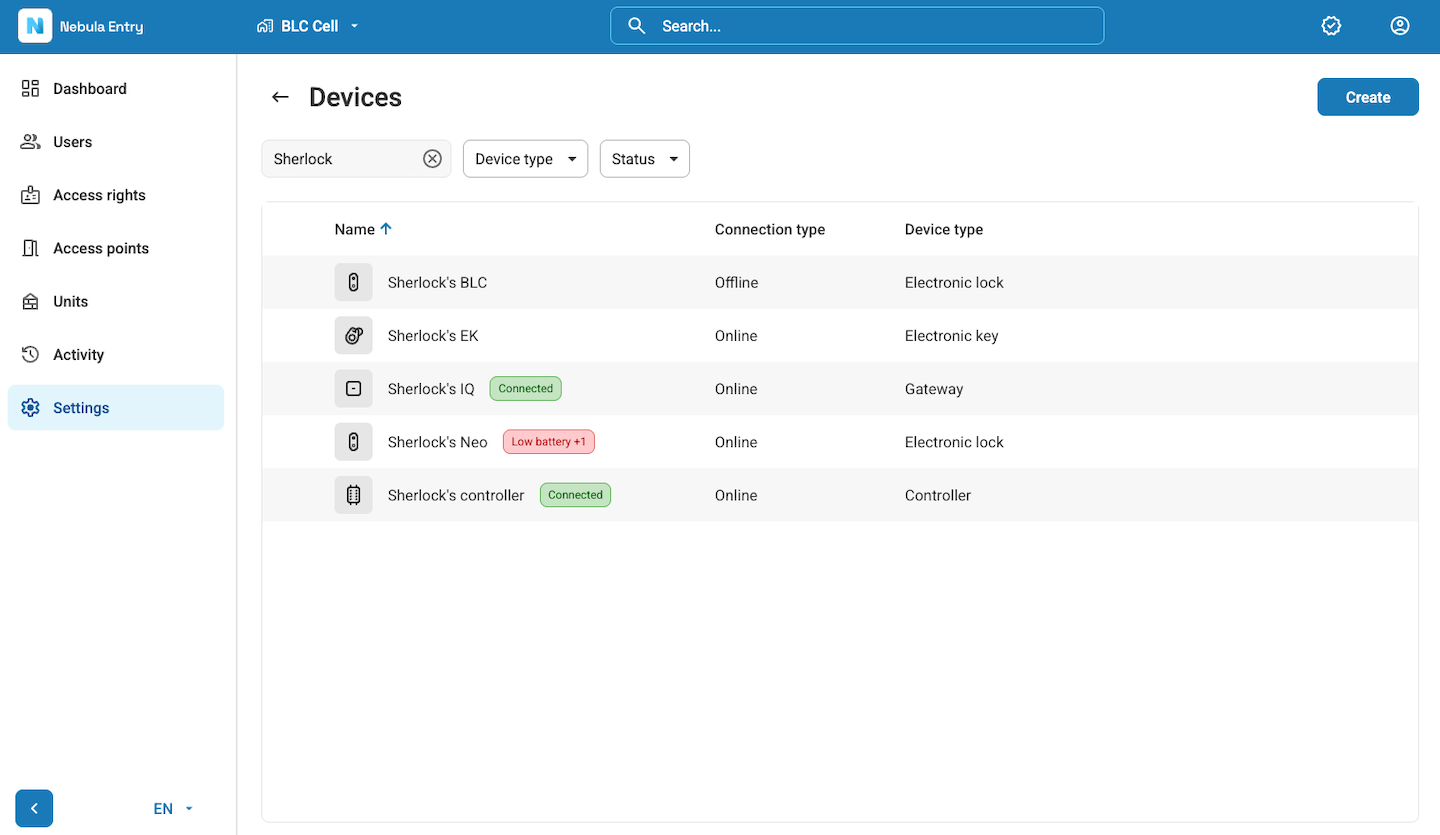 List of devices in Salto Nebula Entry
Device status
All devices except extenders show status tags. The following table describes each status.
| Status | Description |
|---|---|
| Not initialized | An installer hasn't configured the device with the Nebula Commissioning app yet. A device with this status shows no other status. |
| Connected | The device is connected to Nebula. |
| Not connected | The device isn't connected to Nebula. |
| Low battery | The device's batteries are low. Change the batteries. |
| Update required | The device needs an update because of a change in the system, like a modification to a schedule. Online devices generally receive these updates automatically. |
Device details
To see the details of a device, select it in the Devices list. Depending on the device type, the device detail screen shows the following information:
- The device type, its connection type, and its statuses.
- Associated access point: the access point that the device belongs to. Select it to go to the access point.
- Parent device: the gateway or extender that connects the device.
- Custom settings: the settings of motorized locks.
- Status: the network connection of the device and its related devices. Select a device in this section to see its details.
- Relay settings: the access point each relay of a controller connects to.
- Firmware: the circuit boards of the device, with their serial number, manufacture date, and firmware version.
For encoders, the device detail screen also shows a Read key button.
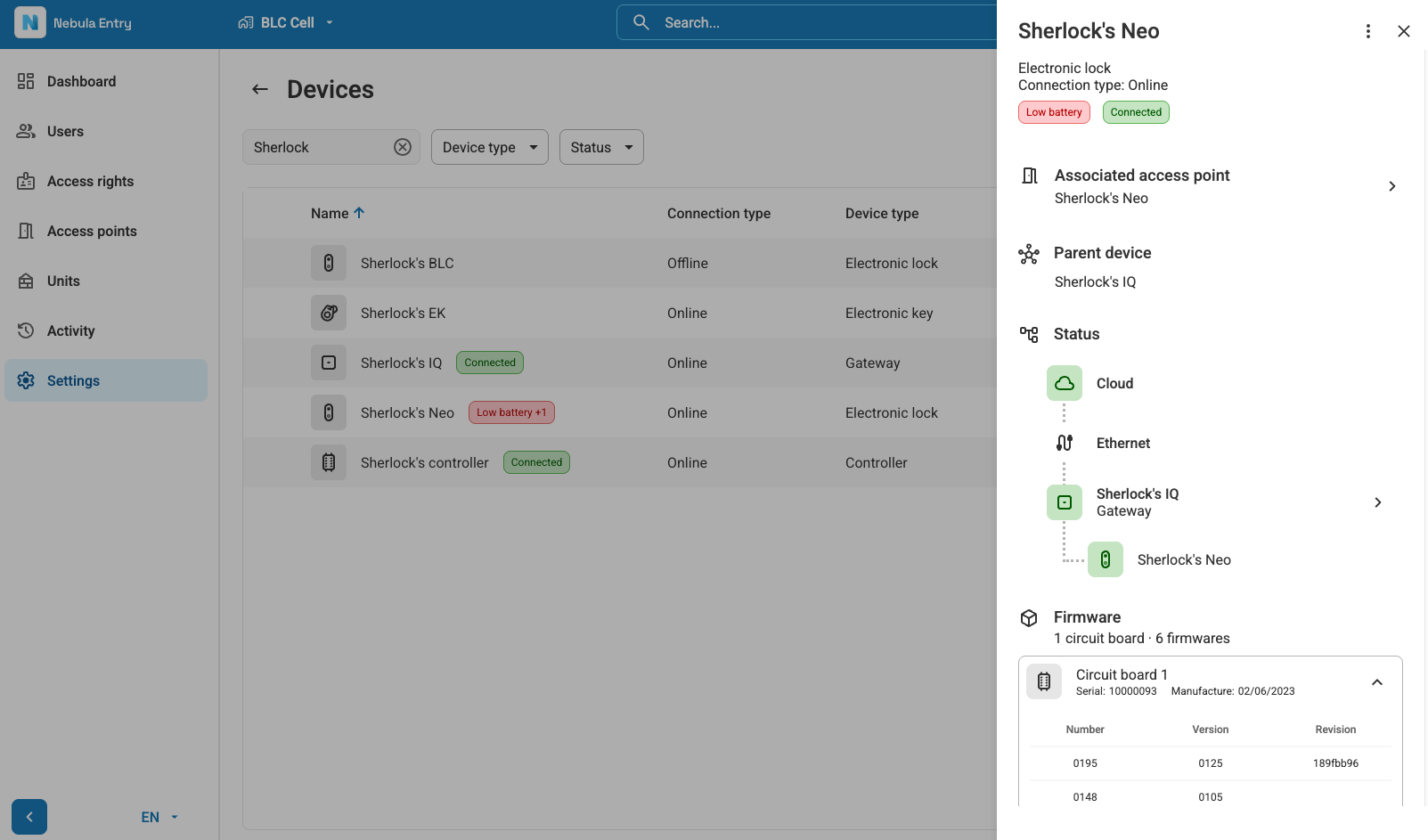 Device detail example in Nebula Entry
Naming devices
As well as using a coherent naming pattern when naming devices in Nebula Entry, make sure you also use a unique name for each device type. That's to say, if you create a gateway called "Reception", you can't create another gateway in your installation called "Reception". However, you could create an encoder called "Reception", if required.
Electronic locks always use the same name as their associated access point.
See the sections on each specific device type for more details on naming devices.
Editing devices
To edit a device, do the following:
- Go to Devices.
- Select the three-dot menu of the device and select Edit. You can also select Edit in the menu of the device detail screen.
- Make your changes in the Edit device dialog. You can't change the device type.
- Select Save.
Deleting devices
You can delete devices in Nebula Entry as long as they have not already been configured with the app. This applies to controllers, electronic locks, encoders, and gateways.
If a device has already been configured, it must first be reset using the app. Otherwise, the message "Before you can delete this device, you must first reset it using the compatible commissioning app." displays.
See resetting devices for more information.
To delete a device, do the following:
- Go to Devices.
- Select the three-dot menu of the device and select Delete. You can also select Delete in the menu of the device detail screen.
- If the device has an associated access point, select Also delete associated access point to delete the access point and all its related configurations too.
- Select Yes, delete.
To delete more than one device at once, select the checkboxes of the devices in the Devices list and select the delete icon. To also delete the access points associated with the selected devices, select Also delete all associated access points.
You can't undo the deletion of a device.
Replacing devices
You can replace broken devices with new ones without losing the information belonging to the device. This might be useful if, for example, you need to replace an electronic lock but want to maintain the device's associated access rights and activity.
To do so, once the device has been removed and when the new device is in place, an installer must use the Nebula Commissioning app to configure the new device.
They need to use the "Replace a device" link on the app Configure screen. They also need to ensure that they select the name of the device they're replacing from the list of names of already configured devices.
See also replacing devices in the installer section of the user guide.
Use the Replace a device option only to replace a damaged or irrecoverable device. Once you replace a device, the process cannot be undone.
 Controllers