Electronic keys in Nebula Entry Beta
Overview
Electronic keys are physical devices that serve two purposes in Salto Nebula Entry:
- Maintenance tool: When in device management mode, they power batteryless cylinders via NFC and act as a communication bridge between the cylinder and the Nebula Commissioning app, allowing an installer to configure the cylinder and manage access permissions.
- Access credential: When assigned to a user, they function as a physical key to unlock compatible Salto devices.
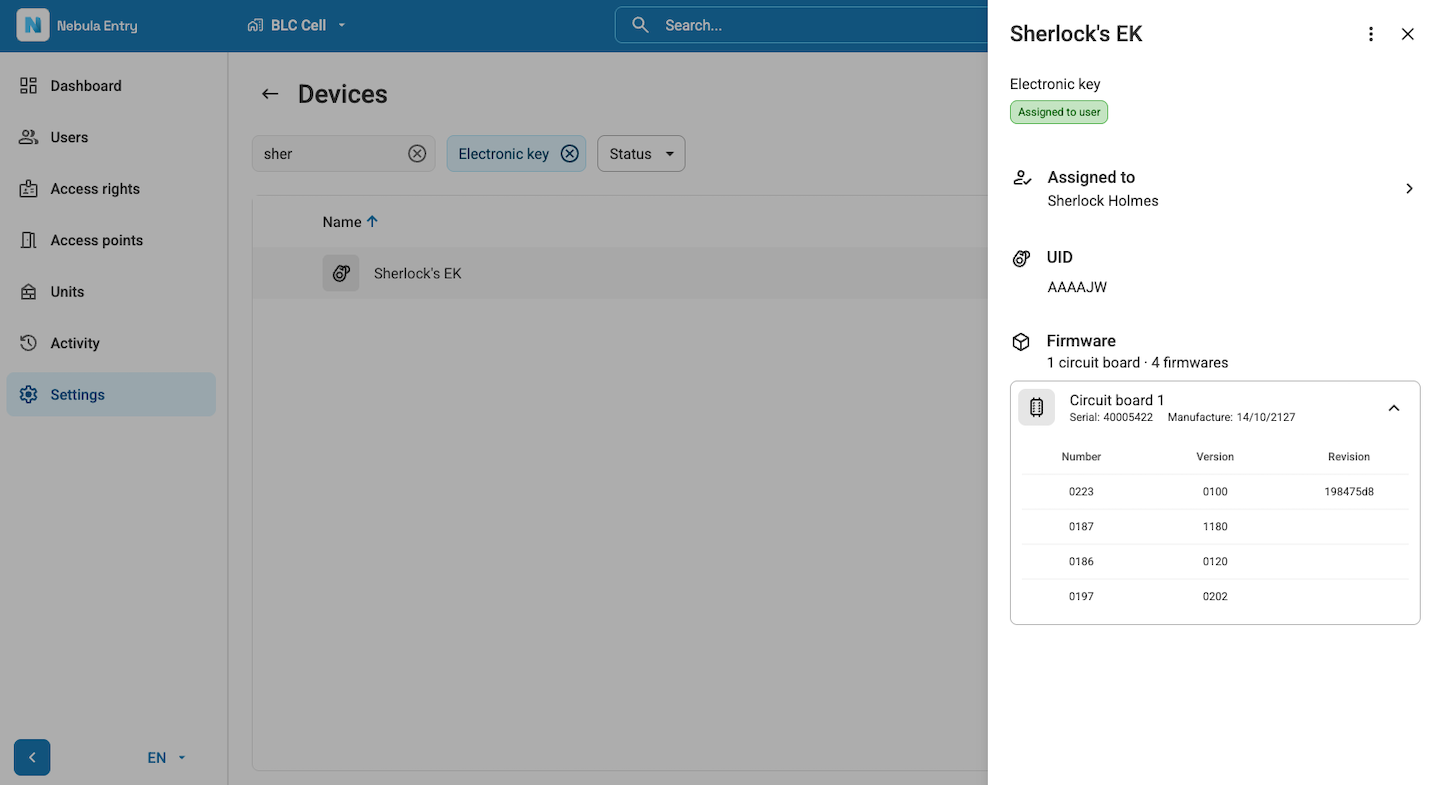 An electronic key assigned to a user in Nebula Entry web
The electronic key device used with Salto Nebula Entry is the Salto Keo Smart Fob.
Electronic keys can only perform maintenance operations when they are not assigned to a user. Once assigned to a user, the key functions solely as an access credential.
Electronic keys in Nebula Entry
| Name | Image | Description | Installation guide |
|---|---|---|---|
| Keo Smart Fob |
 | Can be used both as a credential and as a maintenance tool for batteryless cylinders. | Download
|

Creating electronic keys
You can create electronic keys in Nebula Entry web before an installer configures them using the Nebula Commissioning app. This is the recommended approach for larger installations, as it allows you to define names in advance.
Go to Devices and select Create. Select Electronic key from the Type drop-down menu.
Note that while you can create electronic keys in Nebula Entry web, the physical device must be initialized and configured by an installer using the Nebula Commissioning app. See configuring electronic keys for more information.
Name
Use a coherent naming system when setting up electronic keys so they can be found in the system and make sense in the context of their intended use. For example, "Maintenance Key - Building A" or a user's name if the key will be assigned to them.
You cannot have more than one electronic key with the same name in your installation.
UID
Each electronic key has a UID, a short 6-character code (for example, AAAAJW) printed on the device.
The UID uniquely identifies the physical device and is used to match it to its entry in the system during configuration.
Once configured, the UID is visible in the device details panel in Nebula Entry web.
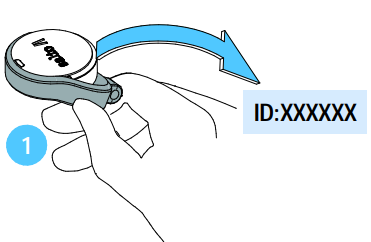 The UID of an electronic key is printed on the device
Assigning electronic keys to users
Once an electronic key has been configured, you can assign it to a user to function as a physical access credential. Note that when assigned to a user, it will remain Pending activation until updated at a controller device by the user. Unlike a standard keycard, an electronic key can only be activated at an online controller device with a reader. It cannot be activated by a standard online access point. You also can't assign or update electronic keys using an encoder.
A user can't have an electronic key and a standard key (fob, keycard or wristband) assigned at the same time.
See the section on assigning keys to users for more information.
Once an electronic key is assigned to a user, it can no longer be used as a maintenance tool for batteryless cylinders. To use it for maintenance again, it must be unassigned from the user.
Electronic key status
The Electronic keys tab of the Devices section lists all electronic keys in your installation. To see their status, open the device details panel.
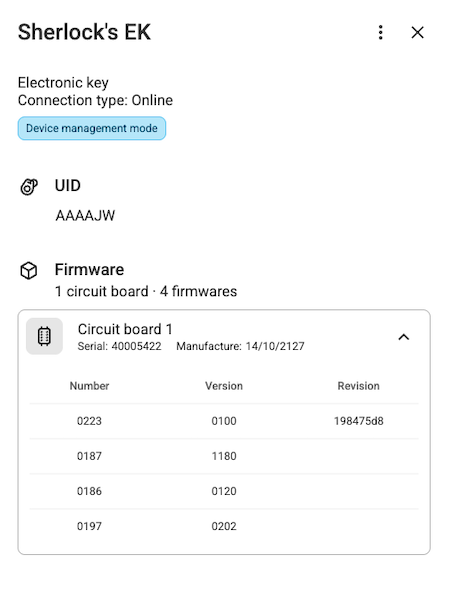 Example of the 'Device management mode' status of an electronic key in Nebula Entry web
| Status | Description |
|---|---|
| Not initialized | The electronic key has been created in Nebula Entry but has not yet been configured using the Nebula Commissioning app. It cannot be used until an installer configures it. |
| Device management mode | The electronic key has been configured and is available for use as a maintenance tool for batteryless cylinders. It is not assigned to a user. |
| Assigned to user | The electronic key has been assigned to a user and functions as a physical access credential. It cannot be used for maintenance operations while in this state. |
| Update required | A change has been made in the system that requires the electronic key to be updated. An installer must update it using the Nebula Commissioning app. See updating devices for more information. |
| Pending activation | The electronic key has been assigned to a user but has not yet been updated at a controller device by the user. It will become active once the user updates it at a controller. |
The Keo Smart Fob itself indicates a low battery via its LED: double-tap the fob, and if the battery is low, the LED signals this before attempting to detect a lock. This status is not shown in Nebula Entry web, unless the low battery event is picked up by an online controller device.
Charge the key via its USB-C port periodically, to avoid unexpected power loss. See also the guide for configuring electronic keys for more information about charging the Keo Smart Fob.
Firmware
Once an electronic key has been configured, you can see its firmware version and other details in the device details panel in Nebula Entry web. See also the section on updating firmware for more information about firmware updates.
 Back
Controllers
 Electronic locks