Encoders in Nebula Entry Beta
Overview
An encoder is a hardware device used to read and update physical keys like wristbands, fobs and keycards with access permission data. Users place their keys on the device and the data is passed to the system via the encoder. Encoders connect to gateways like the IQ3 via Bluetooth.
Encoders in Salto Nebula
| Model | Description |
|---|---|
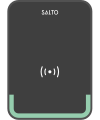 NCoder | The Salto NCoder is compatible with a wide range of contactless keys and is configured using the Nebula Commissioning app. |
An encoder must always be connected to a gateway parent device. Currently Nebula supports the IQ3 and the IQ3 Mini gateway models.
Creating encoders
You can create encoders in Nebula via the web interface or using the Nebula Commissioning app during the device configuration process. If you create encoders via the web interface, they still need to be configured using the app.
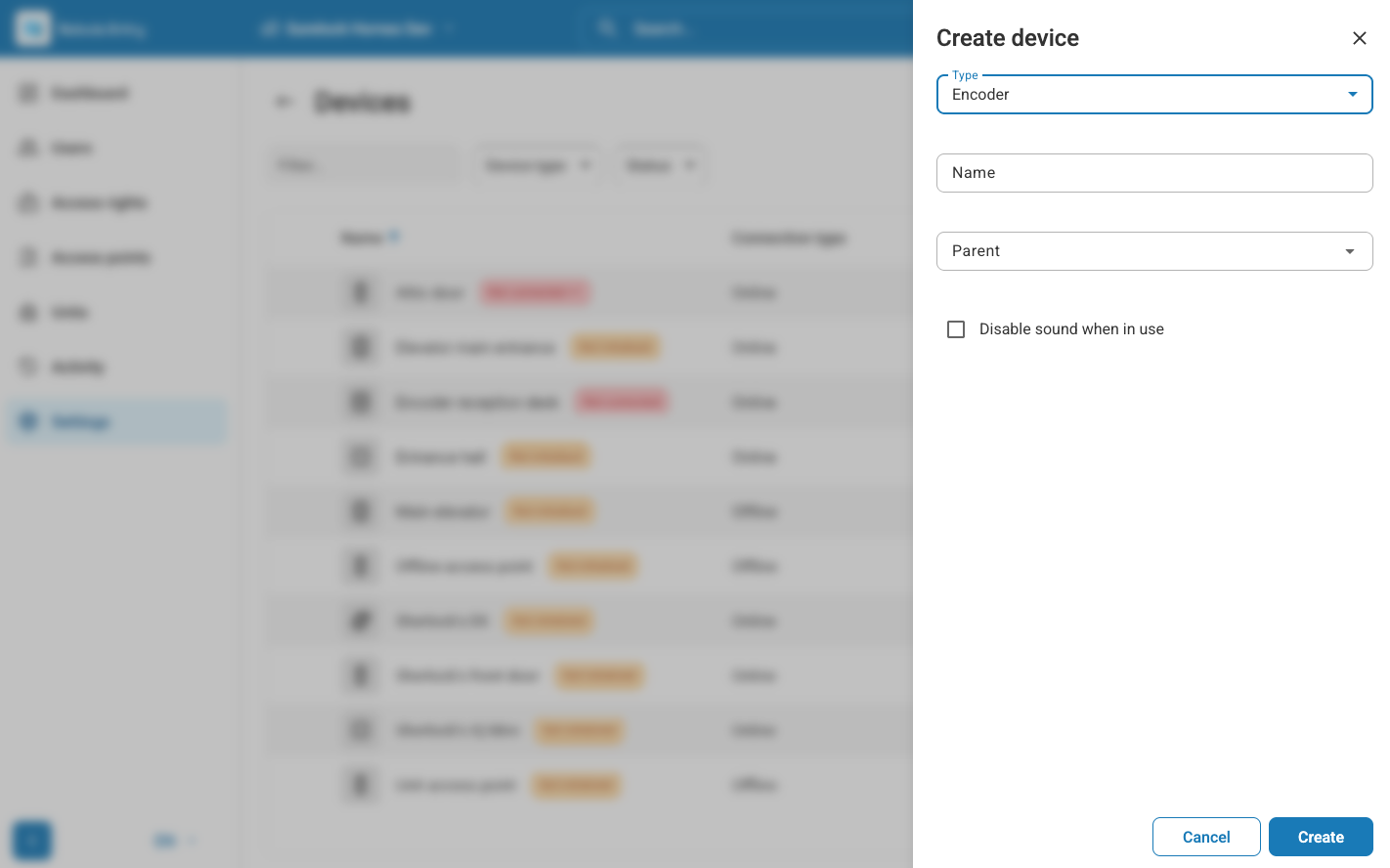 Create device dialog for an encoder, showing the Type and Parent fields
For a full description of how to create and configure encoders see also the section for installers on configuring devices.
No matter whether you create encoders via the web or app, you need to create the parent gateway device before you create the encoder that lies beneath it. An encoder must always be connected to a gateway.
To create an encoder, do the following:
- Go to Devices and select Create.
- Select Encoder in the Type drop-down menu.
- Enter a Name for the encoder. Each encoder needs a unique name.
- Select the encoder's parent device in the Parent field.
- Optionally, select the Disable sound when in use checkbox.
- Select Create.
Disable sound when in use
The Disable sound when in use checkbox refers to the audible beeps the encoder emits during operation.
By default, the encoder makes sounds during an operation, like when it's reading a key. If you select this checkbox, the encoder is silent.
Note that you can only disable the sound on a per encoder basis.
Assigning keys with an encoder
In the Key section of the user's profile select the Encode option. Choose the correct encoder and place the user's key on top of the encoder. Note: if you only have one encoder in your installation, this will be the default encoder.
Ensure the encoder is connected to the gateway and click Assign.
For more information on assigning keys, see the section on assigning keys to users.
Read key
Use the Read key option to see who a physical key belongs to and the details of that key. This might be useful if you find a lost keycard and you need to return it to the correct owner, for example.
You can only read keys with encoders that are connected to a gateway and already configured with the Nebula Commissioning app.
You can start reading a key from any of the following places:
- The Read key icon which displays at the top of the screen in all sections of the Nebula Entry web interface.
- The Read key button that displays when you hover over an encoder in the Devices list. To show only encoders, select Encoder in the Device type filter.
- The three-dot menu of an encoder in the Devices list.
- The Read key button on the encoder's device detail screen.
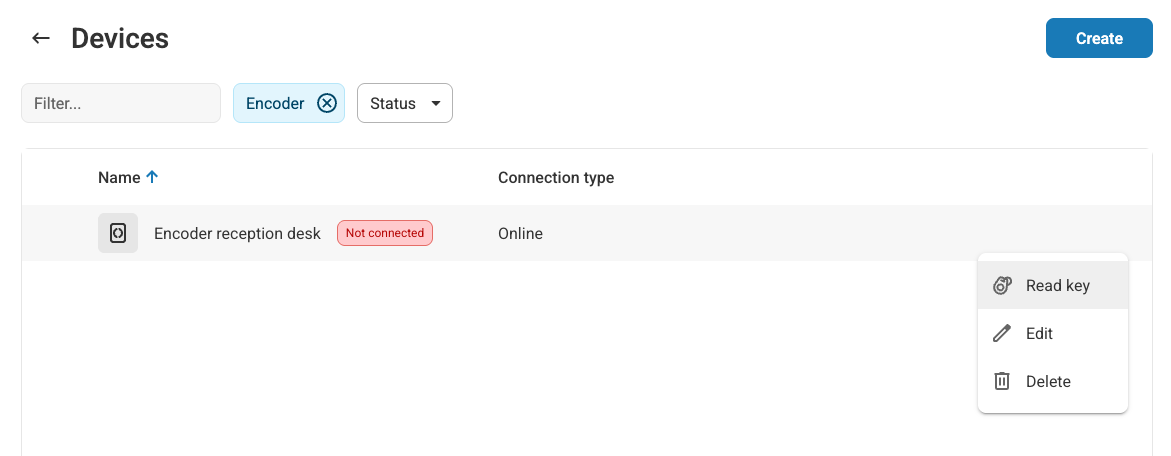 Select 'Read key' in the three-dot menu of an encoder
To read a key, do the following:
- Place the key on top of the encoder.
- Select Read key. If you use the Read key icon at the top of the screen and your installation has more than one encoder, select the encoder in the Encoder drop-down menu and select Continue.
- Wait while the Reading key dialog displays. The Key details dialog then displays.
Nebula Entry remembers the last encoder you used to read a key and selects it by default the next time.
Key details
The Key details dialog shows the following information:
- The name and email of the user that the key belongs to.
- The user's roles, user status, and key tags.
- Valid from and Valid until: the validity period of the user.
- UID: the unique identifier of the key, with one of the following key statuses:
- Not assigned
- Pending activation: the key activates when the user presents it to an online access point.
- Update required
- Active
Select Manage user to go to the user's profile.
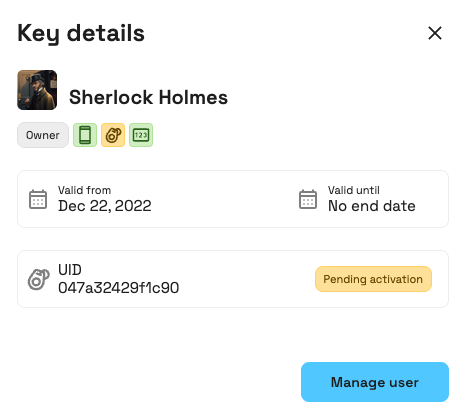 Key details dialog for a key read by an encoder
Read key errors
The following table describes the errors that can display when you read a key with an encoder. Select OK to close the error message.
| Error | Message | Description |
|---|---|---|
| Empty key | No user or data associated with this key. | Displays for keys that were never assigned to a user, or for keys that were canceled or deleted. |
| User not found | The user who was assigned this key is no longer in the system. Key data deleted. | The key belonged to a user who was later deleted. For security reasons, Nebula Entry automatically deletes the key data from the key. |
| Key not found | Check the key is placed correctly on the encoder, then retry. | No valid key was on the encoder, or the key wasn't placed correctly. Check the key's position on the encoder and try again. |
| Unexpected error | There's been an unexpected error | Something else went wrong. Try again. |
 Back
