Creating an installation in Nebula Entry Beta
Setting up an installation for the first time
The following section assumes that you're setting up a Salto Nebula Entry installation for the first time. To set up an installation you need to purchase a subscription.
Contact sales for more information about subscriptions.
Sign in
Firstly, sign in to Nebula Entry with the email address that's associated with your subscription. For more information on how to sign in see the section on signing in.
If it's your first time signing in and you have permissions to create an installation, you automatically enter the installation setup assistant. If you already have installations set up and you're creating a new one, select the installation name in the top left corner of the main screen, next to the logo. This displays a drop-down menu which contains a Create installation button that you can use to create a new installation.
Selecting Create installation automatically opens the installation setup assistant.
Remember that you can't set up an installation if you don't have permission to do so. If you already have access to installations, but want to set up a new one, you must also have the correct permissions for the Create installation to display in the drop-down.
Installation setup assistant
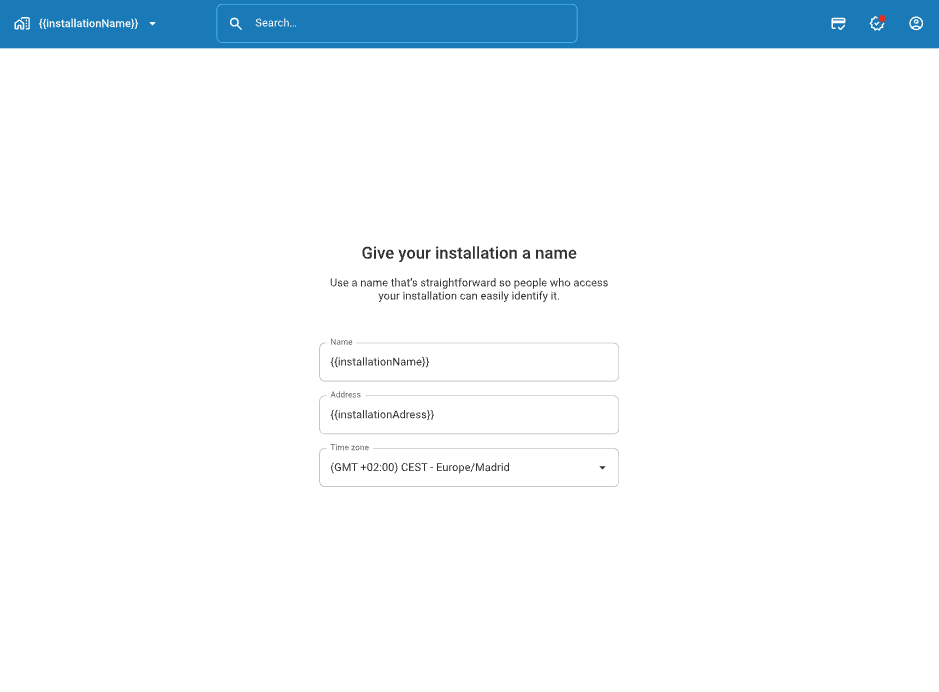 Follow the instructions in the installation setup assistant
The setup assistant takes you through the following steps:
- Welcome: choose the language you want to use and click Continue.
- Give your installation a name: enter the following installation details and click Continue:
- Name: required.
- Address: optional.
- Time zone: required. Nebula Entry fills in this field with the time zone of your device, but you can change it.
- Digital key art: create or upload the image for your installation and click Create.
To return to a previous step, click Back.
For the digital key art step, note that users who use digital keys on their mobile devices to access your installation see the image you create or upload here. For more details about digital key art see the installation settings section of the user guide.
User creation
Once you've clicked Create on the digital key art step, an Installation created notification displays. Nebula Entry then opens the dashboard of your new installation. The assistant also automatically creates a user for you in the new installation. You can see your user in the Users section.
For more about managing users see the users section of the user guide.
Configuring devices
Remember that users with the role of system manager have full access to manage Nebula Entry. Full access means they can manage access points and their associated electronic locks, users, access rights etc., amongst other functions. When configuring devices in larger installations, we recommended providing an installer with a map of the installation which states the location and the names of the devices being configured. We recommend you give the installer the role of device manager so they can set up Salto hardware in your installation.
See configuring devices for more details about this process.
 Back
Signing in
 High level overview