Remote operations in Nebula Entry Beta
Overview
You can lock and unlock some online access points remotely, directly from Nebula Entry web, rather than using a key at the access point. Not all locks support remote locking. Remote locking is generally only available for motorized locks, such as the DLok. Remote unlocking is available for a wider range of online locks and controllers. See requirements. This might be useful if you want to give immediate access to a user who has lost their key, or doesn't have one. You can also lock an access point remotely if you want to ensure that it's secure.
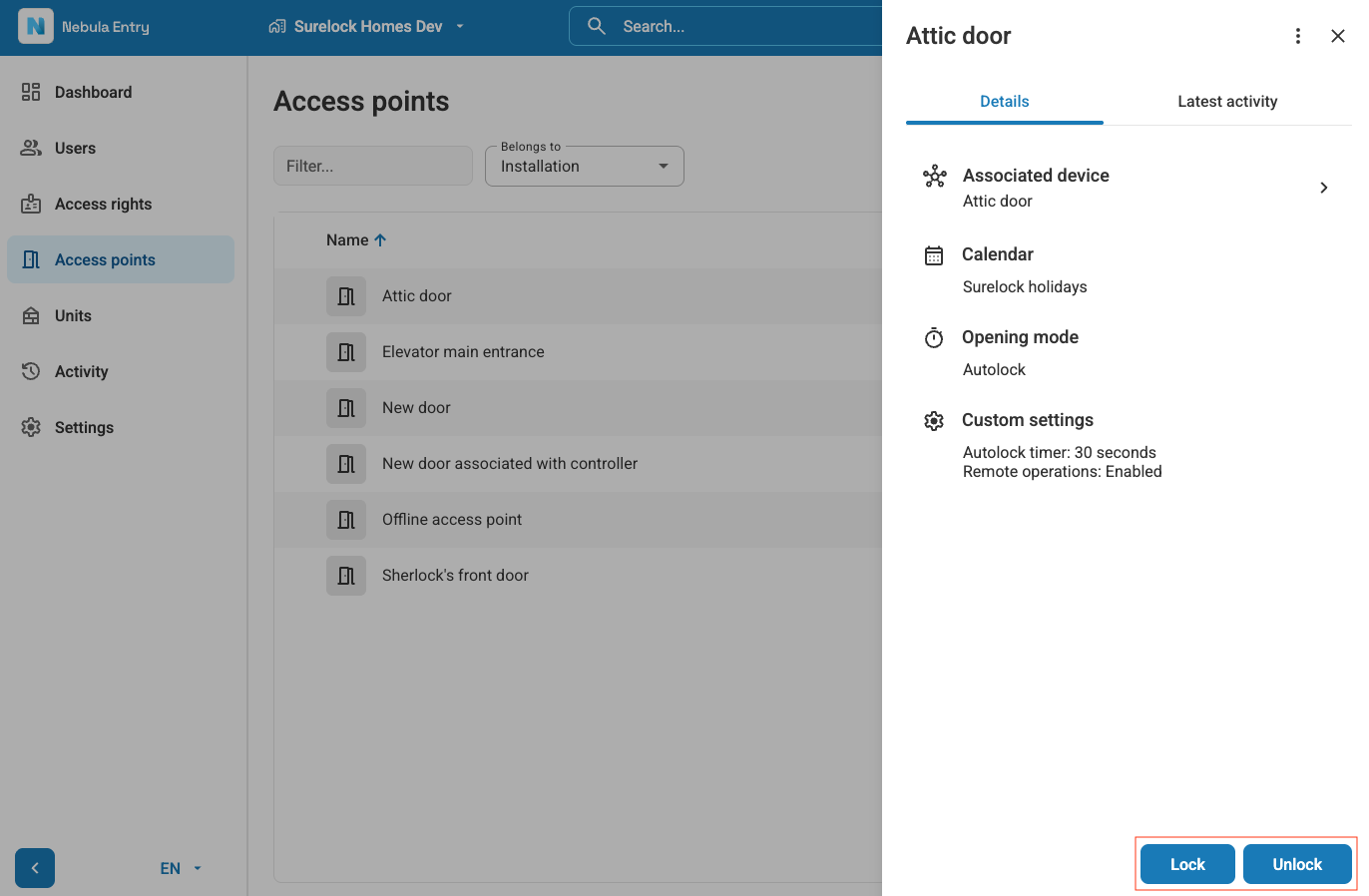 Remote operations in Nebula Entry web
You can also allow keyholders to lock and unlock access points remotely with their app key. See remote operations for keyholders.
Requirements
Remote unlocking is available for access points associated with an online electronic lock or a controller.
Remote locking is only available for access points associated with an online motorized lock, such as the DLok. Other locks and controllers don't support remote locking, and the Lock option doesn't display for their access points.
To lock or unlock access points remotely, your management role must include permission to do so. If remote locking or unlocking isn't available for an access point, the Lock or Unlock option doesn't display.
Unlock access points remotely
To unlock an access point remotely, follow these steps:
- Go to Access points.
- Select the three dots menu beside the access point and select Unlock. You can also select the access point to open its details and select Unlock at the bottom of the details.
- Select Unlock to confirm.
A notification confirms that the access point is unlocked.
Lock access points remotely
To lock an access point remotely, follow these steps:
- Go to Access points.
- Select the three dots menu beside the access point and select Lock. You can also select the access point to open its details and select Lock at the bottom of the details.
- Select Lock to confirm.
A notification confirms that the access point is locked.
Remote operations for keyholders
Keyholders with an app key can lock and unlock compatible access points remotely when both of the following settings are enabled:
- Allow remote operations on the access point. This setting determines whether the access point allows remote operations with an app key.
- Allow remote operations on the user's app key. This setting determines whether the user can lock and unlock access points remotely.
If either setting is disabled, the keyholder can't operate the access point remotely. These settings don't affect locking and unlocking access points from Nebula Entry web.
Access point setting
To allow remote operations on an access point, follow these steps:
- Go to Access points.
- Select the three dots menu beside the access point and select Edit.
- Enable Allow remote operations.
- Select Save.
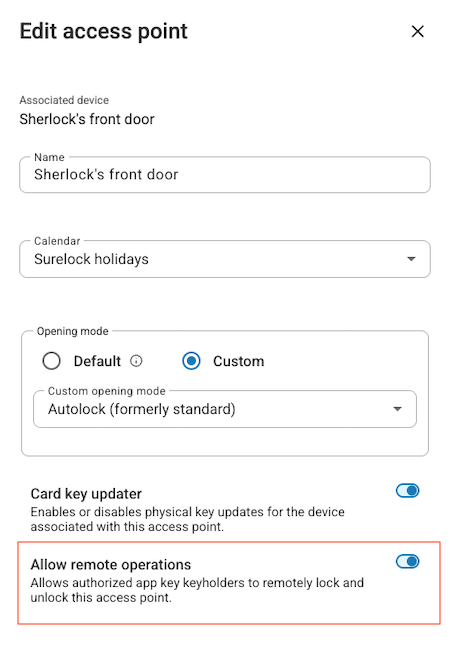 Allow remote operations for an access point
The access point's details show whether Remote operations are Enabled or Disabled under Custom settings.
App key setting
To allow a user to lock and unlock access points remotely, enable Allow remote operations on the user's app key. See the section on app keys for more information on assigning app keys.
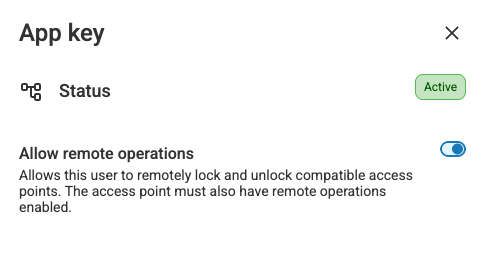 Allow remote operations for an app key
When you enable this setting, a Remote enabled label displays beside the user's app key.
The default value of the setting depends on the user:
- Users with a management role: enabled by default.
- Other users: disabled by default.
You can't change this setting for owners and system managers.
To see how keyholders unlock doors remotely in the Nebula Keychain app, see unlocking doors remotely.
 Back