Assigning keys to users in Nebula Entry Beta
Overview
Salto Nebula Entry supports multiple types of contactless key technologies. In addition to physical keys such as fobs, keycards or wristbands, you can also assign digital keys to users for them to use on their mobile devices.
Each key, whether physical or digital, securely encodes the same access rights that are specific to each user and configured under the corresponding user profile in Nebula Entry. For this reason, you must first create user profiles and configure their access rights before assigning keys to users.
Supported key types
You can assign three different types of keys to your users:
| Type | Description |
|---|---|
| Key | A physical contactless key such as a fob, keycard, wristband or electronic key. |
| App key | A digital key residing in the Salto Nebula Keychain app on an iOS or Android phone. |
| Passcode | A numeric code that allows users to gain access via locks that are equipped with keypads. |
Assigning keys
Once you've created a user and configured their corresponding access rights, click on the user's name to display the user profile screen.
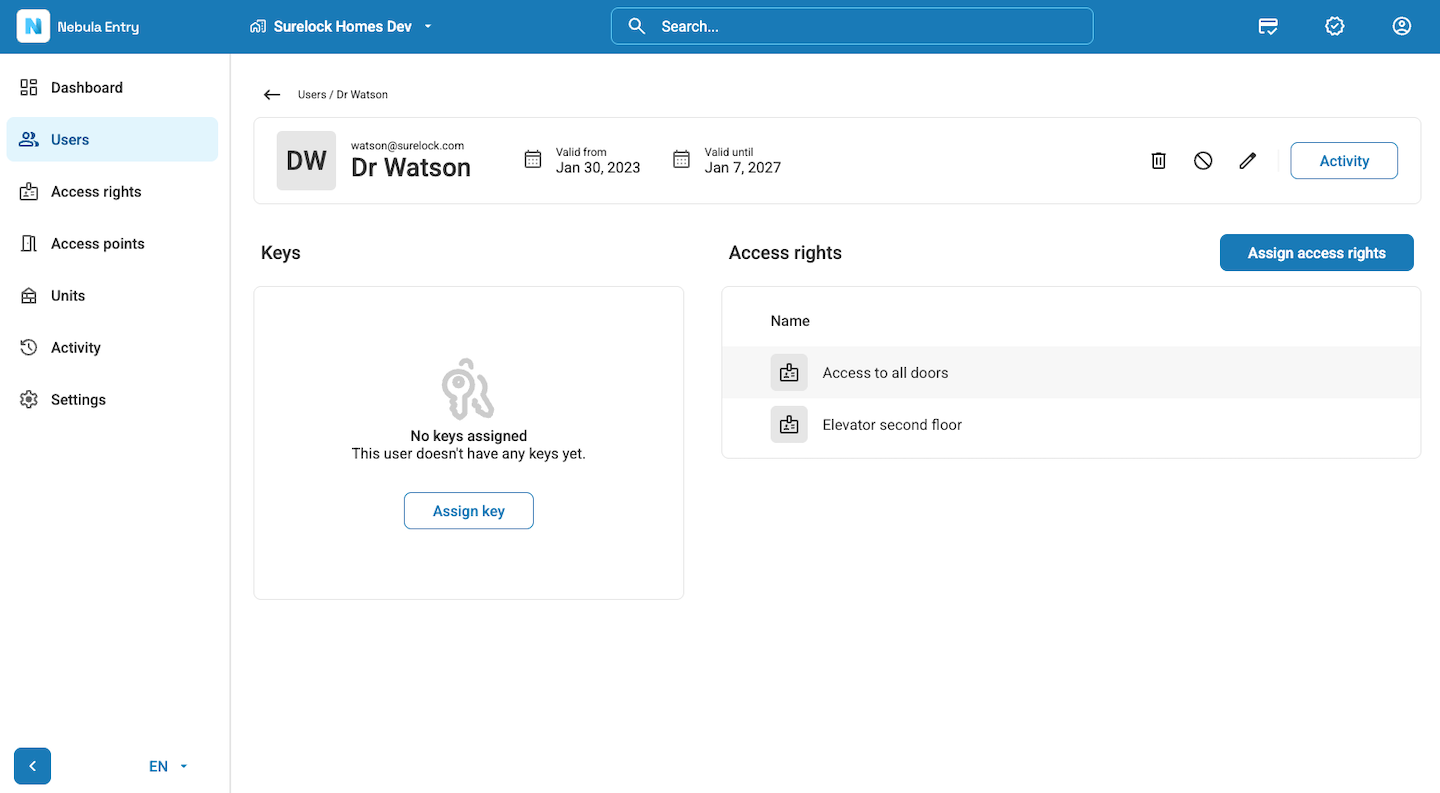 Use the 'Assign key' button to assign keys to the user
You can also assign an electronic key to a user. It works the same way as assigning a physical key card. See physical keys for the steps and restrictions that apply to electronic keys.
You can only assign keys to active users. If you try to assign a key to one of the following users, Nebula Entry displays a dialog that explains why you can't:
- Blocked users: unblock the user to be able to assign new keys. See blocking users.
- Expired users: the user's validity has ended. Extend their Valid until date to be able to assign new keys.
- Scheduled users: the user's validity hasn't started yet. You can assign keys once their Valid from date is reached.
See expiration and validity for more information.
Physical keys
You can assign different types of physical keys to your users such as fobs, keycards, wristbands and electronic keys. In Nebula Entry, all of these are assigned as a Key in the same way.
A user can have either a standard key (fob, keycard or wristband) or an electronic key assigned, but not both at the same time.
An electronic key must be configured by an installer before you can assign it to a user. Once assigned to a user, it works only as an access credential and can no longer be used as a maintenance tool for batteryless cylinders. To use it for maintenance again, cancel the key so that it is no longer assigned to the user.
You can't assign or update an electronic key using an encoder. Assign it using auto-assign only.
There are 2 ways in Nebula Entry to assign physical keys:
- Auto-assign: keys are automatically assigned to users by presenting them to an online access point.
- Using an encoder device.
These are described in more detail below:
Auto-assign
To auto-assign a physical key, enter the UID or serial number printed on the fob, card or wristband in the UID field located in the Keys section of the user profile.
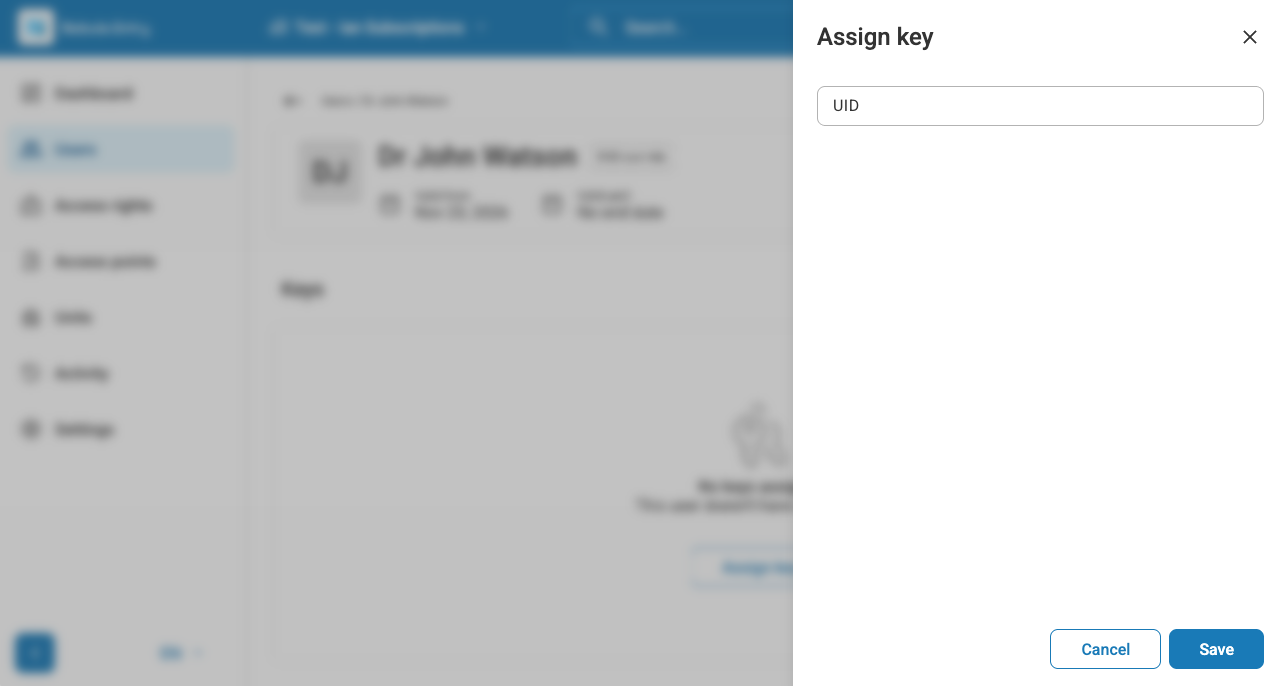 Auto-assign key option
Once you've entered the UID, the user's key becomes marked as Pending activation. The key will be automatically activated when it's presented to an online electronic lock for the first time.
Unlike other physical keys, an electronic key can only be activated at an online controller device with a reader. It cannot be activated at a standard online access point.
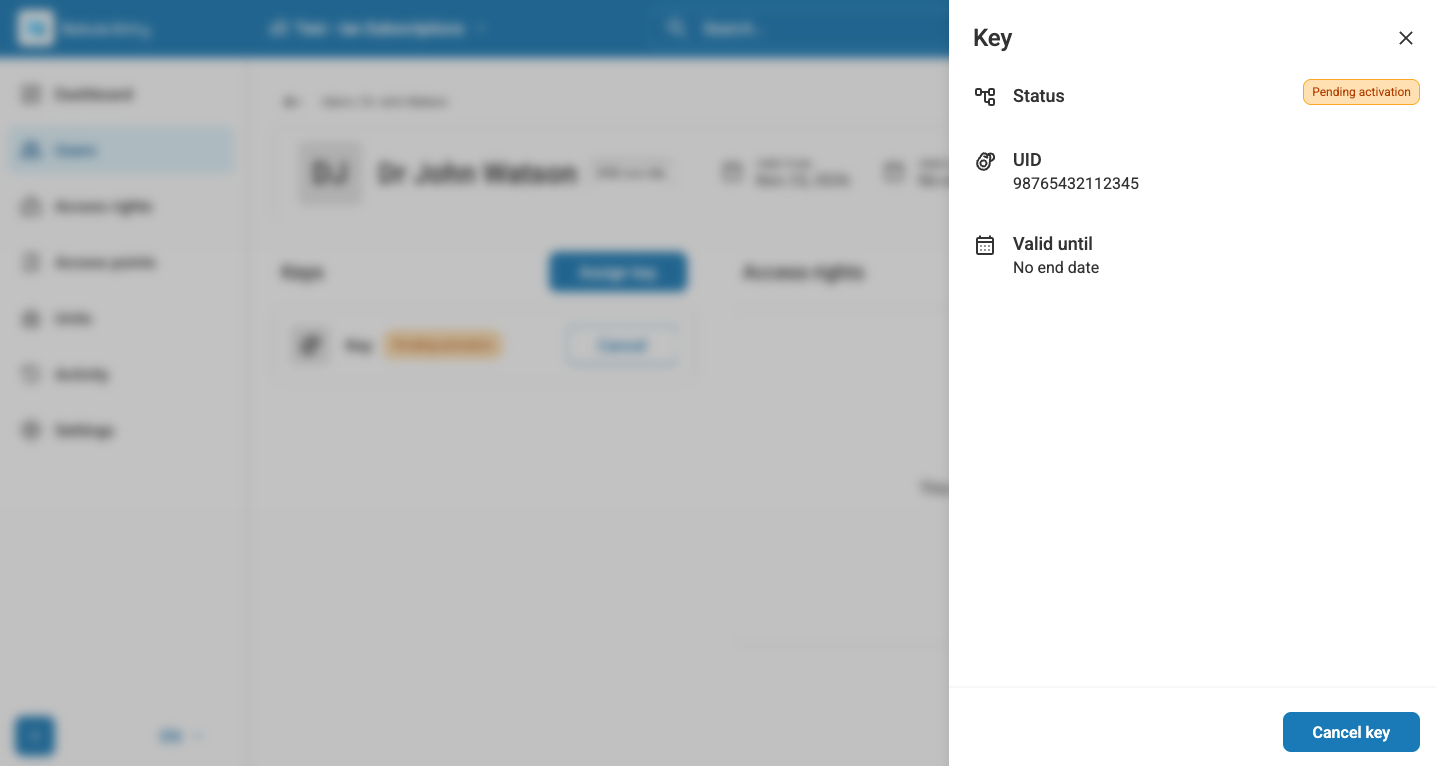 The key remains pending activation until the user presents it to an online access point
Make sure you use the correct UID when auto-assigning a physical key.
For fobs, keycards and wristbands, this is a 14-digit hexadecimal code.
For an electronic key, the UID is a 6-character code (for example, AAAAJW) printed on the device.
If you enter an incorrect code, you may see that the key is marked as Pending activation.
However, if the code is incorrect, when the user presents their key to an online access point it will not be activated.
In the same way, if you enter a UID that is already being used by another key, an error message displays indicating that the key cannot be assigned.
Note that if you use the auto-assign feature and you have an encoder in the system, you can also activate fobs, keycards and wristbands by placing them on the encoder and pressing the Update button. You can't activate an electronic key this way. The Auto-assign / Encode tab only displays if there is an active encoder in the system.
Encode
Before you can assign keys using an encoder, you must first set up and configure the encoder. The Encode option only displays if you have one or more encoders created in your installation.
Encoders don't support electronic keys. Use auto-assign for electronic keys.
The Encode option allows you to assign a physical key using an encoder device like the Salto NCoder.
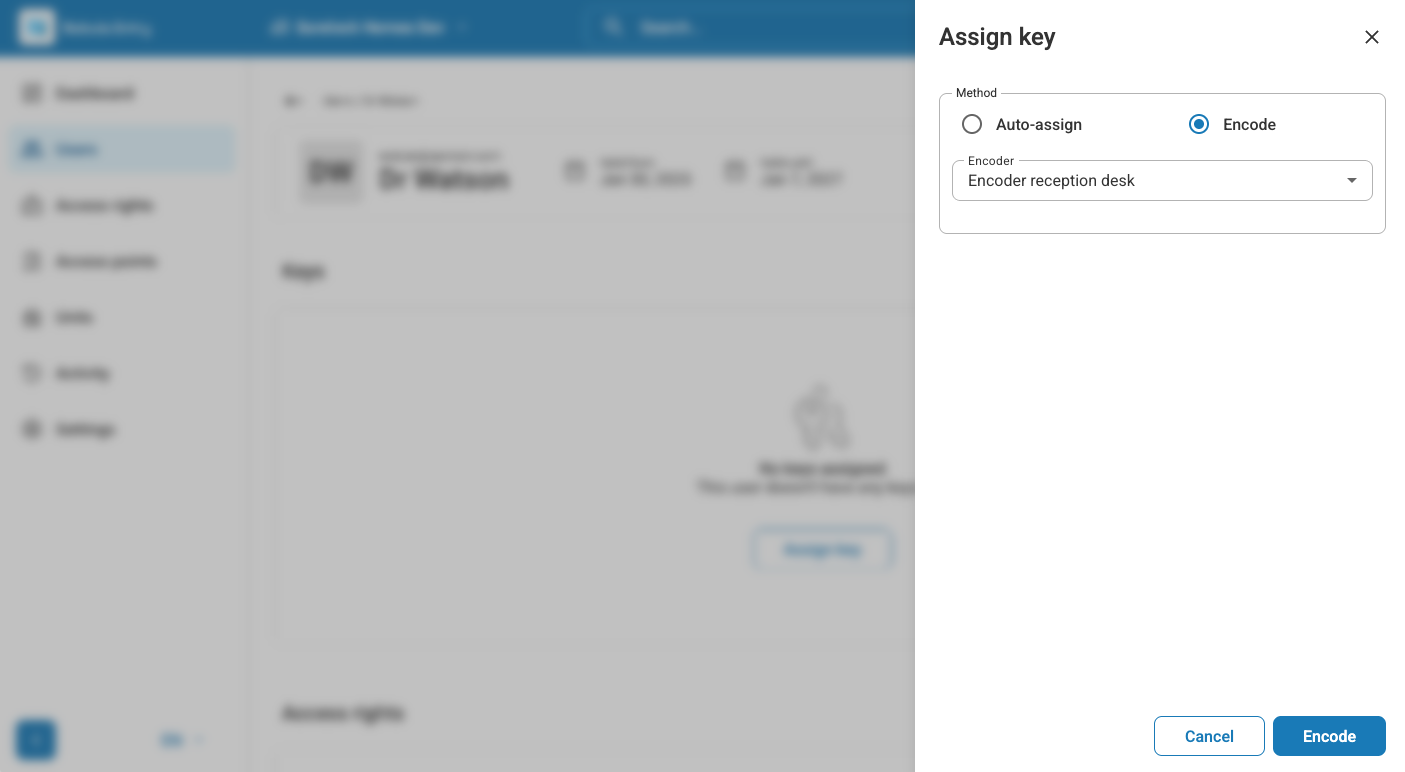 Encode key option
See the section on creating encoders for more details.
Once your encoder is configured correctly, it will display in the Encode option.
To assign a key using the encoder do the following:
- Select the correct encoder
- Place the user's key on top of the encoder
- Press Encode
Note that keys assigned using an encoder become Active from that moment onwards. Unlike with the Auto-assign option, the user does not need to present the key at an online access point to activate it.
Once a user's key has been encoded, the UID of that key will display in the activity section in the detail, as below.
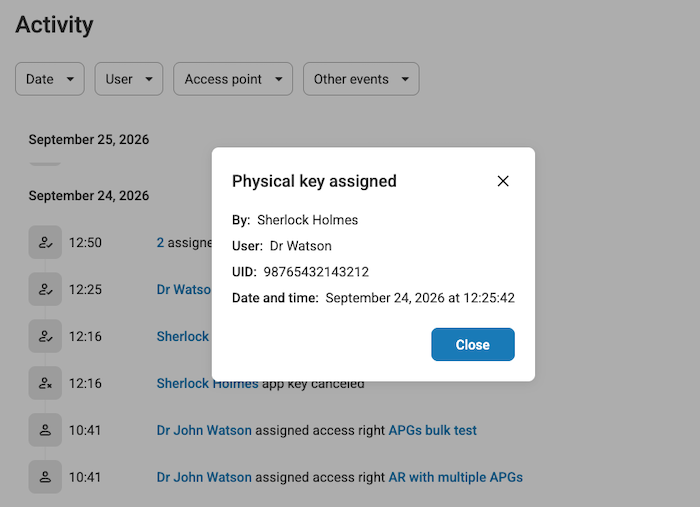 An encoded key displays the UID in the activity section
App keys
The Salto Nebula Keychain app allows users to use their iOS or Android phones as their key, by opening the app and presenting their device to the electronic locks in an installation.
To assign an app key to a user, click on the Assign button located in the App key section of the user profile.
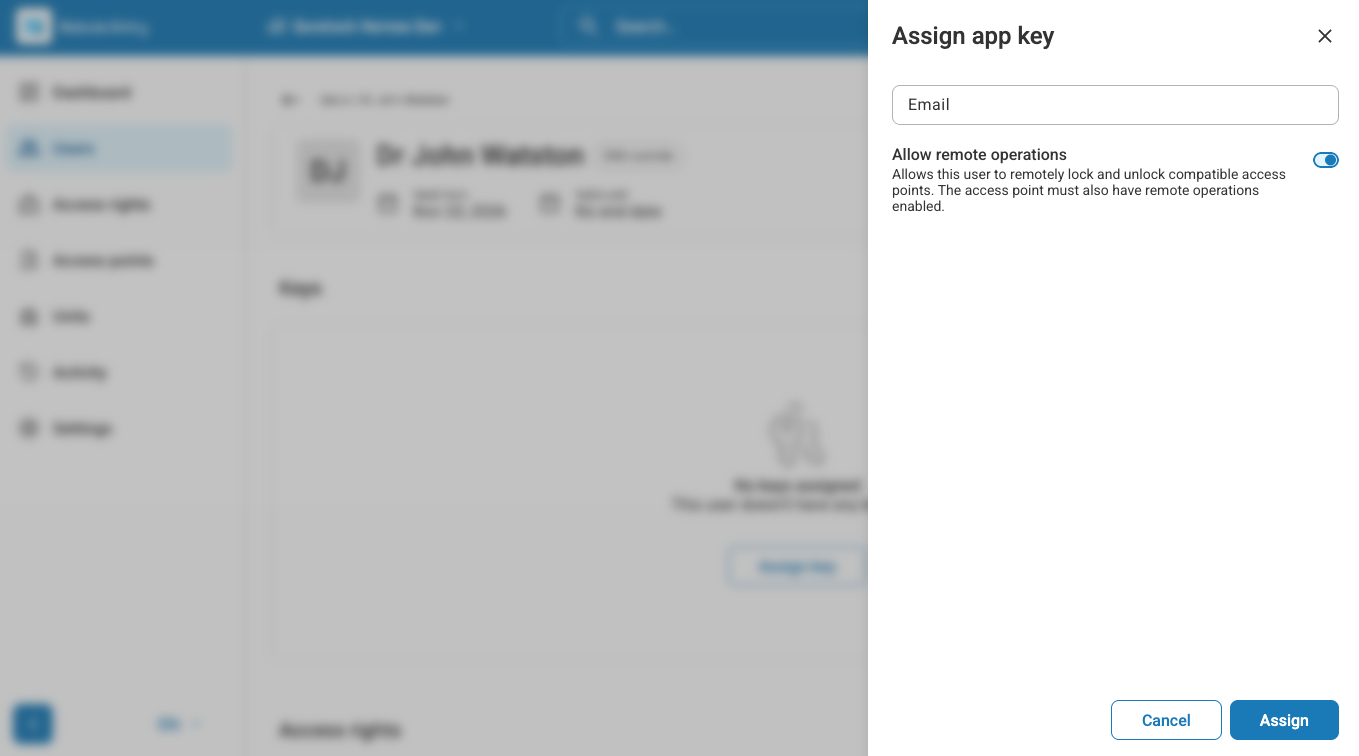 The user must have a valid email address for you to be able to assign an app key
Upon clicking the button, the user will receive an email with instructions on how to download the app and get their app key.
The user must have a valid email address in order to be assigned an app key. If no email address is set up in the user profile, an Email field displays prompting for an email address.
Remote operations
An app key includes an Allow remote operations setting. When enabled, the user can lock and unlock compatible access points remotely from the app, provided the access point also allows remote operations. A Remote enabled label displays beside the app key when the setting is on.
See remote operations for keyholders for the requirements and defaults.
Passcodes
Passcodes are intended to be used with locks that have keypads, for example, the Salto DBolt Touch, where a user inputs a numeric code to gain access.
Passcodes in Nebula Entry are six-digit codes that are randomly generated by the software. You cannot enter a custom code in the Passcode field.
To assign a new passcode, press the Assign button. A six-figure code displays in the side panel.
Using the copy icon, you can then share the code with the user via your preferred secure channel (email, WhatsApp, etc.).
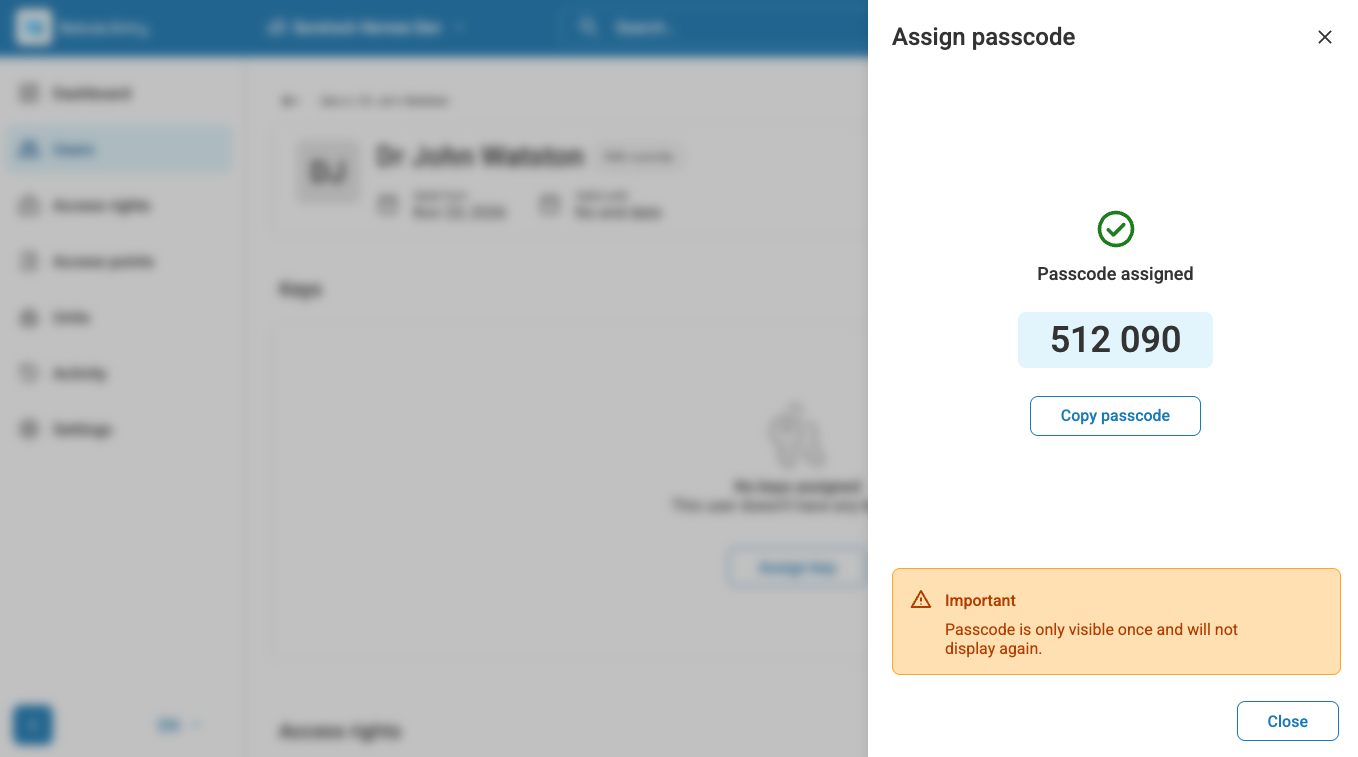 Passcodes are only visible once and do not display again once you close the side panel
Note that the number displayed in the Passcode field is only visible once. If you navigate away from the user profile page and come back to it, the number will no longer be shown.
If a user forgets their passcode, or their passcode is compromised, you need to generate a new one using the Generate button. By doing so, the previous passcode that was assigned to the user becomes invalid for that user.
Keypad disabling
For electronic locks equipped with keypads, like the DBolt Touch, the keypad is disabled for a specified amount of time if the user enters an incorrect passcode. In Nebula Entry, by default, keypads are disabled for 90 seconds after 3 incorrect passcode attempts.
Once 90 seconds have passed, the keypad is again disabled with each incorrect attempt until a valid passcode is entered.
When the keypad is disabled, the LED of the lock blinks red and emits a short beep.
Canceling keys
You can cancel any type of key at any time to prevent it from being further used to access an installation.
Examples of cases where you should consider canceling a key include:
- A user loses a physical key or a mobile device that holds an app key, or reports either as stolen.
To cancel a key, click on the Cancel button located beside the key you want to cancel on the user profile screen.
- Canceling any type of key causes the key to no longer grant access to any electronic locks on the installation.
- When you cancel any type of key the status changes from Active to Not assigned.
Updating keys
When you make changes to access data, such as removing an access point from an access right, an Update required message is displayed alongside the key.
Users can update their physical keys at any online access point in your installation. As a manager, you can also update fobs, keycards and wristbands using an encoder. As well as assigning keys, encoders can update keys with new access point data, such as users' access rights to specific access points.
You can't update an electronic key using an encoder. Users update electronic keys at an online controller device with a reader, or an installer updates them using the Nebula Commissioning app.
Key status
The following table is a summary of the possible key statuses that could display in Nebula Entry. These statuses also depend on the types of keys that are assigned.
| Status | Applicable key types | Description |
|---|---|---|
| Not assigned | Key App key Passcode | The key is not assigned to the user. |
| Pending activation | Key | A physical key that's assigned using the auto-assign feature remains pending activation until the user presents it to an online access point. An electronic key can only be activated at an online controller device with a reader. If you use auto-assign and an encoder is already in the system, you can also activate fobs, keycards and wristbands using the encoder. Electronic keys can't be activated with an encoder. |
| Update required | Key | An update to the system has been applied and the key needs to be updated. For example, a user's access rights have changed. The update can be done either at an online access point or by using an encoder. Electronic keys can't be updated with an encoder. |
| Active | Key App key Passcode | The key has been assigned correctly and is available for use. It does not require any updates. |
 Back
Adding access rights
 Blocking users