Transfer installation ownership Beta
Overview
This section describes how to transfer the ownership of an installation to another user. Transferring ownership of an installation means that you give full permissions to another user to manage a Salto Nebula Entry installation by assigning them the role of owner. This feature is intended to be used for the following types of use cases:
- A Salto certified installer transfers an installation to the end customer. In this situation, the certified installer creates and sets up the installation, including the installation of hardware, before transferring over the ownership to the customer.
- An installation user with the owner role transfers ownership to another installation user. This could happen, for example, if an employee with the owner role leaves the company and needs to transfer the ownership to another employee.
Only users with the role of owner can transfer the ownership of an installation to another user.
Transfer ownership
Before transferring ownership be aware of the implications. The management of all of the access control elements of the installation (users, devices, access points, access rights, etc.) is transferred to another user. Once the transfer is confirmed, the current owner no longer has access to manage the installation.
To transfer installation ownership go to Settings > Danger zone and select the Transfer ownership option.
The Transfer ownership page opens. You can transfer the ownership of the installation either to an existing installation user, or to a new user:
- Transfer to existing user: select the user from the Select user drop-down list.
- Transfer to new user: enter the new owner's Given name, Family name (optional), and Email.
 You can either transfer ownership to an existing user, or to a new user
If there are no other users in the installation, the Transfer to existing user option doesn't display.
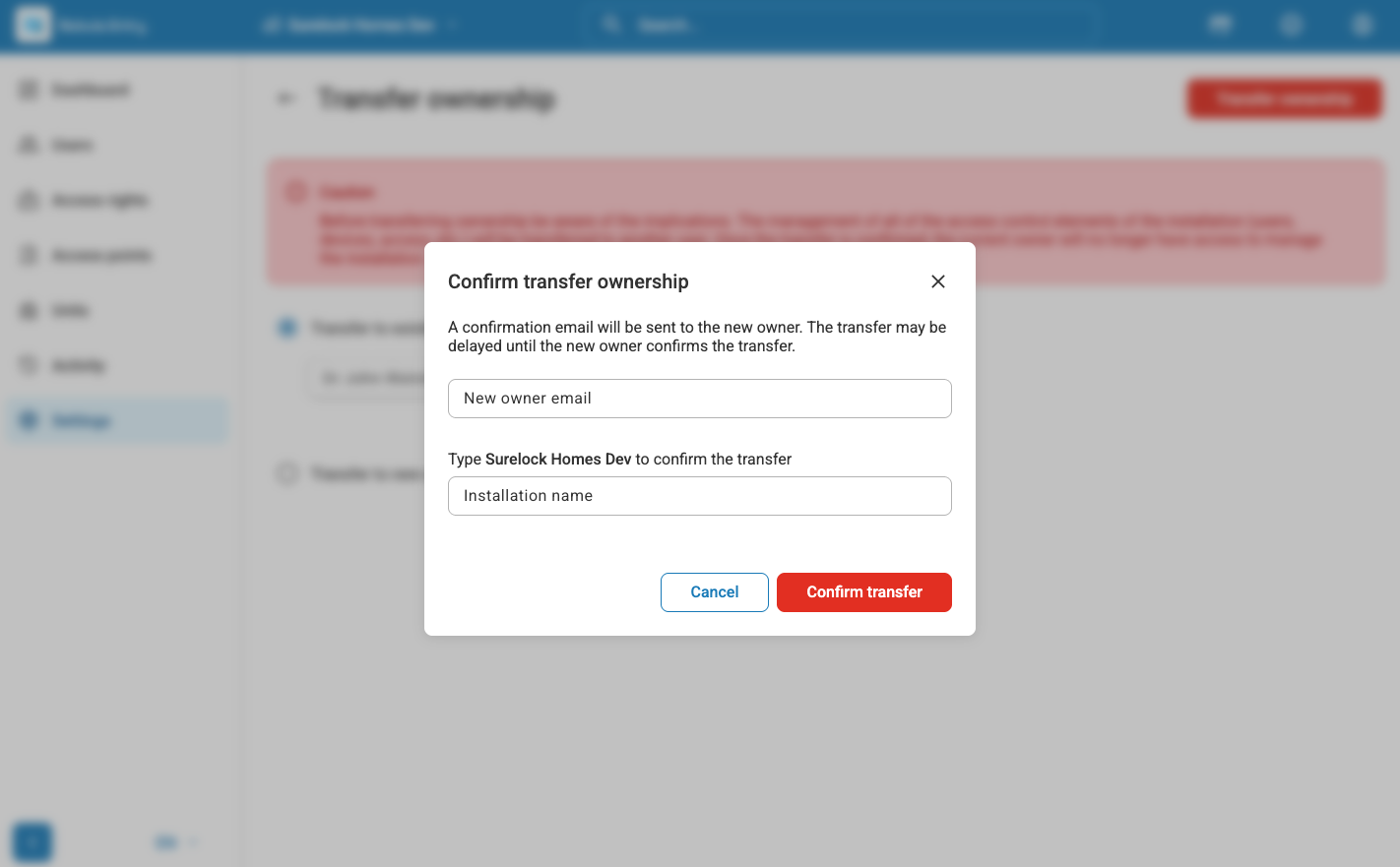
Click Transfer ownership. The Confirm transfer ownership dialog opens.
To confirm the transfer, complete the following fields:
- New owner email: type the email address of the new owner. If you selected an existing user that already has an email address, Nebula Entry fills in this field for you.
- Installation name: type the name of the installation to verify that you're transferring the correct installation.
Click Confirm transfer. Nebula Entry sends a confirmation email to the new owner.
Pending transfers
Until the new owner accepts the transfer, the Transfer ownership option in Settings > Danger zone shows a Pending tag. The Transfer ownership page also displays the email address of the user who needs to accept the transfer.
If you send a new transfer request, it replaces the current pending invitation.
New owner
Once you've confirmed the transfer, the new owner receives an email with details explaining how to accept the ownership transfer. The new owner then needs to sign in to Nebula Entry with the same email address used for the transfer and confirm that they accept the transfer.
The transfer doesn't take place until the new owner confirms it. Until this point, the previous owner remains the sole installation owner and the transfer is marked as Pending.
Accept the ownership transfer
When the new owner opens the link in the email, the Installation ownership transfer screen displays.
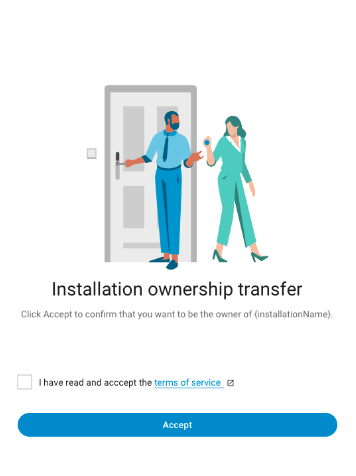 The ownership transfer is not completed until the new owner confirms it
To accept the transfer, the new owner must do the following:
- Select the checkbox to accept the terms of service and conditions.
- Click Accept.
- If the installation requires billing information, the Billing details dialog opens. Complete the billing details and click Accept. See the section on subscriptions for more information about these fields.
Once the transfer completes, the installation dashboard opens with the Welcome to your new installation! dialog. If you need to complete the payment details, the dialog asks if you want to do it now:
- Click Go to payment details to go to the Subscription section.
- Click Cancel to close the dialog and add the payment details later.
Otherwise, click Get started! to close the dialog.
After the transfer
The previous owner loses management access to Nebula Entry once the ownership transfer is completed. However they remain as a keyholder in the system and you can change their role if required. For example, you may want to change the user's role to that of device manager if they are to continue to provide maintenance to your installation. You can also delete the user if there is no longer a requirement for them to have access to the software.
There can only ever be one user with the role of owner in an installation.
For more information on the owner role, see the corresponding section on management roles in Nebula Entry.
Blocked installation
Complete the ownership transfer within 14 days. If the new owner doesn't accept the transfer within this period, Nebula Entry blocks management access to the installation and displays the Management access blocked screen.
If you have permission to transfer the ownership, click Transfer ownership on this screen to send a new transfer request.
If you don't have permission to manage the installation, the No access screen displays instead. Contact the owner or manager of your installation if you think you should have access.
 Back
Emergency keys
