Emergency keys in Nebula Entry Beta
Overview
Emergency keys are a special type of physical key that can only be created by installation owners. These keys override any standard access restrictions and are intended to comply with safety regulations. For example, fire safety regulations in some countries require providing unconditional access to emergency responders.
These keys are intended for specific emergency situations and not as a workaround for the security restrictions of standard keys.
Creating emergency keys
Emergency keys have unconditional access to all access points in the installation. After creating this key type, existing offline access points must be updated for the emergency keys to work as expected.
You assign emergency keys in a similar way to the auto-assignment process which is explained in more detail in the section on assigning keys to users. That's to say, you add a physical key's UID. No card key encoding is required. Note that you manage emergency keys from the Settings > Danger zone section of Nebula Entry, rather than from individual user profiles.
You should ensure that the emergency key is identifiable by a distinguishable display name, for example, "Fire department" or "Master key".
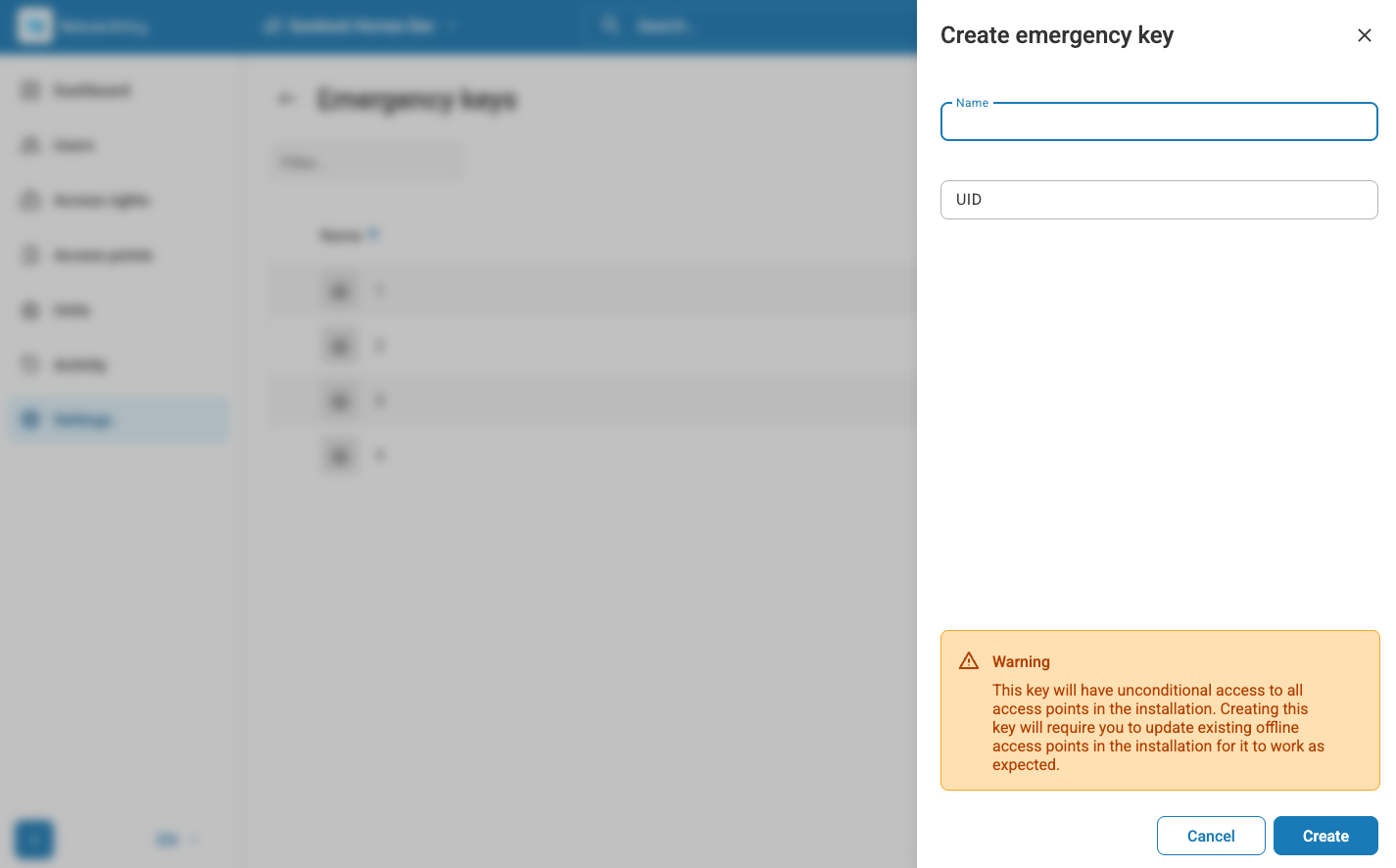 Emergency keys have unconditional access to access points in the installation
You must also enter the serial number printed on the keycard in the UID field. Note that once you enter the UID, you cannot edit it at a later date.
Emergency keys never expire, however you can delete them.
A warning is displayed before creating an emergency key, informing you about the security implications.
You can create a maximum of five emergency keys per installation.
Deleting emergency keys
You can delete emergency keys from the list view in the Emergency keys section. A warning pop-up is displayed before deleting an emergency key, informing you about the security implications. Select Yes, delete key to confirm.
After you delete the key, an Emergency key deleted dialog reminds you that offline access points require an update to finalize the removal. Select Go to devices to open the Devices section and check which access points require an update.
In the same way as when you create the emergency key, affected access points will display an Update required status.
- Online access points will update automatically via the cloud.
- Offline access points need to be updated via the Nebula Commissioning app.
You should check which access points require an update using the Update required filter in the Devices section of Nebula Entry after you have deleted the emergency key.
It is essential to update affected access points after deleting an emergency key to maintain proper security.
Emergency key events
The following emergency key events are reported in the Activity section of Nebula Entry:
- Emergency key created
- Emergency key updated (for example, the name of the key is changed)
- Emergency key deleted
- Emergency key unlocked an access point
See also the section on activity for more details.
 Back
Subscription
 Transfer ownership