Blocking users in Nebula Entry Beta
Overview
After you've created and configured a user, you can, if necessary, block them from accessing any part of an installation by temporarily invalidating the user, their access rights and the keys they use in one action.
This might be useful if, for example, you want to block a user who is a member of staff while they're away on vacation. Unblocking the user when they return from vacation restores their original access rights and makes their key valid to unlock access points again.
Although the user's access rights are removed from their key when they are blocked, the access rights remain associated with that user. This means it's still possible to modify a user's access rights while that user is blocked.
Blocking users is different from canceling keys. A user's key can be canceled, for example, if a user loses their key. See canceling keys for more information.
Block/Unblock
You can block or unblock a user in the following ways:
- Using the three vertical dots menu on the users list view.
- From the individual user's profile using the Block or Unblock icon.
- Using the quick action search feature from any screen in Nebula Entry.
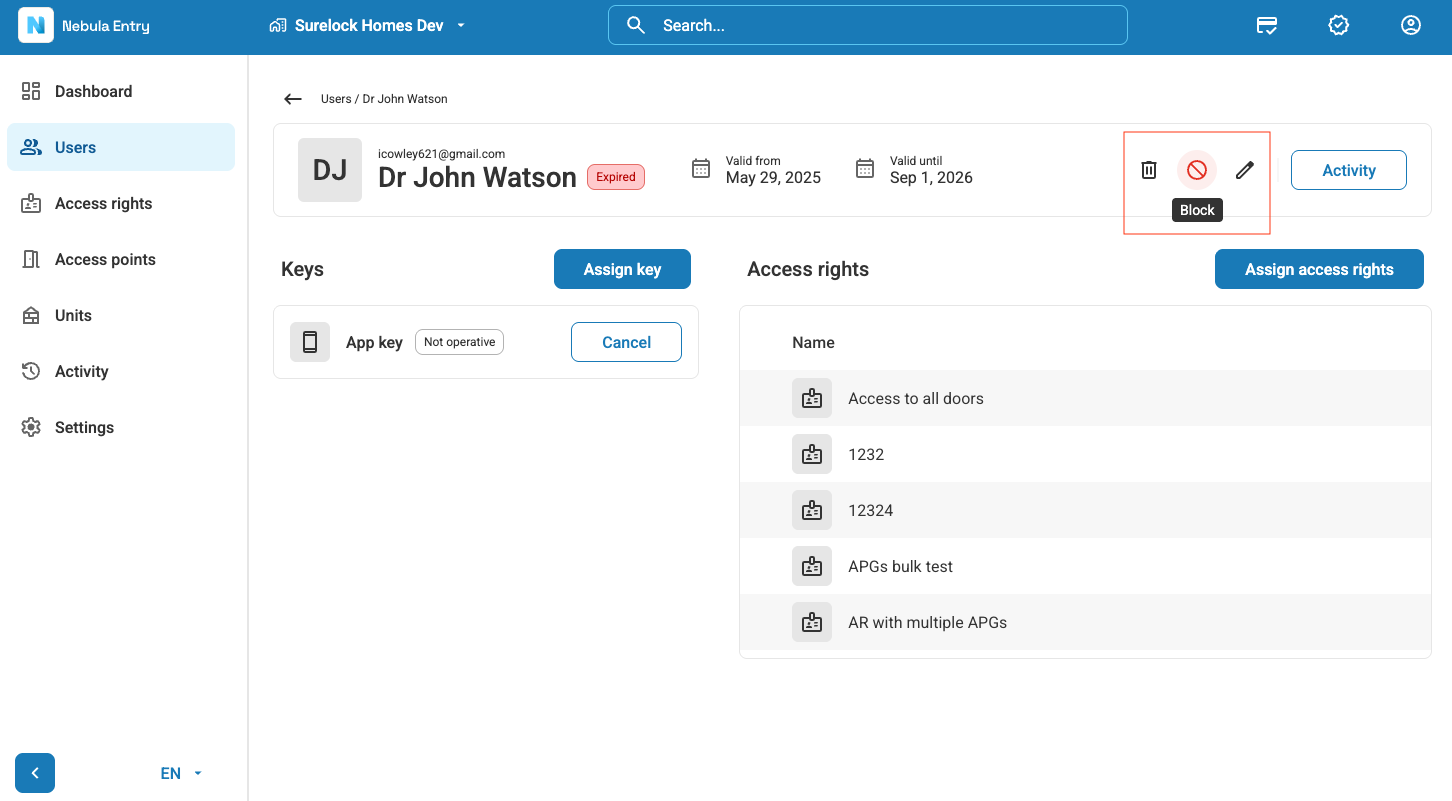 Blocking a user from the user profile screen
Block or unblock multiple users
To block, unblock, or delete several users at once, do the following:
- Go to the Users list.
- Select the checkboxes beside the users you want to change. To select every user on the current page, select the checkbox in the list header.
- Select the Block, Unblock, or Delete icon above the list.
The Block icon only displays if none of the selected users are blocked. The Unblock icon only displays if all the selected users are blocked.
You can't select your own user or the installation owner. For more information about deleting users, see delete a user.
Blocking users with management roles
If you block another user who has a management role they will not be able to access Nebula Entry until you unblock them again.
In a similar way to blocking and unblocking keyholders, users with management roles can be blocked if they are on vacation, for example. If the user with a management role is also a keyholder, blocking them means they will also be unable to use their keys.
If there is only one remaining system manager left in the installation they cannot be blocked.
 Back
Assigning keys
