High level overview of Nebula Entry Beta
Here you can find high level information about the options displayed in Nebula Entry web.
Dashboard
The default opening screen of Nebula Entry web and the place where you can see at a glance an overview of information relating to your installation. The top of the dashboard shows the name and address of your installation, and the number of the following elements:
- Users
- Units (if you use this feature)
- Access points
- Unit access points (if you use this feature)
Device health cards summarize the status of your hardware across three areas:
- Maintenance: the number of devices that require an update.
- Connection status: the number of devices that aren't currently connected to the network.
- Battery status: the number of devices that need their battery changed.
If a card shows one or more devices, click it to open the list of affected devices.
The Latest activity section has 2 tabs: Latest access granted and Latest access denied. Click View activity to open the activity section with the corresponding filter applied.
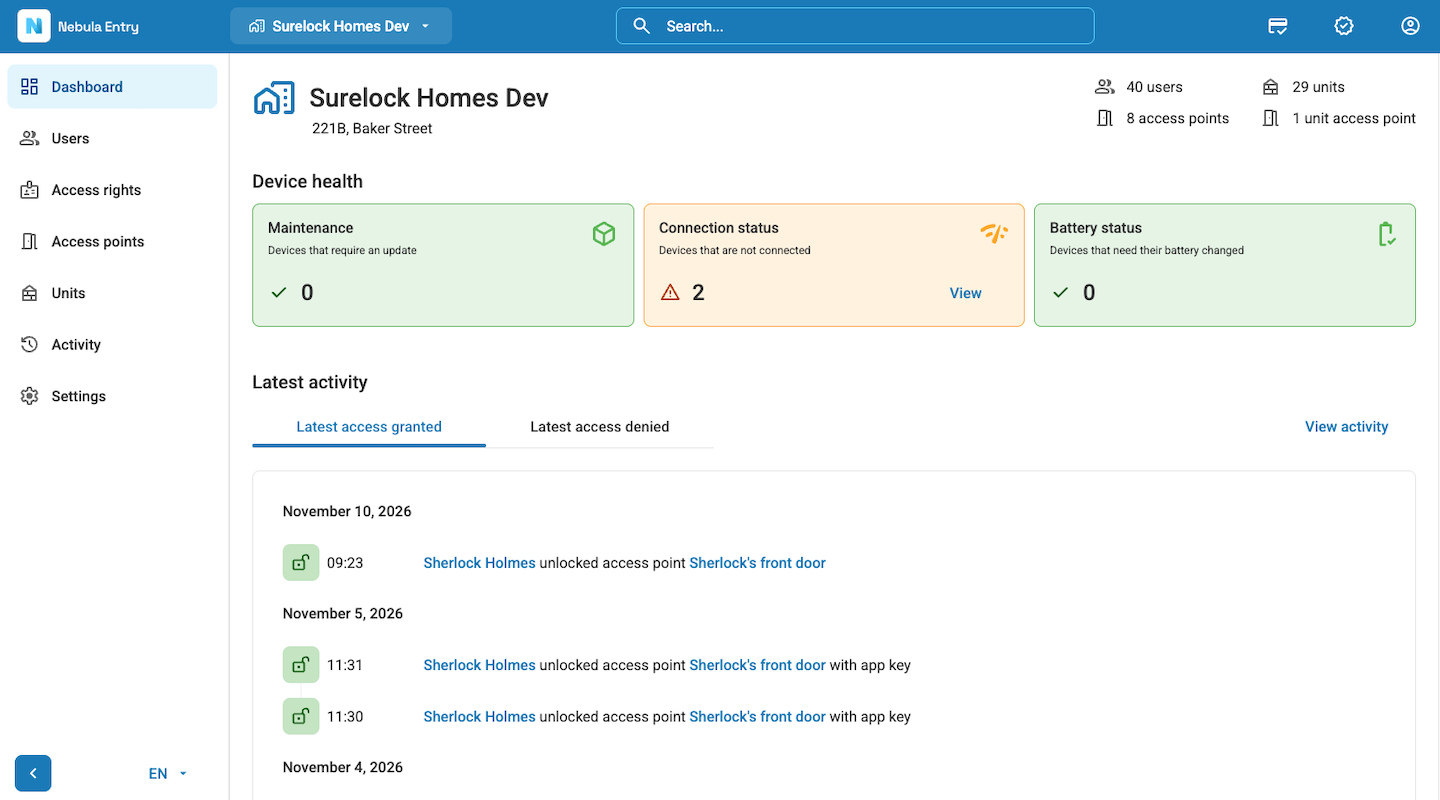 The Nebula Entry dashboard showing some of the application's main options
Header
The header at the top of the screen contains the following elements:
- Installation selector: shows the name of the current installation, next to the logo. If you haven't selected an installation, it shows Select installation. Click it to switch to a different installation. If you have permission, you can also click Create installation to create a new installation.
- Search: see the search section.
- Read key: Available when an encoder is connected, allowing you to read key information from a user's key placed on the encoder.
- Account: click the account icon to open the account menu.
The menu shows your email address and the following options:
- Help: opens the support documentation in a new tab.
- Sign out: signs you out of Nebula Entry.
- Terms of use, Privacy policy and Cookies policy: open the corresponding legal documents.
- Version: shows the version of Nebula Entry.
Main menu
The main menu on the left side of the screen gives you access to the sections described below. At the bottom of the main menu, you can also change the language of the user interface.
Units
A unit is a sub-grouping of users, access points and access rights, within an installation. Units are always available in Nebula Entry and you don't need to activate them. Units are pay-per-use: you're only charged for the units you create, and you're not charged if you don't use them. See the units section for more information.
Users
The users section offers an overview of users that have access to your installation. From this section you can create a new user, change their permissions or delete an existing user. You can also assign keys to users in this section.
Access rights
This is one of the core functionalities of Nebula Entry. By creating and assigning access rights, users can be given access to selected access points during a specific time frame or multiple time frames. This allows per-minute precision of who goes where, at what time.
Access points
Access points are the doors, gates, turnstiles and other entry points in your installation. See the access points section for more information.
Activity
Details activity which takes place within an installation and can relate to individual access points. For example, you can see when a user was created or whether an access point has been unlocked.
Settings
In this section you can enable and configure settings like custom installation calendars, opening mode schedules or digital key art. You can also manage devices from the Salto hardware ecosystem such as electronic locks and gateways via Settings > Devices. See the devices section for more information.
See the settings section for an overview of all the options.
Search
The quick action search feature allows you to search for the names of resources, such as users or access rights, throughout the whole of Nebula Entry. As you type, quick actions will appear for suggested results. You can find it at the top of the screen in every section of the application.
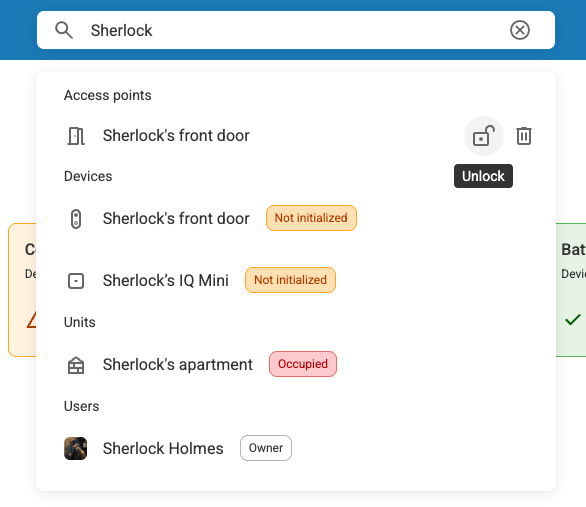 The quick action search allows you to carry out quick actions, like unlocking an online access point, or deleting a user, directly from the search results
Here are some of the things you can do with quick action search:
- Filter search results by entity type (users, access rights…)
- Navigate directly to an individual resource's management screen
- Carry out quick actions such as unlocking an access point or deleting a user in Nebula Entry
- Check statuses, like the battery status of electronic locks
 Back
 Best practices