Access point groups in Nebula Entry Beta
Overview
Access point groups are a specified collection of access points that are grouped together to make them easier to manage. For example, an access point group could be all the doors on the first floor of a hotel or all the doors in the financial services department.
Access point groups are intended to be used in larger installations which contain, for example, upwards of 500 access points. It's generally expected that once you set up an initial set of access point groups in your installation, there's little need to edit them at a later stage.
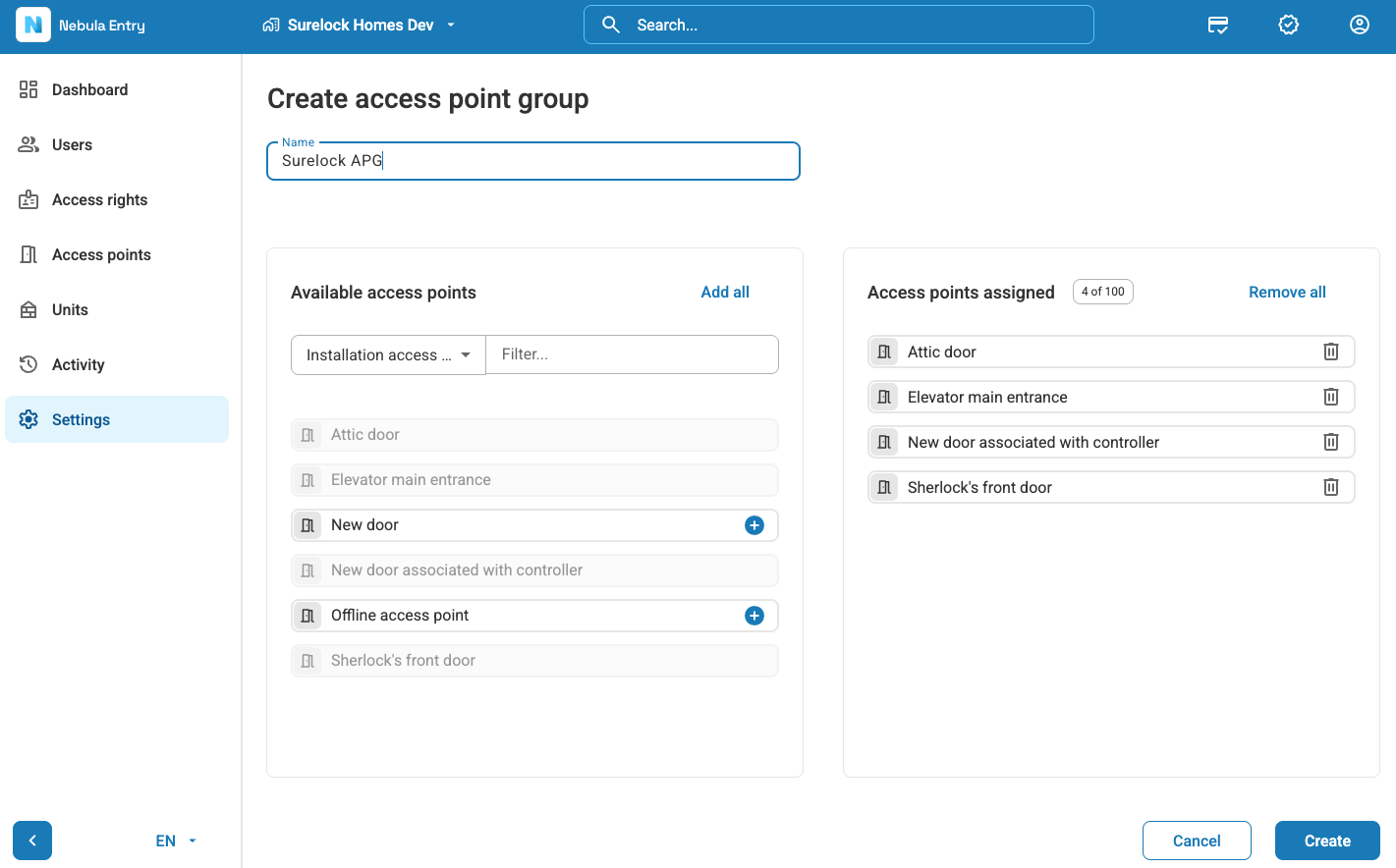 Create access point group page showing the Available access points and Access points assigned tables
Creating access point groups
Although access point groups can be used at both the installation and unit level, they can only be created at the installation level. See also the section on units for more information.
To create an access point group, you must first create the access points that you want to include in the group.
To create an access point group, follow these steps:
- Go to Settings > Access point groups and select Create.
- Give your access point group a Name, for example, "First floor rooms".
- In the Available access points table, use the drop-down menu to choose what to list:
- Installation access points
- Unit access points
- Search for the access point you want, if required.
- Select the add icon beside each access point you want to add. To add every access point in the list, select Add all.
- Select Create.
The access points you add move to the Access points assigned table. To remove an access point, select the remove icon beside it in the Access points assigned table. To remove every access point, select Remove all.
You can add both installation access points and unit access points to an access point group.
You cannot add more than 100 access points per access point group. The Access points assigned table shows the number of access points in the group.
Viewing access point groups
Go to Settings > Access point groups to see a list of the access point groups in your installation. Use the search field to find an access point group by name.
Select an access point group in the list to open its details. The details show the access points that the group contains. Use the search field to find an access point in the group.
Editing access point groups
To edit an access point group, follow these steps:
- Go to Settings > Access point groups.
- Select the three dots menu beside the access point group and select Edit. You can also open the access point group's details and select Edit from the menu in the details header.
- Change the name, or add or remove access points.
- Select Save.
Deleting access point groups
To delete an access point group, follow these steps:
- Go to Settings > Access point groups.
- Select the three dots menu beside the access point group and select Delete. You can also open the access point group's details and select Delete from the menu in the details header.
- Select Yes, delete access point group to confirm.
You can't undo this action.
Adding to access rights
Once you've created your access point groups, you can then add them to your installation's access rights in the same way as you add individual access points to access rights.
Go to the Access rights section and either add the new access point group to an existing access right, or create a new access right.
To list access point groups, select Access point groups in the drop-down menu of the Available table.
You can add up to 100 access points and access point groups to an access right.
User access
To give a user access to the access point group you've created, ensure that the user's access right includes that access point group.
You can view which access point groups are included in a user's access rights in the Access rights section of the user's profile.
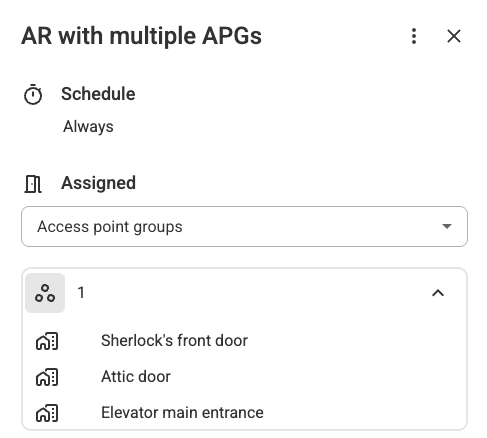 Example of a user with access rights that include access point groups
To see a list of the access points that are included in each specific access point group, click on the name of the access point group within the user's access right.
Note that you cannot add schedules, opening modes or calendars to access point groups. Use the access rights functionality to give keyholders time-limited access to access point groups.
 Back
Opening modes
 Destinations