Access right schedules in Nebula Entry Beta
Overview
When creating access rights, you can set access points to be available on certain days at certain hours for any user that has that access rights assigned to them. In one step, a selection of users can get the same schedule for the same set of access points. You can add up to three schedules to each access right. By adding schedules you can control the specific times that an access right is valid.
You can either set schedules to Always or create custom schedules depending on your requirements.
Always
If you select the Always option the access right schedule is valid all day, every day. That's to say it is valid for 24 hours a day, seven days a week.
Custom schedules
You can create custom schedules using the Custom option from the drop down menu. By selecting this option you can create a custom schedule using the specific days and times you want. For example, Mondays to Fridays from 08:00 to 18:00.
Select each day you want to include in the schedule, or select All to select the whole week. At least one day must be selected in every schedule. If a schedule has no days selected, Nebula Entry displays an error when you try to save it.
Each schedule has one time period, defined with the From and Until fields, which applies to all the days selected in that schedule. To use different times on different days, select Add another schedule, up to a maximum of three schedules. To edit the custom schedules later, select the edit icon beside the Schedule field.
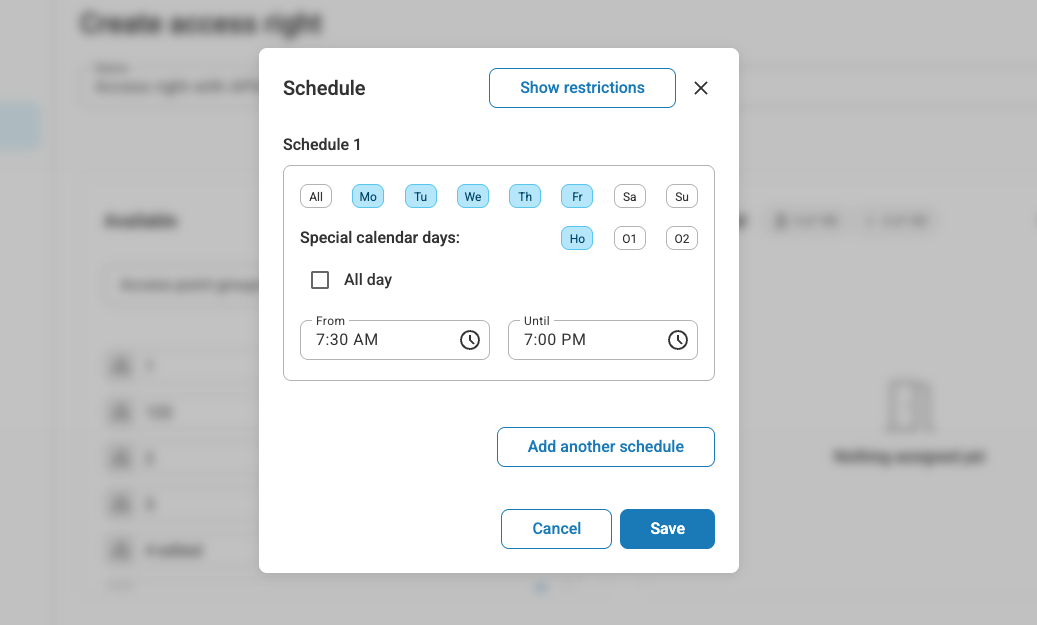 Creating a custom access right schedule
Custom schedules are set to be valid all day, but if you uncheck the All day checkbox it brings up the time option. This allows you to set specific timings for the schedule.
Calendars
To use the Holiday (Ho), Other 1 (O1), or Other 2 (O2) days, you must create them beforehand in the Calendars section. These days display under Special calendar days in custom schedules. If neither Holidays nor Other days calendars have been configured already in the installation, these options will not appear within custom schedules.
For a more detailed description of Holidays and Other days see Calendars.
 Back