Electronic locks in Nebula Entry Beta
Overview
An electronic lock is a physical electronic locking device such as an electronic escutcheon or a cylinder. It differs from an access point in that an electronic lock is a specific model of a device like a Neo Cylinder, XS4 escutcheon or a DBolt Touch.
In Nebula Entry, you use access points to manage the behavior of electronic locks within your installation's access plan. That's to say who enters where and when. An access point can either represent one individual electronic lock or a collection of devices capable of granting or denying access to a user.
You manage electronic locks via Devices. To show only electronic locks, select Electronic lock in the Device type filter.
For motorized electronic locks such as the DLok, see also motorized locks.
Creating electronic locks
Each electronic lock is associated with an access point. The access point manages the access plan of that electronic lock. See creating access points for more details.
To create an electronic lock, do the following:
- Go to Devices and select Create.
- Select Electronic lock in the Type drop-down menu.
- Select the Connection type: Online or Offline.
- If you select Online, select the gateway or extender that connects the lock in the Parent field.
- Select the Associated access point field. The Select access point dialog opens.
- Select an access point from the Installation access points or Unit access points tab. You can also search for an access point by name, or select Create access point to create a new one.
- Select Create.
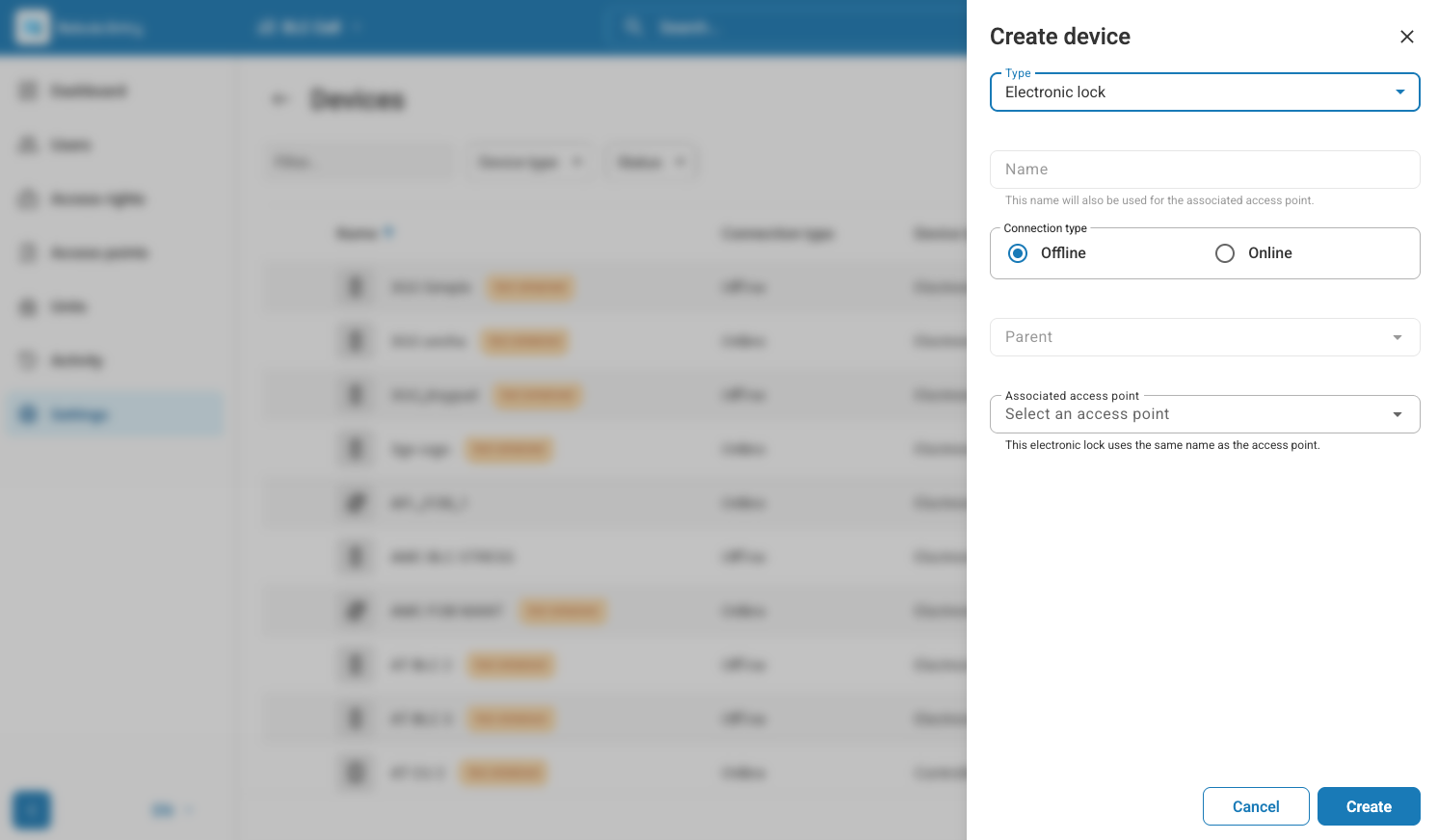 Create device dialog for an electronic lock, showing the 'Associated access point' field
The Select access point dialog only lists access points that don't already have a device associated with them.
The electronic lock uses the same name as its associated access point. You can't edit the Name field of an electronic lock. You also can't change the associated access point after you create the electronic lock.
Note that you set up and configure electronic locks using the Nebula Commissioning app.
Batteryless cylinders
You can also create batteryless cylinders, such as the Salto Keo, from Devices. Use the same steps as for any other electronic lock.
After you create a batteryless cylinder, you must still configure it using the Nebula Commissioning app. See configuring batteryless cylinders.
Electronic lock maintenance
With the Electronic lock filter applied, the Devices list shows all the electronic locks in your installation.
Electronic lock status
Electronic locks show status tags such as Low battery or Update required. See device status for a description of each status.
If an electronic lock has a low battery, the device's LED also blinks red 4 times before it blinks green when a user unlocks it.
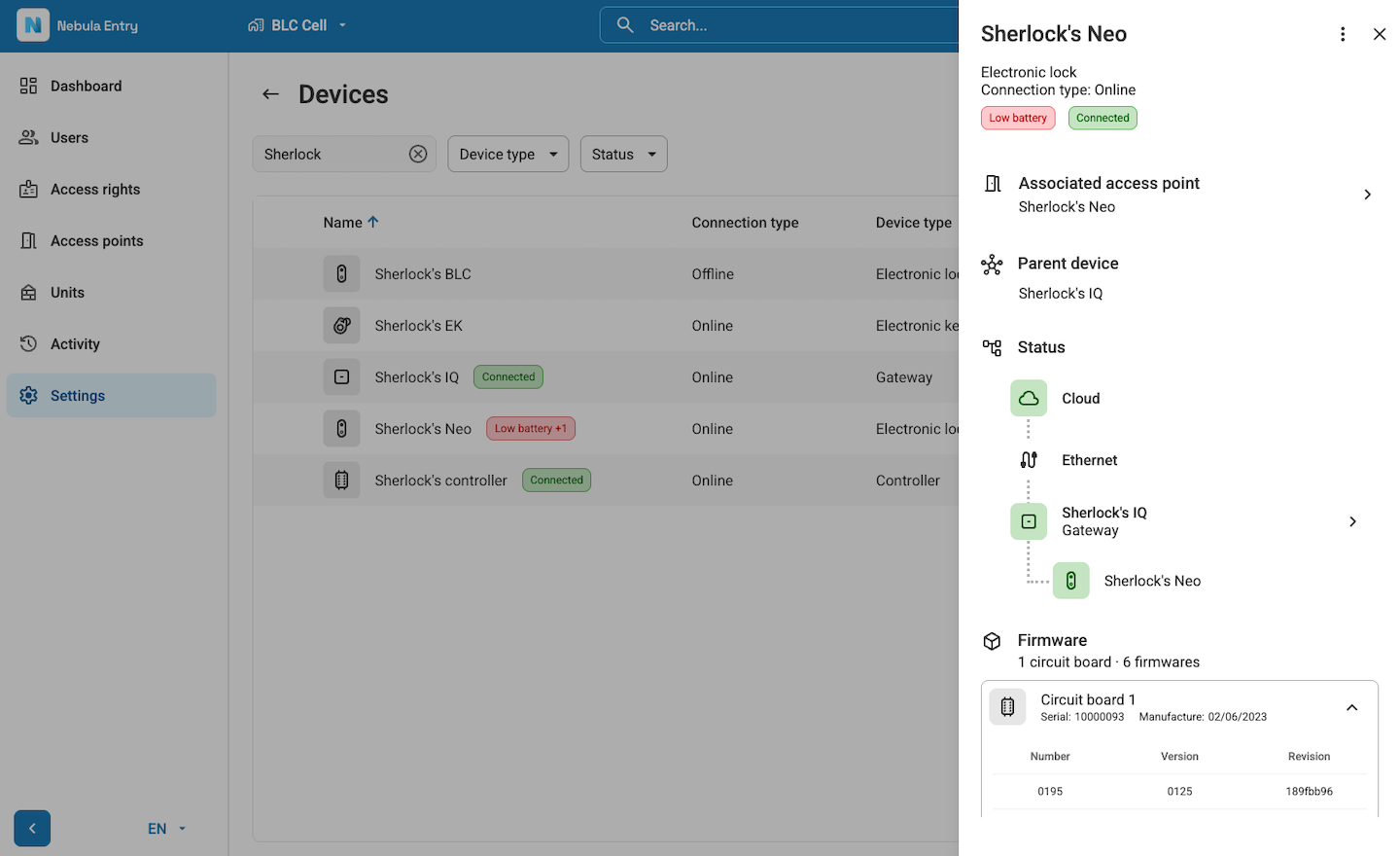 Electronic lock with low battery
If you replace an electronic lock's batteries, you need to reconfigure the device using the Nebula Commissioning app to ensure the lock reports the correct battery status. See also the section on changing batteries for more information.
 Back
Electronic keys
 Motorized locks