Homelok release notes October 2026
2026-10-08
This is a major release for Salto Homelok, bringing a redesigned web application alongside a wide range of new features across web, mobile, and the Nebula Commissioning app.
Redesigned Homelok web Changed Homelok web
Homelok web has a new design and a range of functional improvements across the application, including an updated color scheme throughout the interface.
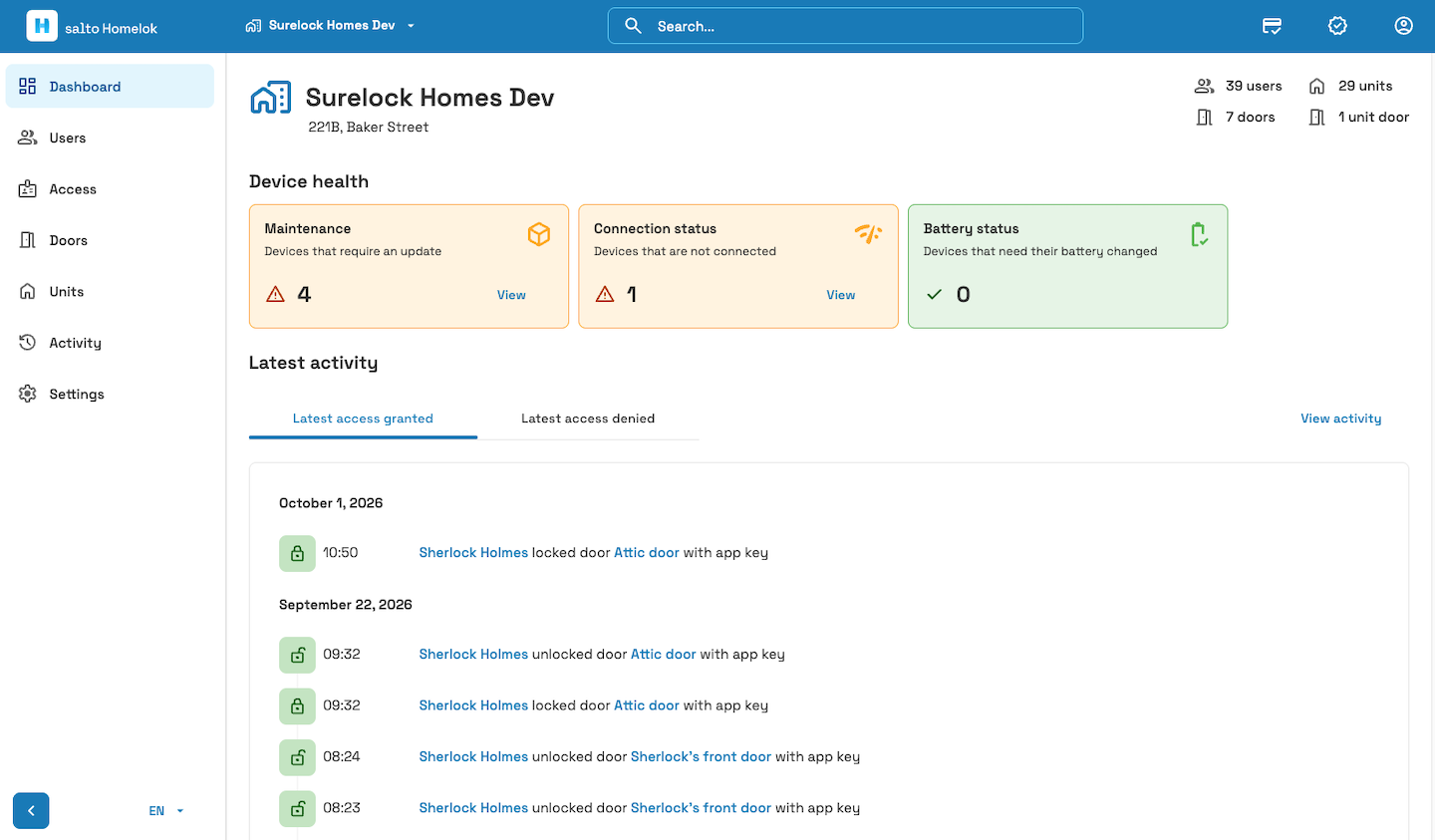 The Homelok web interface with the new design and updated color scheme
Notable changes
- Navigation - Devices has moved into Settings, Doors now appears directly in the side navigation, and account actions (sign out, help, policy links) are grouped under your user avatar in the top bar.
- Global search - a search bar at the top of the application finds any resource by name as you type, with inline quick actions and entity details available directly from the results. Each section also has its own local search filter.
- Pagination - infinite scroll has been replaced with standard page-based pagination throughout the application.
- Quick actions - a new top-bar section gives fast access to common actions, starting with reading a key.
- Dashboard - the resource summary now includes a total user count for the installation, excluding users associated at the unit level.
- Users - A new filter finds blocked users. The users list is simplified: the Email, Activation, and Status labels are removed in favor of a Role label, for example Property manager.
- Access - the access detail view and the add-resource flow now separate Doors, Door groups, and Destinations, each with its own selector and count, instead of listing them all together.
- Units - a new filter searches by status (Vacant or Occupied), and you can add multiple users during move-in without closing and reopening the dialog.
- Doors - doors have a new detail view showing their configuration and linking to their device or unit, and the Card key updater setting has moved here from the electronic lock setup.
- Devices - the tabbed view is replaced with a unified, filterable list (by type and status) with the Belongs to and Battery columns removed; electronic lock details link to their door, and controllers let you create a door directly from the Relay 1 resource selector.
New Homelok 'My keys' experience Changed Homelok app
The design of the My keys section of the Homelok app has been updated, along with several other improvements.
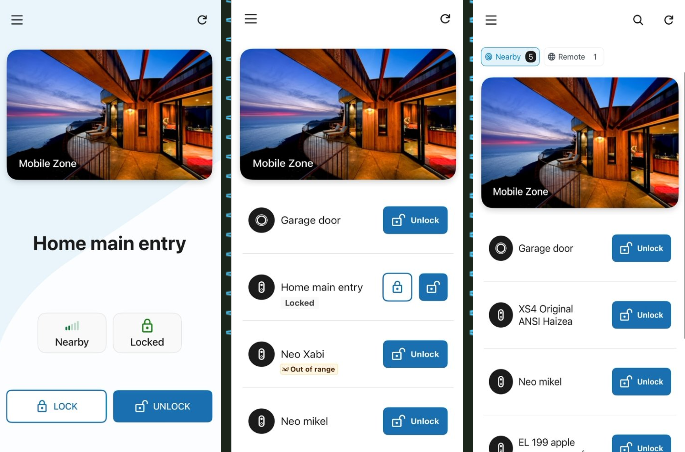 Examples from the updated 'My keys' section in the Homelok app
- How your doors are displayed depends on the number you have access to: a single door is always shown in full view, and 2 to 5 doors are always shown. See the keyholder guide to Homelok app keys for information about the app's door carousel.
- With more than 5 doors, they're split into Nearby and Remote sections: Nearby shows doors as you come within BLE range, and Remote lists all online doors you can operate remotely, regardless of range.
- If you're allowed to perform remote operations, you can trigger them directly from your keys.
- The app automatically selects the appropriate technology to unlock a door, using BLE or NFC when you're nearby, or a remote operation when you're further away.
See the Homelok keyholder guide for more details.
Remote operations New feature Homelok web
You can now choose which users can remotely operate doors, and which doors can be operated (locked / unlocked) remotely.
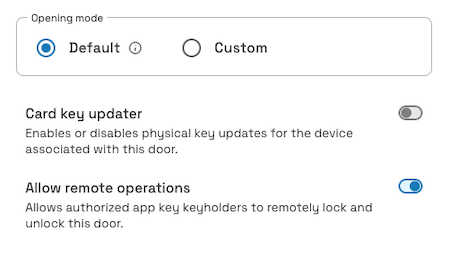 Doors now contain a checkbox to allow remote operations
Up until now, only owners and property managers could remotely operate online doors. This release of Homelok allows both unit managers and keyholders to remotely operate doors, with configurable permissions.
Unit managers can always remotely operate their own unit's doors by default, while access to installation doors depends on the door's configuration. Property managers can also enable remote operations on a per-user-basis, giving them control over which users can remotely operate which doors. For details, see how to configure remote operations for keyholders.
Only online doors can be selected for remote operation and only app keys can be used to perform these operations.
New activity filters New feature Homelok web
The Activity section now supports filtering by user and by door, in addition to the existing date and event type filters. See how to view and filter activity for details.
- Filter by user - select one or more users to see every event that involves them.
- Filter by door - select one or more doors to see every event that involves them.
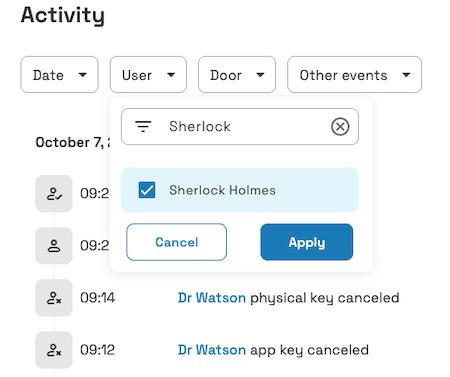 The new activity filters in the Homelok web interface, allowing filtering by user and by door
Filters can be combined across types, for example multiple users and doors at once, or a specific user followed by a specific door. You can also view a user's or door's latest activity directly from its detail section.
Configurable door opening time New feature Homelok web
You can now configure how long a door stays unlocked after a valid credential is presented.
When editing a door, select Custom as the opening mode and set it to Autolock. This makes the Unlock duration setting available, and its value is configurable from 1 to 30 seconds. This setting isn't available when the opening mode is set to Office.
Note that for motorized locks, such as the DLok, this setting is called Autolock timer and uses a different range of values.
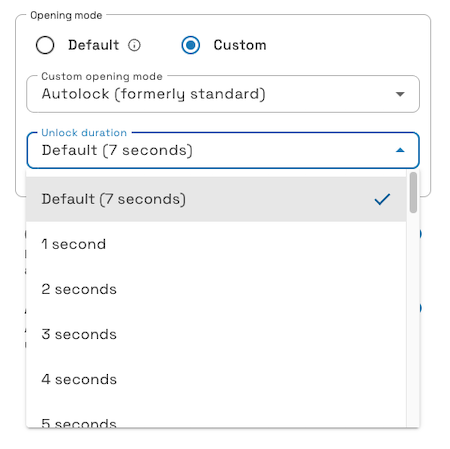 The new 'Unlock duration' setting in the Homelok web interface
Default unlock durations vary by device type:
- CU controllers: 3 seconds
- DLok: 30 seconds
- All other devices: 7 seconds
Override Do Not Disturb (DND) New feature Homelok web
Some lock models support a Do Not Disturb (DND) button, letting someone lock a door from the inside so nobody else can open it. You can now let specific users override this - for example, so a resident can always get into their own apartment even if it's locked from inside.
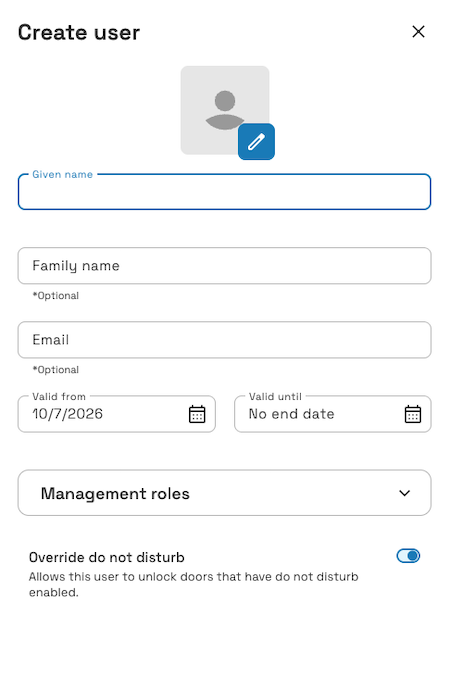
Configure Override DND from the user's profile or during creation. Installation users can override DND on any door in their access plan. Unit users can only override DND on their unit's doors.
Owners and Property managers can set this for any user. Unit managers can set it for users belonging to their own unit.
See the section on Override do not disturb (DND) for more details.
Nebula Commissioning app updates Changed Nebula app
The Nebula Commissioning app has been updated to ensure its primary focus is for installers and maintenance staff to configure and maintain devices. Now, the Devices section opens by default when the app is launched and the app starts scanning automatically for nearby devices.
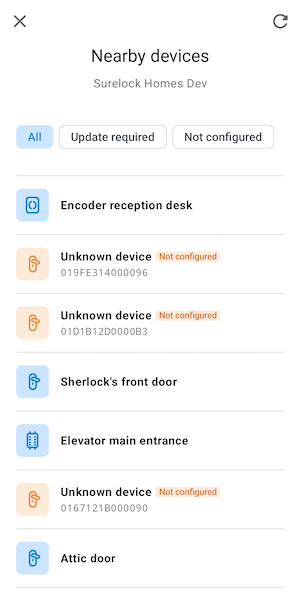 The updated Nebula Commissioning app now focuses only on device commissioning and maintenance tasks
The app no longer includes keyholder functionality or digital key door opening. For keyholder functionality, users will need to use the main Homelok app instead.
See the section for installers for more details.