Unlocking batteryless locks in Homelok
Overview
A batteryless lock is a type of electronic lock that does not have an internal power source. Instead, it relies on drawing power from external power sources, such as electronic keys or mobile phones, to operate and unlock doors. If your property manager has assigned you access to batteryless locks, you may have the option to unlock them using either the Homelok app or an electronic key.
Homelok currently supports the Salto Keo batteryless cylinder lock and the Salto Keo Smart Fob (a type of electronic key).
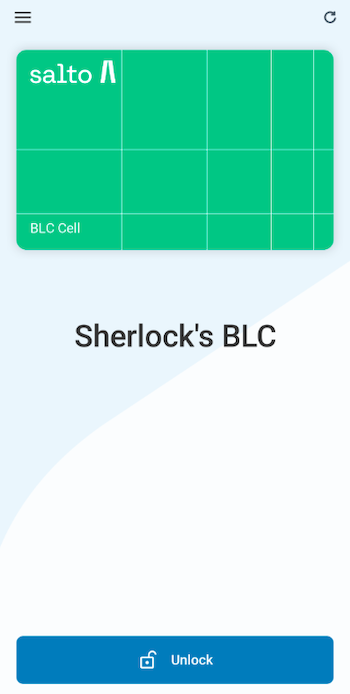 Example of a batteryless key in Homelok app
Remote locking and unlocking of batteryless locks is not supported in the Homelok app, as the lock needs to be powered by the phone or electronic key to operate.
Unlocking with the Homelok app
The appearance of the My keys section of the Homelok app may vary depending on the access and keys that have been assigned to you by your property manager. See also the section on unlocking for more information.
The unlocking process differs slightly depending on whether you are using an iOS or Android device, due to differences in how the two operating systems handle NFC interactions with batteryless locks. Different devices may also have different NFC antenna placements, which can affect the unlocking process.
iOS devices
Requirements for iOS unlocking
- Bluetooth must be enabled
- NFC must be enabled (available on iPhone 7 and newer)
- The Homelok app must be installed and you must have signed in
- You must open the Homelok app and press Unlock (background NFC unlocking is not supported on iOS)
iPhones have a fixed NFC antenna placement, which is generally located at the top of the device. The app will display an image of an approximation of where the NFC antenna is located on your specific iPhone model to help you position the phone correctly.
Unlocking in iOS with the app
To unlock a batteryless lock with the Homelok app on an iPhone, follow these steps:
- Ensure that Bluetooth is enabled on your device and you're in front of the door you want to unlock.
- Open the Homelok app on your iPhone and press Unlock for the door you want to unlock.
- Hold the phone in front of the lock's reader, positioning the top of your iPhone near the reader on the door, where the NFC antenna is generally located. A native iOS overlay will display indicating that the phone is ready to scan.
- Keep holding in the same position as the power transfers from your phone to the lock, which may take several seconds. You will see a blinking yellow light in the app indicating that the lock is receiving power. Do not move or separate the phone from the lock during this step.
- Wait for the app to confirm that the door has been unlocked. You will see a message in the app indicating that access has been granted, or denied. The app displays the "You can remove your phone now" message within the native iOS overlay.
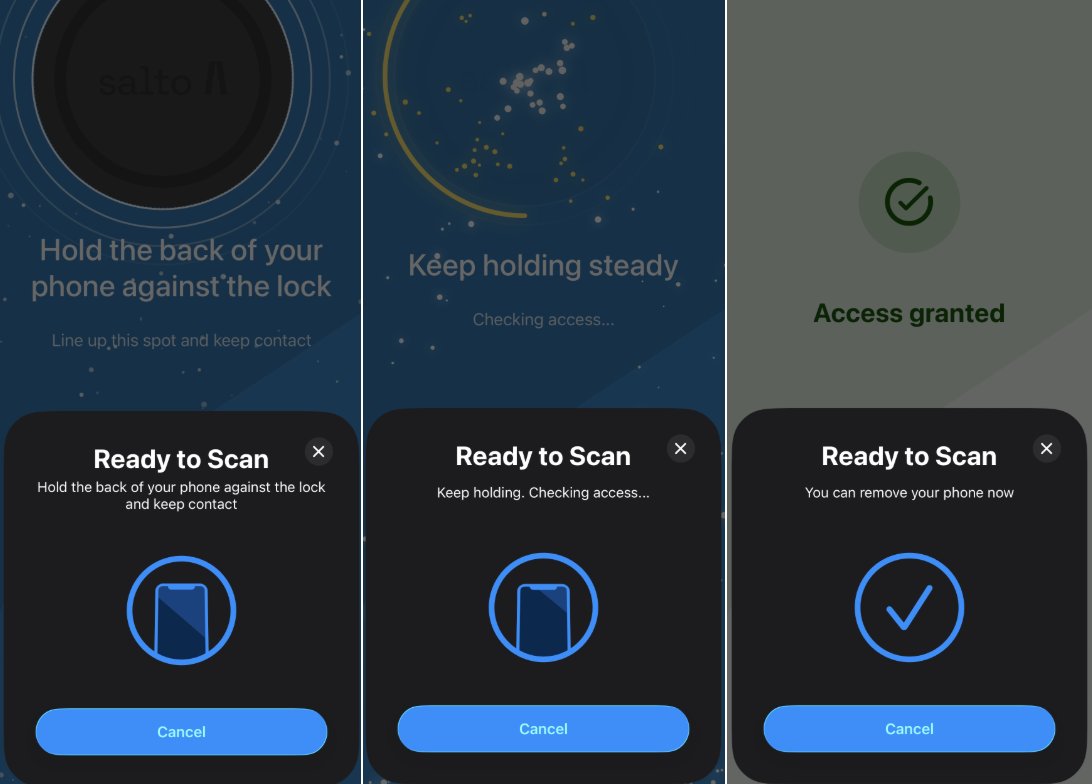 Unlocking process of a batteryless lock in Homelok iOS
Tips for finding the NFC antenna
If you have trouble unlocking, try moving the top of your iPhone slightly around the reader. The app shows the typical antenna location for your model, but the exact spot may vary.
The exact steps and interface may vary slightly depending on the version of the app you are using and the specific configuration of your property manager's Homelok system. If you encounter any issues while trying to unlock a door, refer to the troubleshooting section or contact your property manager for assistance.
If iOS unlocking fails
- Ensure NFC is not disabled (Airplane mode, Low Power Mode, or other settings may disable NFC)
- Check that Bluetooth is enabled
- Make sure you're holding the top of your iPhone to the reader (not the bottom)
- Try authenticating with Face ID/Touch ID when prompted
- If the native iOS NFC overlay doesn't appear, restart your iPhone
Android devices
Requirements for Android unlocking
- NFC must be enabled on your device
- Bluetooth must be enabled
- Your phone must be unlocked (screen on and security lock disabled)
- Location services must be enabled (required for Bluetooth scanning)
Android users can also unlock doors without opening the app. Hold your unlocked phone near the reader and the NFC system will automatically attempt to unlock if you have the necessary permissions.
Unlocking in Android
To unlock a batteryless lock with an Android device:
- Ensure Bluetooth is enabled and you're in front of the door you want to unlock.
- Either open the Homelok app and press Unlock, or hold your unlocked phone near the lock's reader.
- Position the phone near the reader. The NFC antenna location varies by device manufacturer, but is commonly on the back of the phone near the top or middle. If the app shows "Try moving closer to the door" after a short period, adjust your phone's position.
- Keep the phone steady as power transfers to the lock (several seconds). You'll see a blinking yellow light in the app. Do not move the phone during this step.
- Wait for confirmation. The app will either indicate access granted or access denied.
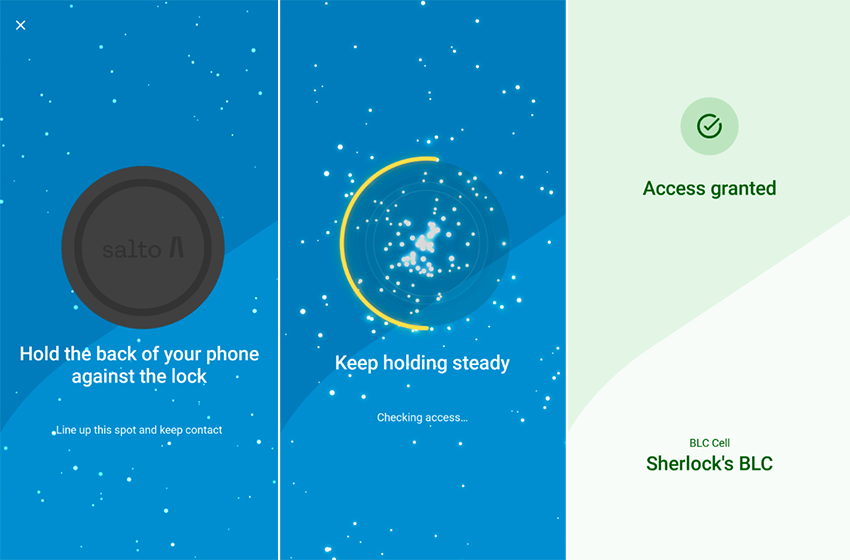 Unlocking process of a batteryless lock in Homelok Android
If Android unlocking fails
- Ensure location services are enabled (required for Bluetooth scanning)
- Verify all app permissions have been granted
- Try closing and reopening the app
- Restart your phone if problems persist
Unlocking with electronic keys
Electronic keys are battery-powered devices used to interact with batteryless electronic locks.
Before using an electronic key to unlock a door, ensure that you have been assigned the key by your property manager and that the key is properly configured for use with the doors you need to access.
See the section on assigning keys for more details.
One of the primary functions of the electronic key is providing power to batteryless electronic locks to enable unlocking.
To enable the electronic key to connect to the lock, you have to double tap the key. Once you do so, you'll see a blinking yellow light. This indicates that the key is ready to be used for unlocking.
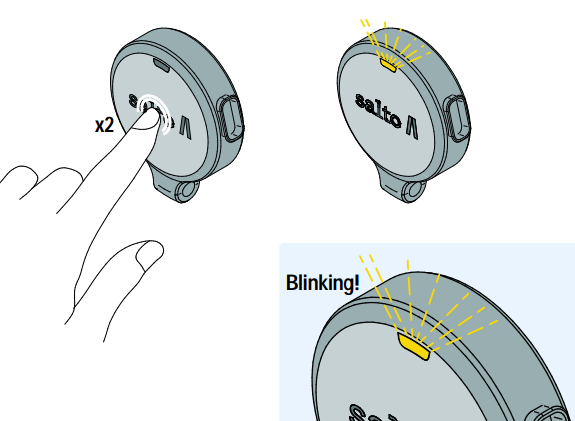 Double tap the electronic key to wake it up and prepare it for unlocking
Then, you can present the key to the reader on the door. Ensure that you hold the key steady in front of the reader during this process to allow for proper communication between the key and the lock.
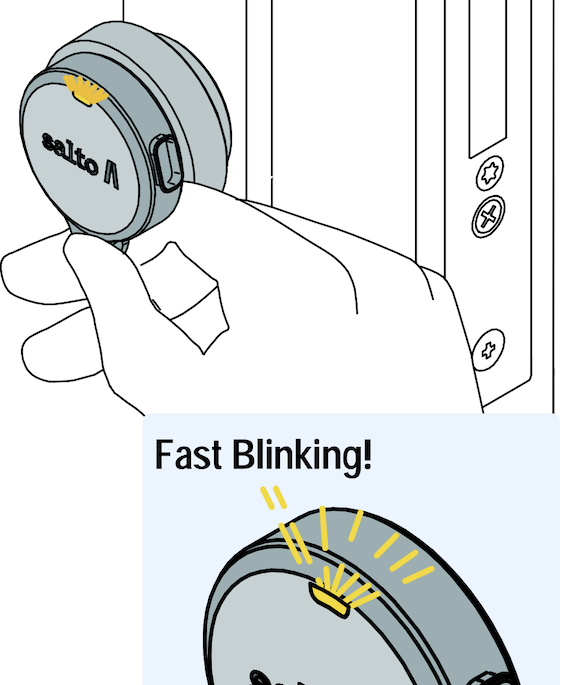 Energizing process of a batteryless lock with an electronic key
As the key detects and energizes the lock, the blinking speeds up to show that energizing and communication are in progress, and then turns green (access granted) or red (access denied), depending on your access permissions.
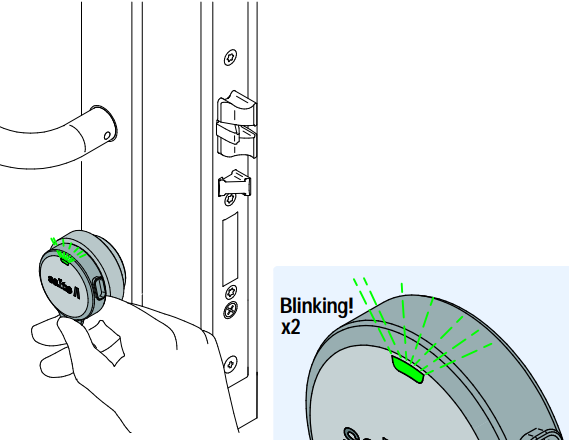 Unlocking process of a batteryless lock with an electronic key
The electronic key only signals the result of an unlock attempt on its own light when working with a batteryless cylinder lock, which has no status light of its own. If you use the same key with a different type of electronic lock that has its own status light, the result displays on that lock instead.
If you have access to any of these additional unlocking methods, your property manager should provide you with the necessary information and instructions on how to use them. If you have any questions about the unlocking methods available to you or how to use them, please contact your property manager for assistance.
If you're an installer, check out the guide for configuring electronic keys.
 Back
Unlocking
 Troubleshooting