Unlocking in Homelok
Overview
In Salto Homelok, you can unlock doors in several ways, depending on how your property manager has configured your access:
- Mobile app - The most common method, using Bluetooth to unlock doors wirelessly, or a remote operation over the internet if your property manager has enabled it for you
- NFC (Android only) - Tap and hold your phone near compatible door readers for quick access without opening the app
- Keypads - Enter a passcode on doors equipped with keypads
- Physical keys - Use keycards or fobs if your property manager has assigned them to you
This guide focuses primarily on unlocking doors using the Homelok mobile app.
The My keys section of the app automatically adapts based on your access permissions and nearby doors.
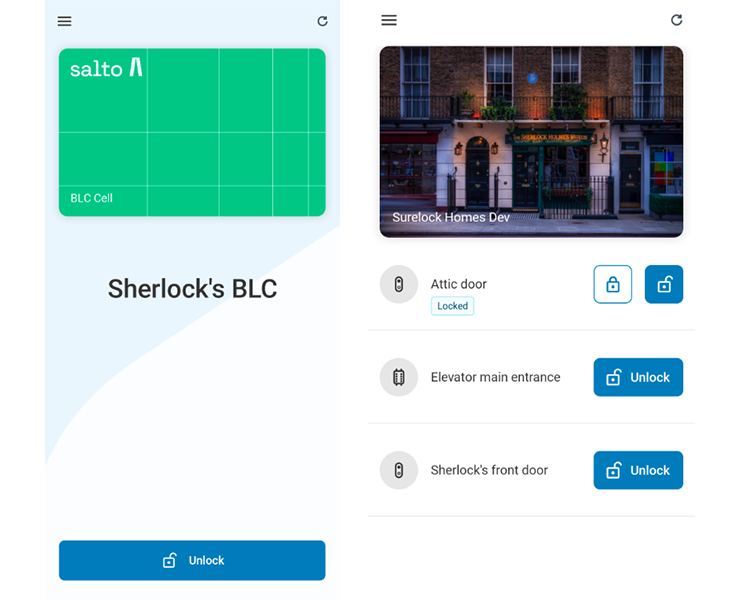 The 'My keys' section of the Homelok app varies depending on the access and keys that have been assigned to you
Understanding the 'My keys' screen
When you open the Homelok app, the My keys screen will display differently depending on your situation:
When searching for doors
When the app is open and searching for nearby doors via Bluetooth, you'll see one of the following layouts:
- If you have access to one door, the app displays a card with the door's name and available operations.
- If you have access to 2 to 5 doors, the app displays all the doors in a scrollable list.
- If you have access to more than 5 doors, the app provides a search option and separates doors into Nearby and Remote sections. The Nearby section displays doors as they come within Bluetooth range. The Remote section lists doors that you have permission to operate remotely, regardless of their Bluetooth range.
In the single-door and 2-to-5-door layouts, a door that only supports local operation can display Out of range when the app can't detect it over Bluetooth. Move closer to the door and wait for the app to detect it.
If you have access to more than 5 doors, the app doesn't list doors that are out of range unless you can operate them remotely. The Nearby section is empty until the app detects a door, so it can look as if you have no access. Your keys are still there. Move closer to a door, and the app lists that door under Nearby.
Tip: Tap the refresh button at the top of the screen to manually restart the Bluetooth scanning process and check for new keys or access permissions that may have been assigned to you.
Lock and unlock buttons
Depending on the door's capabilities, you may see:
- Unlock button only: A full-width button for doors that only support unlocking
- Lock and unlock buttons: A split button allowing you to either lock or unlock the door (for doors with lock capability)
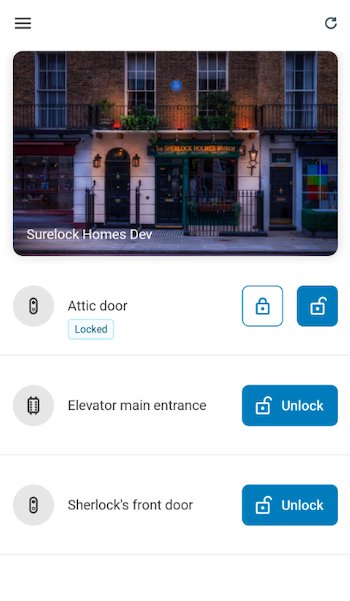 Some doors may have both lock and unlock buttons if they support both actions
For supported doors - for example, motorized locks - the status automatically updates based on the door's current state (Locked or Unlocked). When you tap Lock, the app may ask you to confirm the action. The app then displays Locking…, followed by Access granted and door locked or an error message.
When you have no access
If you don't have an active digital key, you'll see:
- A placeholder icon
- No keys yet if your property manager hasn't assigned a key to you
- No access yet if your key doesn't have access to any doors
- Instructions to contact your property manager
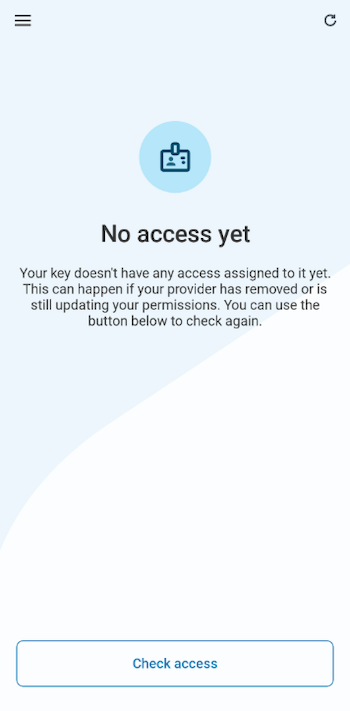 If you don't have any active digital keys, the app will prompt you to contact your property manager
Unlocking with the Homelok app
To unlock a door using the Homelok app:
- Open the app and ensure Bluetooth is enabled on your device.
- Allow the app to search for nearby doors. This happens automatically when you open the My keys screen.
- Ensure the door is in range. When the app detects the door over Bluetooth, it displays the door in the Nearby section or marks it as Nearby.
- Select your door and tap Unlock.
- Move closer if needed. If the message Try moving closer to the door appears, move your phone closer to the lock.
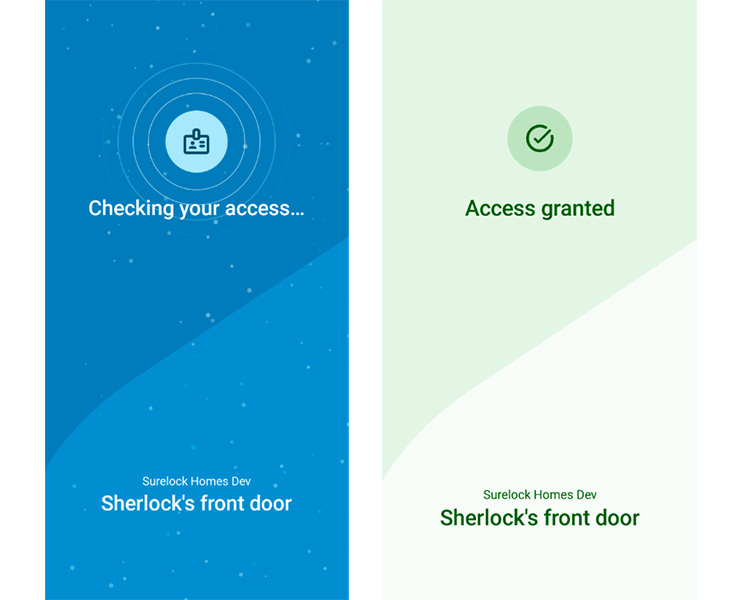 The unlocking process in the Homelok app provides real-time feedback on connection status and access permissions
What you'll see during unlocking
When you tap unlock, the app provides visual feedback:
- Hold your phone close to the device - The app is connecting to the door's Bluetooth lock.
- Try moving closer to the door - The app hasn't connected to the lock, so move your phone closer.
- Checking your access, Unlocking…, or Locking… - The app is verifying your permissions and performing the operation.
- Success or failure message - The app confirms the result, for example, Access granted, Access granted and door unlocked, or Unlocking failed. Please try again.
Unlocking doors remotely
If your property manager has enabled remote operation for you and a specific door, you can unlock or lock that door even when you're not within Bluetooth range, as long as the door is online.
The app selects the appropriate technology automatically. When you're nearby, it unlocks over Bluetooth or NFC. When you're farther away, it falls back to a remote operation over the internet. Before performing a remote operation, the app asks you to confirm it.
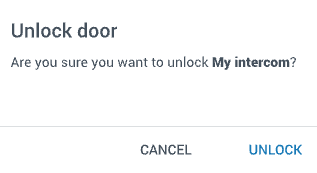 Confirm the action before the app performs a remote unlock
If you expect to be able to unlock a door remotely but don't see this option, contact your property manager - remote operation permissions are granted per user and per door.
See also the section on assigning keys to users in the property manager guide for more information on remote operations.
Unlocking with NFC (Android only)
If you have an Android device with NFC capability, you can unlock doors without opening the Homelok app:
- Ensure your phone is unlocked (screen on and past the lock screen)
- Hold your phone near the door reader (within 5 to 10 centimeters)
- Wait for the door to unlock - The NFC system will automatically attempt to unlock if you have the necessary permissions
Requirements for NFC unlocking:
- An Android device with NFC hardware
- NFC enabled in your device settings
- The Homelok app installed (the app doesn't need to be open)
- Your phone must be unlocked
- Active digital key with access permissions for that door
NFC unlocking works only with compatible door readers that support NFC technology. Not all doors in your property may have this capability. If NFC unlocking doesn't work, use the standard Bluetooth unlocking method through the app.
Requirements for app-based unlocking
For the app to unlock doors, you need:
- Bluetooth enabled on your smartphone
- Location services enabled (required by your device for Bluetooth scanning)
- Location permission granted to the Homelok app
- Active internet connection to sync your access permissions (required periodically, not for every unlock), and to perform any remote operation
- Physical proximity to the door (within Bluetooth range), unless you're using a remote operation on an online door
If any requirement is missing, the app will display a message prompting you to enable it.
The app doesn't need an internet connection to unlock a door over Bluetooth, but it periodically needs one to sync your access permissions.
Unlocking with keypads
Some properties may have keypads where you can enter a code to unlock the door. To use a keypad, enter the passcode provided by your property manager.
Troubleshooting unlocking issues
See the dedicated section on troubleshooting common issues in the Homelok app for tips on how to resolve problems you may encounter, including:
- Bluetooth connection issues
- "Move closer" messages appearing
- Doors not appearing in the app
- Permission-related problems
- NFC not working (Android users)
Quick reference: Door access scenarios
The table below summarizes the different scenarios you may encounter when using the Homelok app to unlock doors:
| Scenario | What you see | What it means | Action required |
|---|---|---|---|
| Single door | One door card with the available operation buttons | You have access to one door | Tap the required operation |
| 2-5 doors | Scrollable list of doors | You have access to 2 to 5 doors | Find the door and tap Unlock or Lock |
| More than 5 doors | Search option and Nearby and Remote sections | You have access to more than 5 doors | Select a section or use search to find the door |
| Nearby door | Door shown in the Nearby section or marked Nearby | The app has detected the door over Bluetooth | Tap Unlock or Lock |
| Door marked "Out of range" | Out of range status | The app can't detect this locally operated door over Bluetooth | Move closer to the door |
| "Hold your phone close to the device" | Progress message | The app is connecting to the door | Hold your phone close to the lock |
| "Try moving closer to the door" | Warning message | The app hasn't connected to the lock | Move your phone closer to the lock |
| "Checking your access" | Progress message | The app is verifying your permissions | Wait for the result |
| "Unlocking…" or "Locking…" | Progress message | The app is performing the selected operation | Wait for the result |
| "Access granted" | Success message | The lock granted access | Open the door |
| "Access granted and door unlocked" or "Access granted and door locked" | Success message | The lock completed the selected operation | Continue through the door or leave it locked |
| Lock and unlock buttons | Two buttons | Lock supports both locking and unlocking (motorized lock) | Tap desired action |
| Unlock button only | Full-width unlock button | Door supports unlocking only | Tap to unlock |
| "No keys yet" | Placeholder with message | No digital key is assigned | Contact your property manager or check for keys |
| "No access yet" | Placeholder with message | Your digital key doesn't have access to any doors | Contact your property manager or check access |
| "Remote unlock door" confirmation | Confirmation prompt before unlocking | The app will unlock the door remotely instead of using Bluetooth | Confirm the operation, or cancel it and move closer to use Bluetooth |
Summary of unlocking methods
| Method | Device | Requirements | When to use |
|---|---|---|---|
| Bluetooth (app) | iOS & Android | App open, Bluetooth enabled, within range | Standard method when near the door |
| Remote operation (app) | iOS & Android | Door online, remote permission enabled by property manager, internet connection | Unlocking a door you're not near |
| NFC tap | Android only | Phone unlocked, NFC enabled, compatible reader | Quick access without opening app |
| Keypad | Any device | Passcode from property manager | When phone unavailable or backup needed |
| Physical key | Not applicable | Keycard or fob assigned | Alternative to digital access |
Tip: Use the refresh button at the top of the My keys screen if you don't see expected doors or newly assigned access permissions.
 Back
Supported devices
Back
Supported devices Troubleshooting