Salto Space
To connect Salto Space to the site, enable the Space integration on the Features page and open its settings.
Space server details
Fill in the details of the Space server in the Space Server Details section.
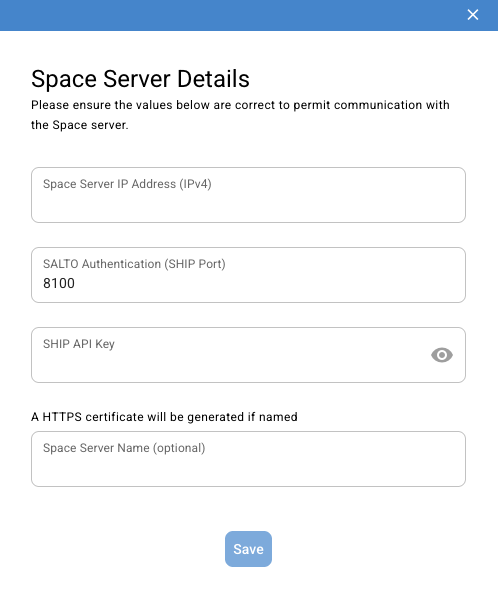
Make a note of what you enter in the SHIP API Key field, as this will be needed when configuring SHIP in Salto Space.
Settings in Salto Space
To configure the server running Space to communicate with the XS4 Face Server, run the Space Install Script in an Administrator Powershell terminal on the Space server, and set the fields in the Face recognition tab of General Options to match those shown in the Space General Options section of the integration configuration.
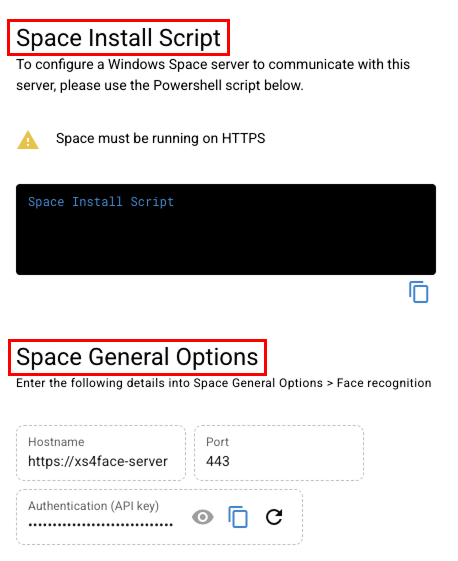
Ensure the following settings are correct in Salto Space:
- The Space service must be running on HTTPS. This is done in the Space Configurator.
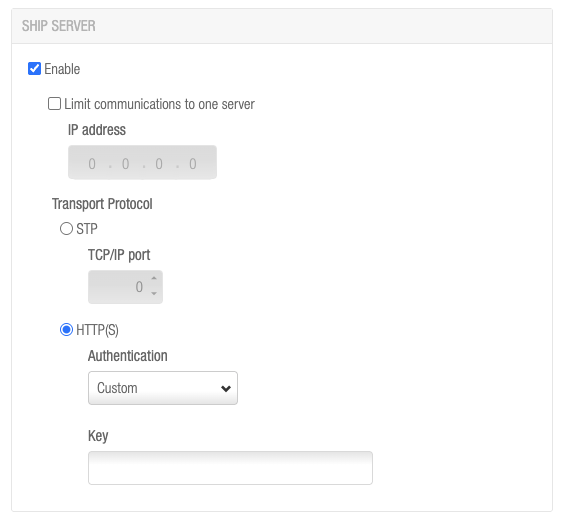
- The SHIP add-on is enabled.
- SHIP is configured to use HTTP(S) with custom authentication in the SHIP tab of General options.
Input the SHIP API Key from the XS4 Face integration configuration as the API Key for custom authentication.
To reset the API key, click the refresh icon in the Authentication (API key) field. You will need to update the API key in the Face recognition tab of General Options.
The Space server must be configured to not go to sleep or power save when connected to XS4 Face.
 Back
Enrollment Service
 GT7