GT7
Use the GT7 integration to add Salto GT7 terminals to an XS4 Face site. Each GT7 terminal is paired with the XS4 Face Server and acts as a control point that uses face recognition. You enable the integration in the XS4 Face Console and configure each terminal in the Gantner portal.
Prerequisites:
- An XS4 Face Server on the site that is online.
- A GT7 terminal in your project in the Gantner portal, and permission to change its device configuration.
- A network route from the GT7 terminal to the XS4 Face Server. If the GT7 terminal is on a different network from the XS4 Face Server, for example the corporate network, add a route so that the terminal can reach the server.
Enable the GT7 integration
- In the XS4 Face Console, select the site and click Features in the left-hand pane.
- On the GT7 tile, turn on the toggle.
Pair a GT7 terminal
Pair each GT7 terminal with the XS4 Face Server. You need the XS4 Face Console and the Gantner portal open at the same time.
In the XS4 Face Console, on the GT7 tile, click the settings icon. The GT7 settings open on the right-hand side of the page.
Click Add Device. A new row appears with the status Commissioning and an Access Token.
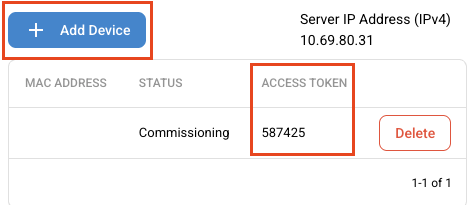
Make a note of the Access Token and of the Server IP Address (IPv4) shown at the top of the GT7 settings.
In the Gantner portal, open your project, select Devices and then select the GT7 terminal.
In the device information, under Device configuration, select XS4 Face.
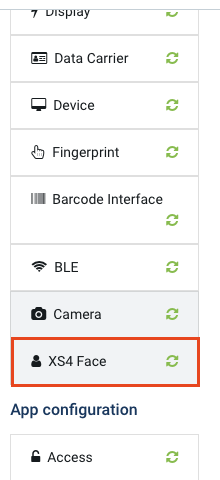
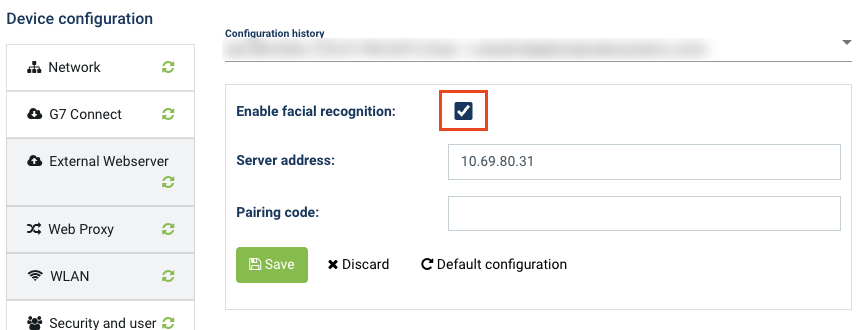
Select Enable facial recognition.
In Server address, enter the Server IP Address (IPv4) from the XS4 Face Console.
In Pairing code, enter the Access Token from the XS4 Face Console.
Click Save.
In the XS4 Face Console, check that the GT7 settings show the MAC address of the terminal with the status Ready.
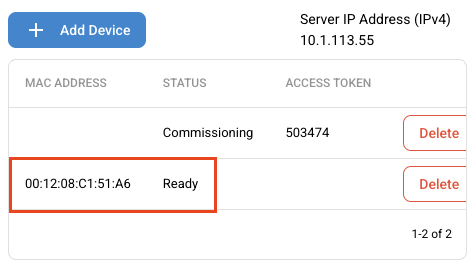
Each Access Token works for one terminal. To pair another GT7 terminal, click Add Device again and repeat these steps. To remove a terminal from XS4 Face, click Delete in its row.
Enroll GT7 users
When the GT7 integration is enabled, the Enrollments page has a GT7 Enrollments tab.
- Click Enrollments in the left-hand pane, then select the GT7 Enrollments tab.
- Click Enroll User.
- Enter the user's Email. Optionally, enter the User ID of the user in the GT7 system, with up to 8 hexadecimal characters.
- Click Send.
If Send enrolment emails is on, XS4 Face sends the user an email with a link to enroll their face in the XS4 Face Enrollment Service.
Enrollment emails
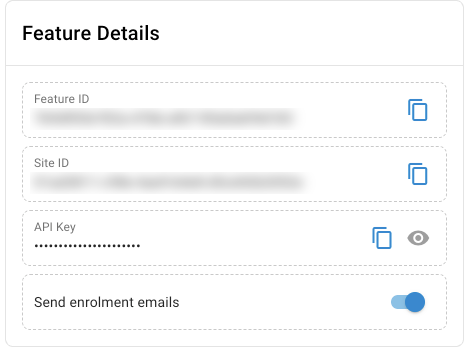
By default, XS4 Face sends an enrollment email to each user that you enroll for GT7. To stop sending these emails, turn off Send enrolment emails in the Feature Details of the GT7 settings, then confirm.
Third-party user enrollment
GT7 sites often use a membership management system (MMS) from a third-party integrator, such as a gym or spa management system, to manage their members. Approved integrators can connect their MMS to XS4 Face, so that the MMS manages which members can use face recognition, instead of you enrolling each user in the XS4 Face Console. Gantner manages these integrations.
How it works
- The MMS adds a member to the XS4 Face site, with the member's email address and the user ID that the GT7 uses for that member.
- The member enrolls their face, accepts the terms of service and gives consent for the site.
- XS4 Face delivers the member's enrollment to the XS4 Face Server on the site.
- When the member presents their face to an XS4 Face Device, the device sends the member's user ID to the GT7 terminal that the device is paired with.
- The GT7 terminal sends an access request for that user ID to the MMS, which grants or denies access.
- When a membership ends, the MMS removes the member from XS4 Face, and the member is no longer recognized.
The MMS can also show each member's enrollment status, for example whether they still need to submit an image or give consent. Members can withdraw their consent at any time, which removes them from XS4 Face.
Integration levels
There are two levels of integration:
| Level | What the integrator provides | How members enroll |
|---|---|---|
| Level 1: User management | The MMS adds, updates, queries and removes members in XS4 Face. | Members receive an enrollment email and enroll with the XS4 Face Enrollment Service. |
| Level 2: Enrollment in the integrator's app | As Level 1, plus the integrator's own app takes members through enrollment, with the integrator's branding. | Members enroll in the integrator's app, which collects their acceptance of the terms of service, a live image and their consent. XS4 Face still checks the quality of each image. |
Set up a site for an integrator
To set up a site that uses an approved integrator:
- Add the site, with the Company Name and Privacy Policy URL of the customer. Members see these when they give consent. For more information, see XS4 Face Enrollment Service.
- Enable the GT7 integration, pair each GT7 terminal, and pair each XS4 Face Device with the GT7 terminal at the same door as its control point.
- In the Feature Details of the GT7 settings, copy the Feature ID and give it to the integrator. The MMS uses the Feature ID to manage the members of this site.
- For a Level 2 integration, turn off Send enrolment emails, so that members enroll in the integrator's app instead of receiving an email.
Become an integrator
If you develop a membership management system and want to integrate it with XS4 Face, contact the Gantner integrations team at integrations@gantner.com.
Gantner provides development credentials, a test environment and the integration documentation, and approves each integration before it can be used on customer sites.
 Back
Space