Salto KS
Beta
Use the KS feature to make Salto KS the access control system for an XS4 Face site. Each XS4 Face Device is paired with a Salto KS lock. When a user presents their face, XS4 Face recognizes them and Salto KS decides whether to open the lock for them.
A site has the KS feature when you create it by pairing it with a Salto KS site. You can't add the KS feature to a site that already exists.
How it works
- In Larry Commissioning, the app that configures and manages Salto KS sites, XS4 Face is enabled for the Salto KS site, and Larry Commissioning gives you a one-time code (OTP) for it.
- You pair the XS4 Face site with the Salto KS site, using the OTP.
- You pair each XS4 Face Device with a Salto KS lock.
- When a Salto KS administrator gives a user face access in Salto KS, Salto KS asks the XS4 Face Enrollment Service for the user's consent for the site. XS4 Face links the user to their Salto KS user.
- The user enrolls their face and gives their consent in the XS4 Face Enrollment Service.
- When the user presents their face to an XS4 Face Device, the XS4 Face Server asks Salto KS to open the lock that the device is paired with, for that user. Salto KS grants or denies access, and the Access Logs record the result.
The license for the site comes from the customer's Salto KS subscription, not from a voucher.
Pair the site with Salto KS
Prerequisites:
- XS4 Face is enabled for the Salto KS site in Larry Commissioning, and you have the XS4 Face OTP for it.
- The credentials for the Salto KS Core Collection, which you request from Salto KS technical support.
To create the site, use Pair to KS in the Add New Site wizard. For the steps, see Pair a site to Salto KS.
The new site has the KS feature enabled. The KS tile on the Features page appears only for sites that are paired with Salto KS, and you can't disable the KS feature.
KS settings
To see the KS settings of a site, select the site, click Features in the left-hand pane, then click the settings icon on the KS tile.
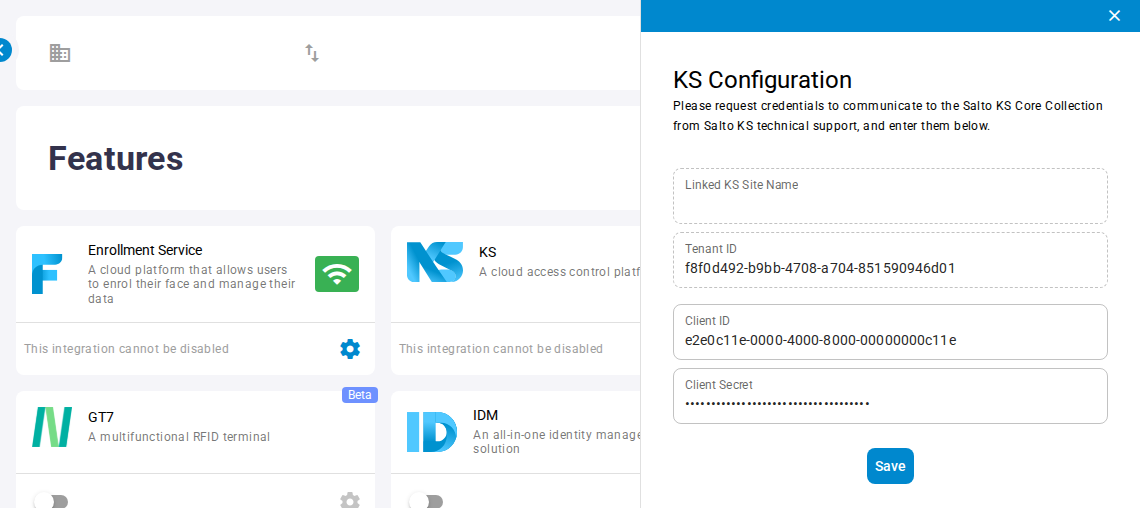
| Setting | Description |
|---|---|
| Linked KS Site Name | The name of the Salto KS site that the XS4 Face site is paired with. You can't change it. |
| Tenant ID | The ID of the Salto KS tenant of the site. You can't change it. |
| Client ID | The client ID of the credentials for the Salto KS Core Collection. |
| Client Secret | The client secret of the credentials for the Salto KS Core Collection. |
If Salto KS technical support gives you new credentials, enter the Client ID and Client Secret, then click Save.
Pair devices with Salto KS locks
The locks of the Salto KS site are the control points of the XS4 Face site. When you commission an XS4 Face Device, select the Salto KS lock at the same door in Select Control Point. For the steps, see Device commissioning.
Add users
You add users and give them face access in Salto KS, not in the XS4 Face Console. Salto KS manages which users can use face recognition at its locks. To add users in Salto KS, see Adding users.
A user must have a Salto KS user, and must enroll their face and give their consent for the site, before XS4 Face can recognize them.
Licenses
XS4 Face takes the User Limit and Expiration Date of the site from the XS4 Face feature in the customer's active Salto KS subscription. At customer handover, you activate the subscription instead of applying a voucher. For more information, see Licenses for Salto KS sites and Customer handover.
Use the KS feature with other features
A site paired with Salto KS can also use other access control features, for example GT7. Each XS4 Face Device decides access through the feature of the control point that it's paired with:
- At a device paired with a Salto KS lock, Salto KS decides whether to open the lock.
- At a device paired with a GT7 terminal, the GT7 decides.
The feature of the control point must have a matching user. For example, XS4 Face denies access to a Salto KS user who isn't a GT7 user at a device paired with a GT7 terminal.
For more information, see Using more than one access control integration.
 Back
