Site Overview page
On the Site Overview tab under Site, site owners and site admins will see an overview of their site. This will be an overview of the site that is currently selected and displayed on the field at the top of the screen, next to the notifications sign. If they are a part of more than one XS4 Com site, they can switch sites by clicking on this top field and selecting one of the sites displayed in the drop-down menu. Doing so will change the details shown in the overview, so they refer to the site that has just been selected.
On this page, site owners and site admins will see details such as status of their subscription, expiry date, site name, site type, time zone, and site address, as well as a shortcut that redirects them to a list of the site admins in the site. On the top right corner, an Actions button will give site owners and site admins the option to View Floors, Add Unit, and Add Company. Below, they will see a table of all the Units that belong to the site, with their corresponding Floor, Company, number of Residents, and an Action three-dotted icon, which allows them to:
- Add new Resident.
- Move existing Resident.
- Edit Unit.
- Edit Company.
- Delete Unit.
- Remove Company.
A filtering option is available, allowing site owners and site admins to filter the table by Floor and Company.
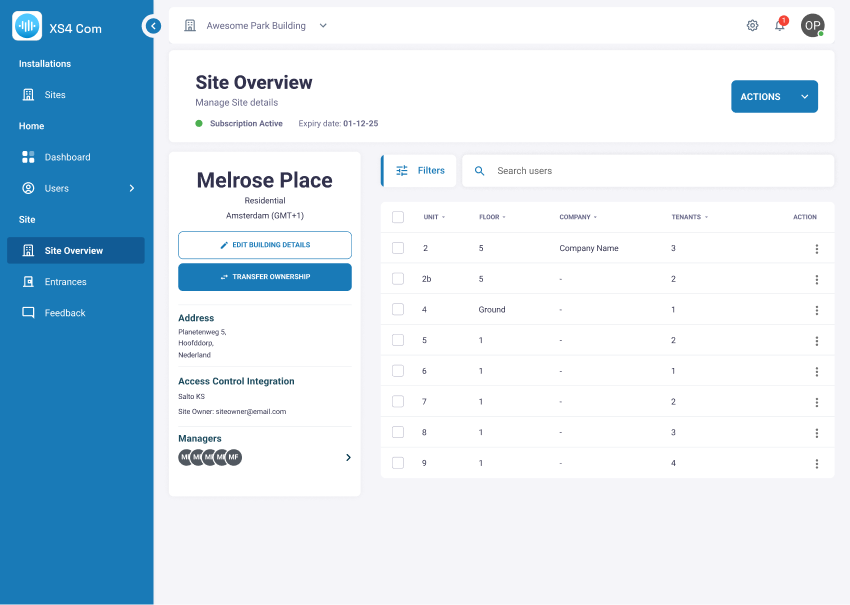 Overview of the Site Overview page
 Back
Users page
 Intercom Config page