Dashboard overview
When logging in to the XS4 Com web application, site owners first see the Dashboard, which gives them a complete overview of their site. On the top right corner of the screen, a profile icon containing their initials will allow them to:
- View Profile, where they can view and edit their personal information.
- Edit Settings to choose one of the theme modes: Auto, Dark, or Light.
- Salto Legal, where they can access the Terms of Service, Privacy Policy, Cookie Policy, and Manage Cookies.
- Log out.
Next to the profile icon, they will see a notification bell icon. Clicking it opens a side panel listing all in-app announcements about product updates and new feature launches, from newest to oldest. Whenever a new announcement is posted, a red notification badge appears over the bell icon to indicate that a new announcement has been posted.
On the field at the top center of the screen, next to the notifications sign, they will see the name of the site that is currently selected. If they are a part of more than one XS4 Com site, they can switch sites by clicking on this top field and selecting one of the sites displayed in the drop-down menu.
The main dashboard will display all relevant information related to the site, including:
- Status of their Site Subscription: active or inactive. If active, they also see an information icon within the card, which shows the expiry date of the site when hovering the mouse over it.
- Number of Subscribed Residents.
- Number of Visible (residents) in Phonebook.
- Number of Logged in Residents.
- Number of Active Residents.
- Number of Pending Residents.
- Number of Total Units.
- Number of Total Floors.
- Number of Total Entrances (including XS4 Com iGO and XS4 Com iPanel).
On the top right corner, site owners will see an Actions button, which if clicked, will expand a drop-down menu and show the following action options: Add new Resident, Add Site Admin, Add Unit, and View Floors.
After being added by the site owner, site admins will see the same dashboard overview.
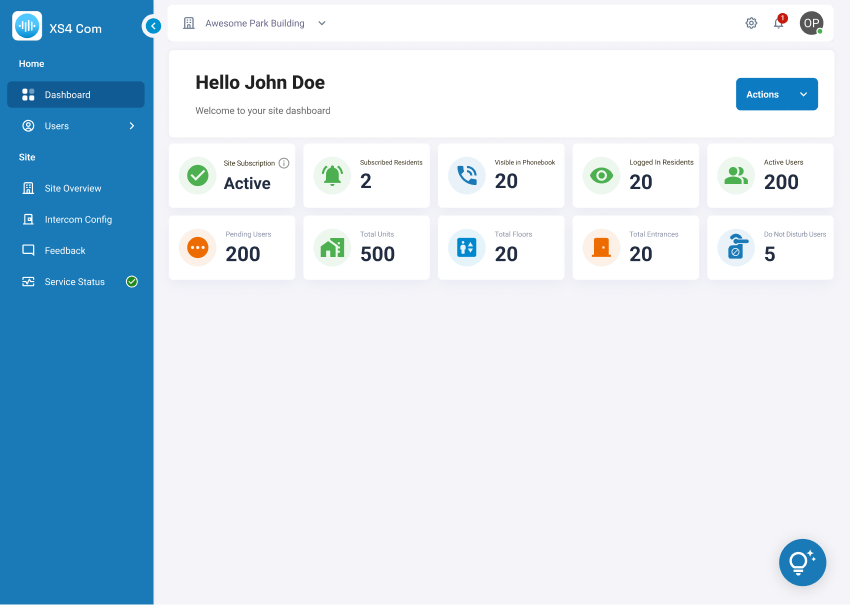 The overview of the Dashboard page
 Back
