Logging in and receiving visitor calls
When first logging in on the XS4 Com mobile app, residents will be asked to set up their profile. Once that is complete, they will land on the homepage of the app. On the top of the screen, they will see the site that is currently selected. If they are residents in more than one XS4 Com site, they can tap this top field to expand a drop-down menu with the list of sites they are a part of. By clicking on each one of them, they can switch between sites.
Residents can perform different actions on the mobile app by tapping the icon on the top right corner of the screen. From the drop-down menu, they will see their name and the unit they belong to. In addition, they will have the option to:
- View Profile.
- Edit their Settings, which includes choosing the Theme mode (Auto/Dark/Light) and selecting a Ringtone. In addition, residents can toggle the option Enable Live Captions by Default, which will either turn them on or off by default for their calls. Live Captions are real-time captions of the call that occurs between visitors and residents. When enabled, visitors and residents can turn the feature on during a call by pressing the Captions icon in the call menu, making captions visible to the person who has turned them on.
- Access the Salto Legal page, where residents can read about the Terms of Service, Privacy Policy and Cookie Policy, as well as manage their cookie preferences.
- Log out.
Whenever a visitor calls, residents will see an incoming call screen on their phone, similar to a regular phone call. From there, the resident flow goes as follows:
- Residents can tap View Video Feed to see a live stream of the visitor's phone camera (iGO) or the intercom panel camera (iPanel), so they can first see who is calling them before deciding to turn their video on or grant access.
- They can grant the visitor access without having to join the call by tapping Open Door, which will unlock the door for the visitor to come in. If the resident decides not to grant the visitor access based on the live stream and does not want to join the call, they can tap Decline to end the call.
- If the resident wants to first join the call and speak to the visitor before granting access, they can tap either the green or orange Accept buttons. The green Accept button will start the call with the resident's camera turned on, whereas the orange Accept button will start the call with the resident's camera turned off. During the call, residents can turn live captions on by pressing the Captions icon in the bottom left, which will display real-time captions of the visitor's speech. Live captions will only be visible to the person who has turned them on.
- After speaking to the visitor, residents can grant them access by tapping Open Door or end the call by tapping Decline.
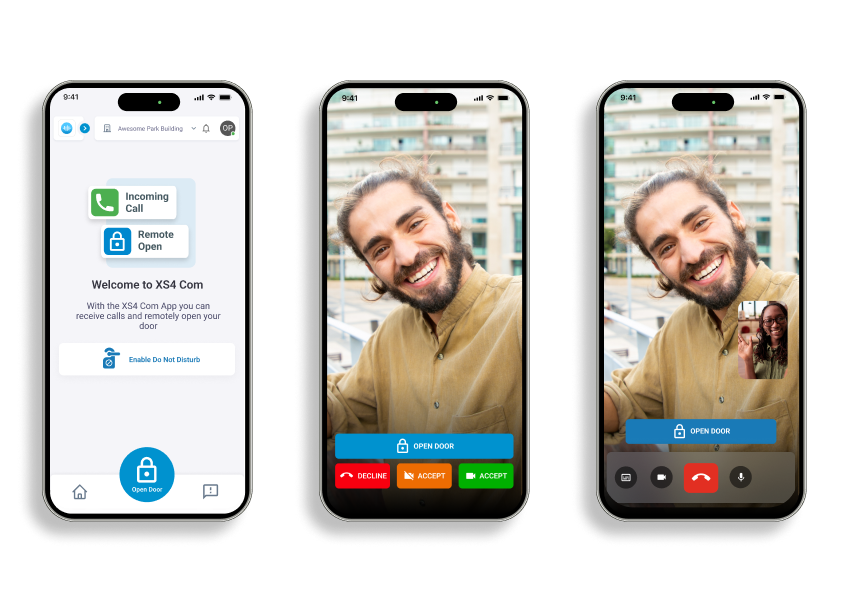 Use the XS4 Com mobile app to enable visitor access
 Back
