How to log in to the Space-OnGuard connector and licensing considerations
Web Configurator login
To access the Web Configurator you need to enter a valid username and password. This is the default the username and password:
- Username: admin
- Password: @BlueCon!
License
You also need a license to access the functionalities of the connector. You will see the following message when you log in for the first time:
- "This application is not licensed, check the license tab for more information."
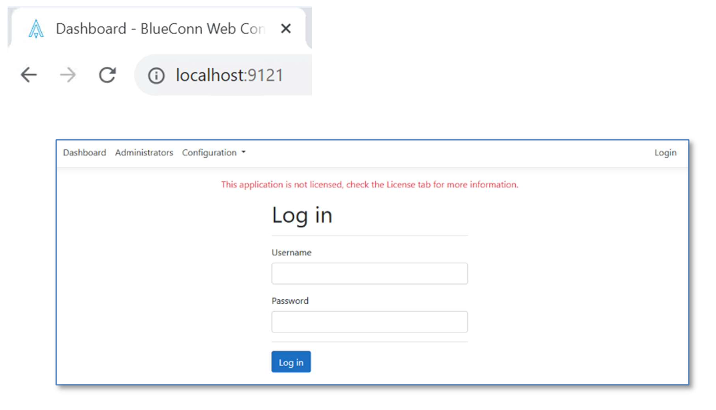 The connector requires a license to be able to use it
To resolve this go to Configuration > License in the main navigation bar.
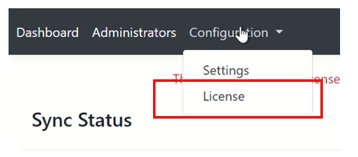 Go to 'Configuration' > 'License' and enable to relevant options
The BlueConn Sync Agent and BlueConn Events Api options are disabled by default. To enable them, select Enabled from the drop-down menu in both and then Save.
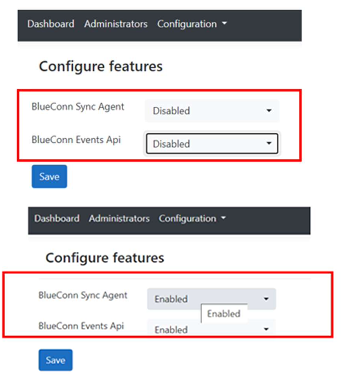 Enable license options
Once you've enabled both applications, copy the License generation code and send it by email to support-id@saltosystems.com, making sure to include your Space SPACON-LENEL serial number.
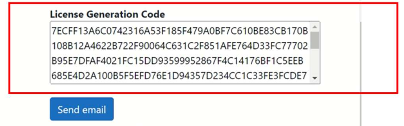 Copy the key and send it by email to the correct address
When you receive the activation code by email, enter it in the Set License key field and click Save.
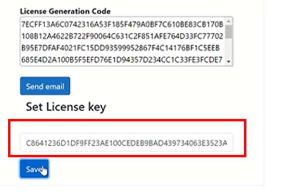 Fill out the 'Set License key' field to ensure the application is licensed
You should then see a message indicating that the connector is correctly licensed.
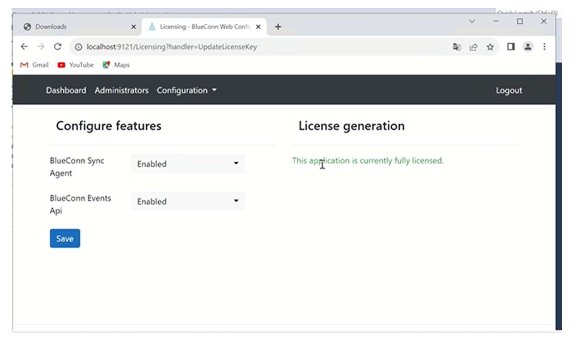 A message displays once the connector is correctly licensed
Remember that you also have to ensure that the service is running.
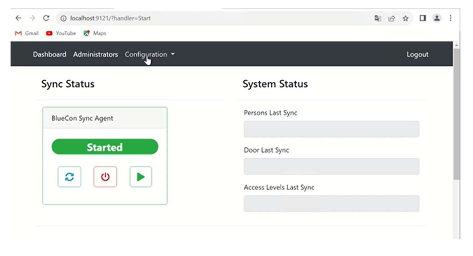 Check the service is running before proceeding
Note: this section refers only to licensing of the Salto Space-OnGuard connector. For OnGuard and Space licensing considerations, see the dedicated section in the user guide.
 Back
 Settings