Connect Salto Space to the Space API
The Space API runs in the Salto cloud, and Salto Space runs in your network. To manage data in Salto Space, the Space API needs a secure network path to SHIP (Salto Host Interface Protocol), the integration service of your Salto Space server. This guide walks you through creating that path, step by step, and explains what you do and what Salto does.
In short:
- You enable SHIP in Salto Space and choose how the Salto cloud reaches it.
- Salto connects the Space API to Salto Space and sends you the credentials for your application.
- Your contact for every step is
support-id@saltosystems.com.
New to tunnels and VPNs? Read Key terms and Frequently asked questions first.
How the connection works
Connecting Salto Space is a joint process between your team and the Salto Identity Solutions team. It has five steps:
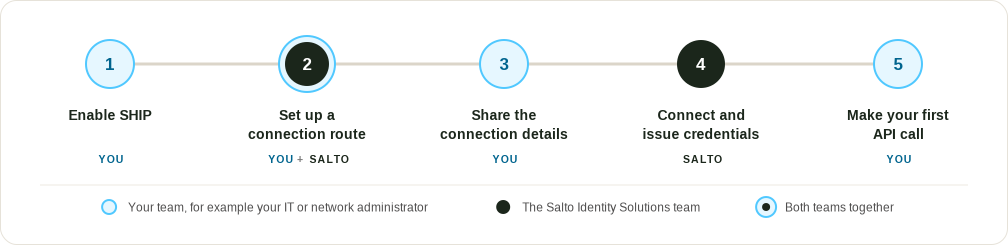
- You enable SHIP in Salto Space.
- You and Salto set up a connection route between Salto Space and the Salto cloud.
- You share the connection details with Salto.
- Salto connects the Space API and issues your credentials.
- You make your first API call.
Before you begin
Make sure you have the following:
- A Space API license.
- Administrator access to Salto Space.
- A network administrator who can change your firewall settings.
- For route 1, a Cloudflare account with a domain, and a server in your network that can run the Cloudflare connector and reach Salto Space.
- For route 2, a firewall or VPN gateway that supports site-to-site IPsec VPNs.
If you also want a test connection, ask Salto for separate test credentials when you request your route. See Test your integration.
Key terms
The following terms appear in this guide:
| Term | Meaning |
|---|---|
| SHIP | The service in Salto Space that other systems use to read and change Salto Space data. The Space API talks to Salto Space through SHIP. |
| SHIP port | The TCP port that SHIP listens on, 8100 by default. |
| Connection route | The secure network path between the Space API in the Salto cloud and Salto Space in your network. |
| Inbound and outbound connection | An inbound connection starts outside your network and comes in. An outbound connection starts inside your network and goes out. Most firewalls block inbound connections and allow outbound ones. |
| Public and private IP address | A public IP address is reachable from the internet. A private, or internal, IP address is reachable only inside your network. In most networks, Salto Space has a private IP address. |
| VPN gateway | The firewall or network device that creates and ends VPN tunnels for your network. |
| Port forwarding | A firewall rule that sends inbound internet traffic on one port to a server inside your network. |
| Cloudflare tunnel | An encrypted connection that a small program in your network, the Cloudflare connector, opens toward Cloudflare. It needs no open inbound ports. |
| Connector token | A code from Cloudflare that links your Cloudflare connector to your tunnel. Keep it private. |
| Site-to-site IPsec VPN | An encrypted tunnel between two firewalls or VPN gateways, one at Salto and one at your site. |
| Pre-shared key | A secret that both VPN gateways use to recognize each other. |
| STP | An older SHIP transport. Salto Space also supports HTTP(S), which is the preferred transport. |
| Space API address | 20.73.151.133, the only public IP address that the Space API connects from. Allow it wherever this guide asks you to restrict access to SHIP. |
| Client ID and secret | The credentials your application uses to get access tokens for the Space API. Salto issues them. |
Step 1: Enable SHIP in Salto Space
Every connection route needs SHIP, so set it up first:
In Salto Space, go to System > General options > SHIP.
Under SALTO SHIP SERVER, select Enable.
Under Transport Protocol, select HTTP(S) and note the TCP/IP port. The Space API also supports STP, but use HTTP(S) when you can.
Choose the Authentication type, for example Basic, and set the Username and Password for SHIP.
Select Save.
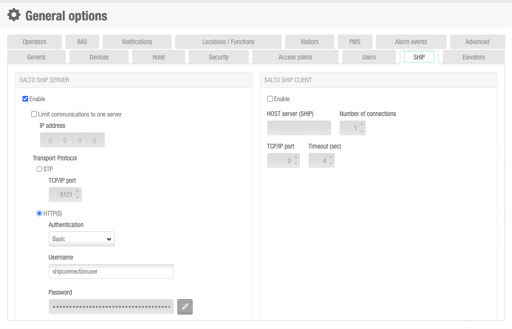
Note the SHIP port and the authentication values, because you need them in step 2 and step 3. If you plan to use your own connection, route 3, SHIP must use HTTPS.
Step 2: Choose and set up a connection route
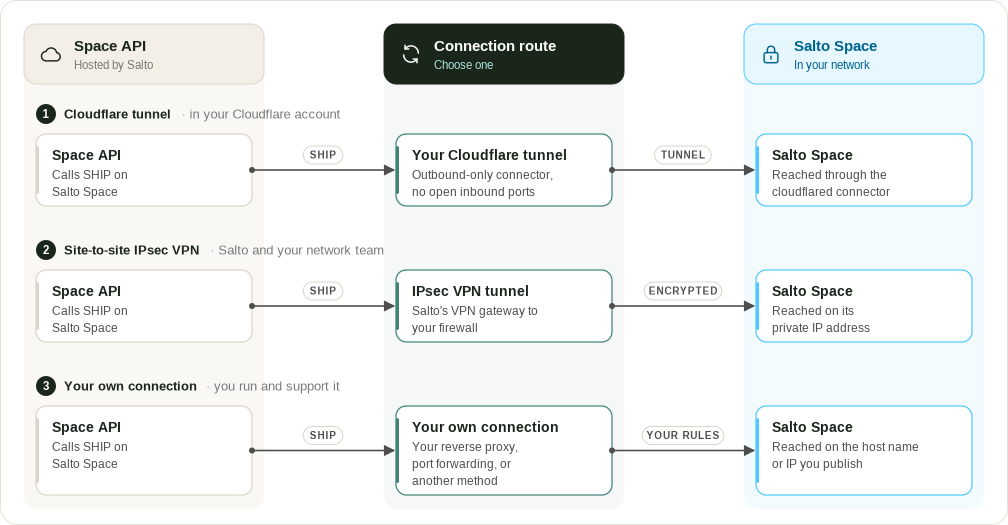
Choose one of the following three routes:
- Route 1: Cloudflare tunnel. A small program in your network connects Salto Space to a tunnel in your Cloudflare account. You open no inbound ports and need no VPN hardware.
- Route 2: Site-to-site IPsec VPN. Salto connects its VPN gateway to your firewall. Choose it when your organization already uses site-to-site VPNs.
- Route 3: Your own connection. You expose SHIP with another method, such as a reverse proxy, and you run and support it yourself.
The following diagram and table compare the three routes.
| Cloudflare tunnel | Site-to-site IPsec VPN | Your own connection | |
|---|---|---|---|
| Who runs and supports it | You, in your Cloudflare account | Salto runs its side, and your network administrator runs yours | You |
| What you set up | A tunnel in your Cloudflare account and the Cloudflare connector on a server in your network | An IPsec tunnel on your firewall or VPN gateway | Your own method, for example a reverse proxy or port forwarding |
| Inbound ports to open to the internet | None | Only the IPsec tunnel from Salto. Inside the tunnel, allow the SHIP port, 8100 by default. | Depends on your method |
| Setup effort | No call needed. You send Salto the host name of the tunnel when it's ready. | Longer, with a call between Salto and your network administrator to check the setup | Depends on your method |
| Choose it when | You want a connection without VPN hardware or open inbound ports | Your organization already connects partners through site-to-site VPNs | Your security policy requires another method |
Every route ends in the same place: the Space API sends SHIP requests to your Salto Space server, and Salto Space answers them.
Route 1: Cloudflare tunnel
A Cloudflare tunnel gives SHIP a public host name without opening inbound ports on your firewall or setting up a VPN.
A small program in your network, the Cloudflare connector (cloudflared), opens an encrypted, outbound-only connection to Cloudflare.
The tunnel belongs to your Cloudflare account, and you manage it there.
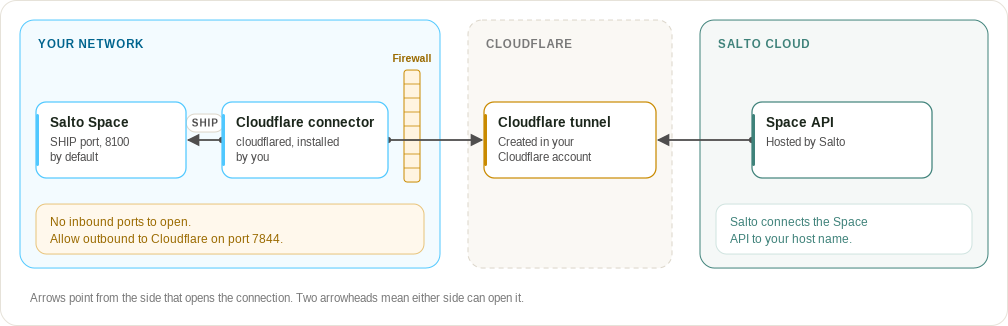
To set up this route, complete the following steps:
- Create a tunnel in your Cloudflare account and install the Cloudflare connector on a server in your network that can reach the SHIP port, such as the Salto Space server itself.
- Publish SHIP through the tunnel on a public host name.
- Restrict the host name so that only the Space API address can reach it.
- Send the host name to Salto in step 3.
Set up a Cloudflare tunnel for Salto Space explains each of these steps.
Salto then connects the Space API to the host name in step 4. Salto doesn't have access to your Cloudflare account, so you keep the tunnel and its connector running.
Route 2: Site-to-site IPsec VPN
Salto connects its VPN gateway to your firewall or VPN gateway through a site-to-site IPsec tunnel. The Space API then reaches Salto Space on its private IP address, and all traffic between Salto and your network stays encrypted inside the tunnel. You set up the tunnel with an intake form that your network administrator completes.
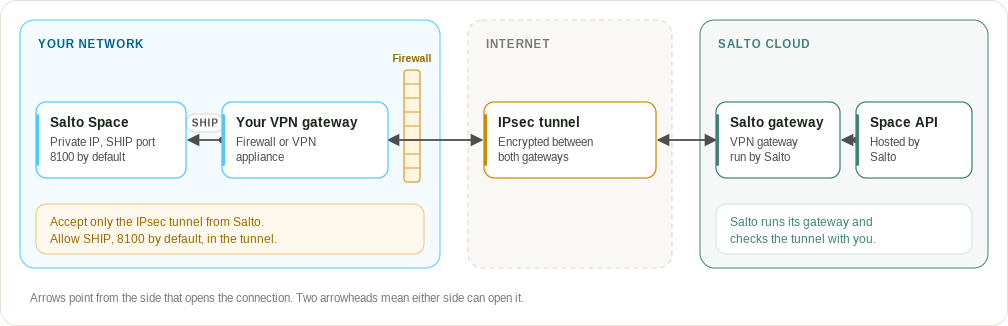
To set up this route, complete the following steps:
- Contact
support-id@saltosystems.comto request the site-to-site IPsec intake form. Salto pre-fills its VPN gateway, its network, and the encryption settings that both sides of the tunnel use. - Ask your network administrator to complete your side of the form.
The two most important fields are the public IP address of your VPN gateway, which is the peer address of the tunnel, and your local network, where Salto Space runs.
The form also asks for the following details:
- Your organization and the contacts who can configure the tunnel.
- Your VPN gateway: its host name and its type.
- The firewall rules for the tunnel: the source and destination networks that can communicate through it.
The rules must let the Salto network reach the SHIP port of Salto Space,
8100by default. - Your Salto Space details: the version, the internal IP address, the SHIP port, the transport type (HTTP(S) preferred, or STP), and the SHIP user name.
- Prepare your VPN gateway with the encryption settings in the form.
- Sign the form and return it to
support-id@saltosystems.com. - Exchange the pre-shared key of the tunnel with Salto through a secure channel, such as a password manager. Don't write it in the form or send it by plain email, and ask Salto which secure channel to use.
- Finish the configuration of your VPN gateway with the pre-shared key.
Salto then completes the following tasks:
- Reviews the completed form.
- Configures the Salto side of the tunnel.
- Contacts your network administrator to plan a call or session that checks the tunnel and its firewall rules.
Don't open the SHIP port to the internet. Allow it only for traffic inside the IPsec tunnel from Salto.
Route 3: Your own connection
You can make SHIP reachable from the internet in your own way. For example, you can use a reverse proxy (a server that receives internet traffic and forwards it to Salto Space) or a port forwarding rule on your firewall.
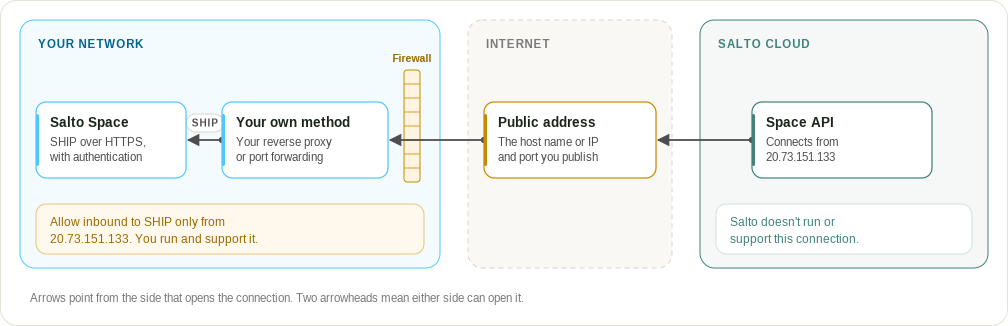
With this route, you decide how to secure the connection, and you take responsibility for its risk, support, and maintenance. Salto doesn't run, support, or maintain connections that you set up yourself.
Make sure your connection meets the following requirements:
- The Space API can reach SHIP on a public host name or IP address and port.
- SHIP uses HTTPS and requires authentication.
- Your firewall accepts connections to SHIP only from the Space API address,
20.73.151.133, so no one else on the internet can reach SHIP.
Step 3: Share the connection details
Send Salto the details it doesn't have yet:
| Route | What to send to support-id@saltosystems.com |
|---|---|
| Cloudflare tunnel | The public host name of your tunnel, and the SHIP user name and password. |
| Site-to-site IPsec VPN | The SHIP password. The intake form already has the other details. |
| Your own connection | The public host name or IP address and the port that you set up, the SHIP user name and password, and whether SHIP uses HTTP(S) or STP. |
Send the SHIP password through a secure channel, such as a password manager. Don't send it by plain email. Ask Salto which secure channel to use.
Step 4: Salto connects the Space API and issues your credentials
Salto completes the connection with the details you shared:
- Salto connects the Space API to SHIP on your Salto Space server through your connection route.
- Salto checks that the Space API can reach Salto Space.
- Salto creates an API client for your application and sends you its client ID and secret through a secure channel.
When you receive the client ID and secret, the connection is ready.
If you have questions or haven't heard from Salto, contact support-id@saltosystems.com.
Store the client secret securely, because it lets an application read and change data in your Salto Space installation through the Space API. If you lose the secret, or think someone else has it, ask Salto to issue new credentials.
Step 5: Make your first API call
Use the client ID and secret to request an access token and call the Space API. The developer portal shows the token request and a first API call in Authentication.
Test your integration
Develop and test a new integration with separate credentials connected to a test Salto Space installation. Ask Salto for these test credentials when you request the connection. When your application works as expected, Salto connects your production Salto Space installation and issues production credentials.
The data in the test installation isn't copied to the production installation.
Frequently asked questions
Which route should I choose?
Choose the Cloudflare tunnel if you want a connection without VPN hardware or open inbound ports, and you can install a small program on a server in your network.
Choose the site-to-site IPsec VPN if your organization already connects partners through site-to-site VPNs.
Choose your own connection only if your security policy requires another method.
If you aren't sure, contact support-id@saltosystems.com.
Do I need to open ports on my firewall?
It depends on the route:
- Cloudflare tunnel: no, you only allow outbound connections to Cloudflare on port
7844, and you restrict the public host name of the tunnel to the Space API address. - Site-to-site IPsec VPN: your firewall accepts only the IPsec tunnel from Salto, and allows the SHIP port,
8100by default, only inside the tunnel, never on the internet. - Your own connection: you open the ports your method needs, and you allow connections to SHIP only from the Space API address.
What is cloudflared, and where do I install it?
cloudflared is the Cloudflare connector, a small program from Cloudflare for Windows, Linux, and macOS.
Install it with the command that Cloudflare shows when you create the tunnel, on a server in your network that can reach the SHIP port of Salto Space, such as the Salto Space server itself.
It opens an encrypted, outbound-only connection to your Cloudflare tunnel, so keep it running.
See Set up a Cloudflare tunnel for Salto Space.
Is the connection secure?
With the Cloudflare tunnel, the Cloudflare connector uses an encrypted connection to Cloudflare, your firewall stays closed to inbound traffic, and an access policy lets only the Space API address reach the public host name. With the site-to-site IPsec VPN, the tunnel encrypts all traffic between the Salto VPN gateway and yours. With your own connection, security depends on how you set it up, so use HTTPS, require SHIP authentication, and accept connections only from the Space API address.
How long does the setup take?
The Cloudflare tunnel needs no call: you set it up in your Cloudflare account and send Salto the host name. The site-to-site IPsec VPN takes longer, because Salto and your network administrator check the tunnel and its firewall rules together in a call.
What should I never send by plain email?
Never send the SHIP password, the pre-shared key of an IPsec tunnel, or the client secret by plain email. Use a secure channel, such as a password manager.
Can I test before I connect my production Salto Space installation?
Yes. Ask Salto for separate test credentials connected to a test Salto Space installation. See Test your integration.
What if I lose the client secret?
Ask Salto to issue new credentials. Salto can't show the existing secret again.
Who do I contact for help?
Contact the Salto Identity Solutions team at support-id@saltosystems.com for help with any step in this guide.
 Back
Introduction
