Site Integrations
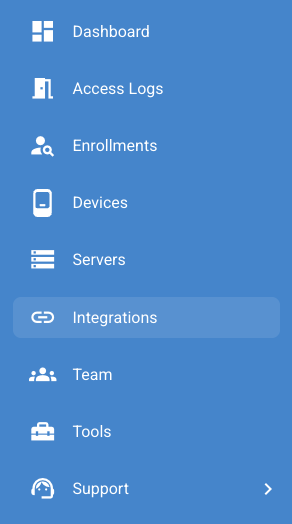
The Integrations section can be found on the left-hand pane of the XS4 Face Console, this is where you configure XS4 Face with third-party tools and services.
Existing integrations will appear as cards in this section and the status indicator on the card shows the connection status between the XS4 Face server and the integration.
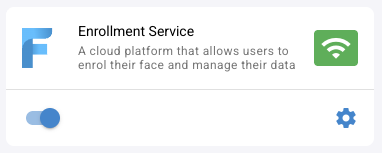
| Status indicator | Reason | Explanation |
|---|---|---|
 | Connected | The connection between the XS4 Face Server and the integration is established |
 | Unauthorized | The XS4 Face Server cannot authorize with the integration (e.g The API key is incorrect) |
 | Disconnected | The XS4 Face Server cannot establish a connection with the integration |
 | No status | The integration has not been configured yet |
When a card is selected, the configuration options for that integration will be displayed.
To add an integration, click the toggle button in the bottom left corner of the integration.
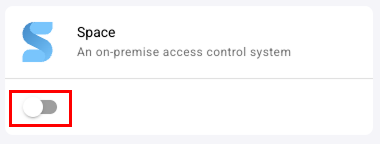
A drawer will open on the left-hand side of the page where you can configure the selected integration.
Salto Space
Fill in the details of the Space server in the Space Server Details section.
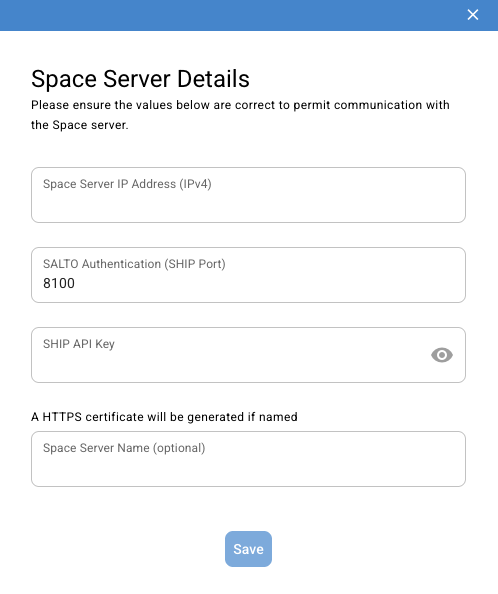
Make a note of what you enter in the SHIP API Key field, as this will be needed when configuring SHIP in Salto Space.
Settings in Salto Space
To configure the server running Space to communicate with the XS4 Face Server, run the Space Install Script in an Administrator Powershell terminal on the Space server, and set the fields in the Face recognition tab of General Options to match those shown in the Space General Options section of the integration configuration.
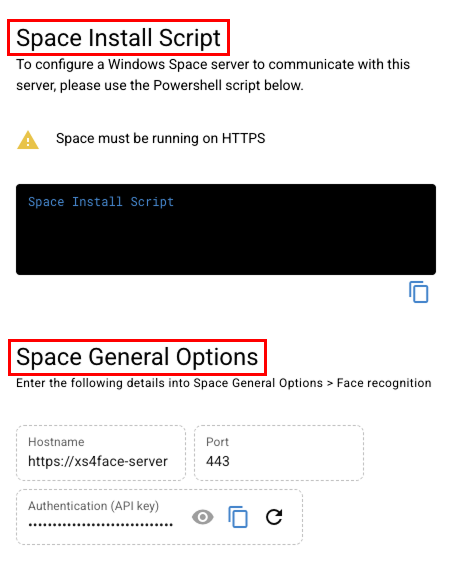
Ensure the following settings are correct in Salto Space:
- The Space service must be running on HTTPS. This is done in the Space Configurator.
- The SHIP add-on is enabled.
- SHIP is configured to use HTTP(S) with custom authentication in the SHIP tab of General options.
Input the SHIP API Key from the XS4 Face integration configuration as the API Key for custom authentication.
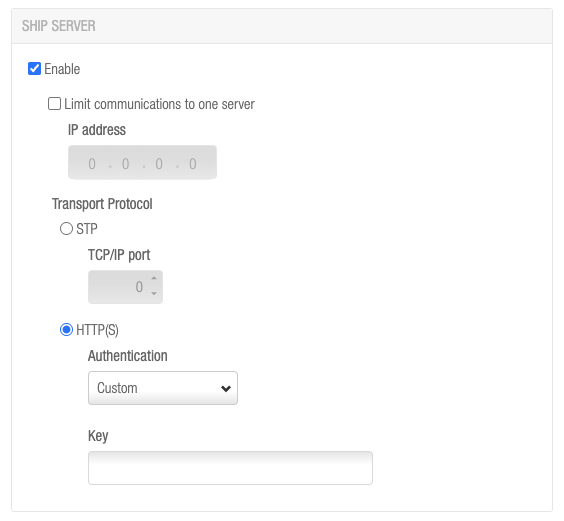
To reset the API key, click the refresh icon in the Authentication (API key) field. You will need to update the API key in the Face recognition tab of General Options.
The Space server must be configured to not go to sleep or power save when connected to XS4 Face.
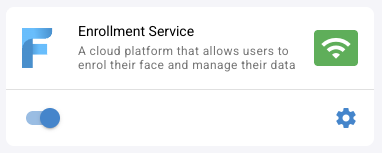
XS4 Face Enrollment Service
The company in charge of the site must be named correctly and the privacy policy linked must contain explicit usage descriptions of the biometric data that is being processed by XS4 Face. This information is provided to any user of the system upon first accessing their OES account.
If there is any doubt about the contents of a privacy policy suitable for XS4 Face, please contact Salto for guidance.
 Back
Server Installation
Back
Server Installation Licensing