Wave XS user guide
Descripción general
The Wave XS is a third-party touchless button reader device. See Third-party readers for more information on third-party readers in Salto Space.
It can be used with Salto Space and Salto KS platforms, and it can be connected to a Salto controller, such as a CU42E0 controller, to trigger door openings without physical contact. This makes it suitable for use in environments where hygiene is important, such as hospitals or restaurants.
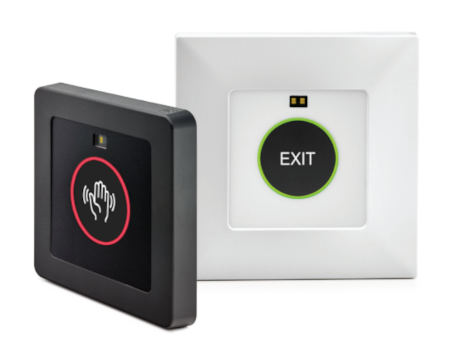 Wave XS reader
The Wave XS has a double color status light ring (red and green by default), as well as an adjustable detection range and activation time. Different texts and icons to be shown on the display can be also selected.
Before you begin
Before installing the Wave XS reader, configure the DIP switches on the back of the device.
The DIP switches control the activation time, detection range, and display text or icon shown on the device. You must configure the DIP switches before installation, as the power must be switched off during configuration.
DIP switch configuration
The Wave XS has 4 DIP switches that are used for configuration of time, detection range, text and icons to be shown on the display. The switches are located on the right side on the back of the device.
Ensure the power is off before configuring the DIP switches. After setting the DIP switches, turn the power back on.
The table below shows how to set the switches.
| DIP 1 | DIP 2 | DIP 3 | DIP 4 | Language | Text | Icon |
|---|---|---|---|---|---|---|
| on | on | on | on | English | EXIT | — |
| off | on | on | on | German | AUSGANG | — |
| on | off | on | on | Spanish | SALIDA | — |
| off | off | on | on | Danish | UD | — |
| on | on | off | on | Norwegian | UT | — |
| off | on | off | on | French | SORTIE | — |
| on | off | off | on | Italian | USCITA | — |
| off | off | off | on | Basque | IRTEN | — |
| on | on | on | off | — | — | No text |
| off | on | on | off | — | — | Lock icon |
| on | off | on | off | — | — | Hand icon |
| off | off | on | off | — | — | Arrow up icon |
| on | on | off | off | — | — | Arrow down icon |
| off | on | off | off | — | — | Door icon |
| on | off | off | off | — | — | Custom picture 1 |
| off | off | off | off | On-site programming of activation time and distance |
Setting activation time and detection range
Ensure the power is off before configuring the activation time and detection range. After setting the DIP switches, turn the power back on.
To configure the activation time and detection range, set all DIP switches to off. Move your hand closer to or further away from the Wave XS to adjust the settings. The display shows the current settings. When the display shows the required activation time and detection range, hold your hand still for a moment until the configuration is saved.
Activation time: 3, 5, 10, 15, or 20 seconds, or toggle mode Detection range: 1—25 cm
Activation time and detection range configuration must be done before setting the DIP switches to your required text or icon configuration. For more information on how to set the DIP switches to display the required text or icon, see the table in DIP switch configuration section.
Installation
Before proceeding with the installation, please note that time, distance and display are configured via the DIP switches on the back. Therefore, Wave XS configuration must be done before installation.
To install the Wave XS reader, keep the following points in mind:
- Mount the Wave XS on an even surface and with the delivered mounting base. It is important that you use this mounting base to avoid potential damage on the display.
- Connect the wires to the power supply, lock unit, assembly box, etc.
- Apply voltage 12 VDC, max 24 VDC.
Electrical connections
The Wave XS reader requires a power supply of 12—24 VDC / 30 mA.
You must use the same power supply unit for both the Wave XS reader and the Salto controller. Using separate power supply units may cause connection issues.
The Wave XS has the following terminals:
 Wave XS terminals
Make sure that there is no object (protection stickers included) or any obstacles within 30 cm of the front panel to avoid any interference.
Footnotes
PC software is required to upload a custom icon or picture. ↩︎