Create custom Dymo label
How to create a custom Dymo label for Salto IDM
Create your custom label with the Dymo Connect desktop software. To allow Salto IDM to populate the label with visitor translations and visit information, assign the exact field names listed below to the corresponding text objects in your label design.
Translation field labels
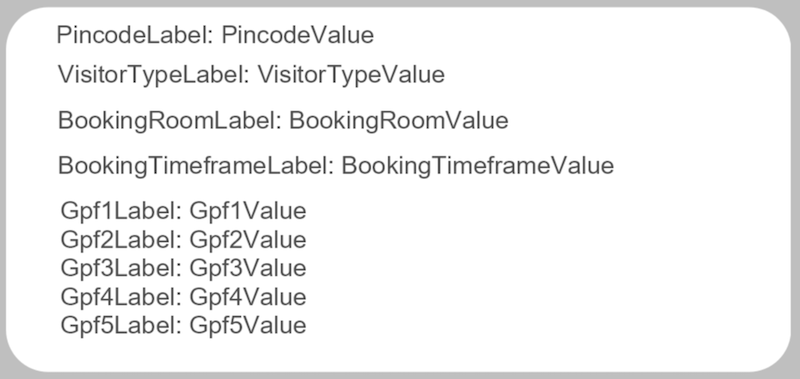
Use these field names for the text elements that display translated captions on the label:
- Company Name
CompName
- Guest of
GuestOf
- Valid Until
ValidUntil
- Emergency Number
EmergencyNumber
- Pincode
PincodeLabel
- Visitor Type
VisitorTypeLabel
- Room
BookingRoomLabel
- Timeframe
BookingTimeframeLabel
- License Plate
LicensePlateLabel
- General Purpose Field 1 Name
Gpf1Label
- General Purpose Field 2 Name
Gpf2Label
- General Purpose Field 3 Name
Gpf3Label
- General Purpose Field 4 Name
Gpf4Label
- General Purpose Field 5 Name
Gpf5Label
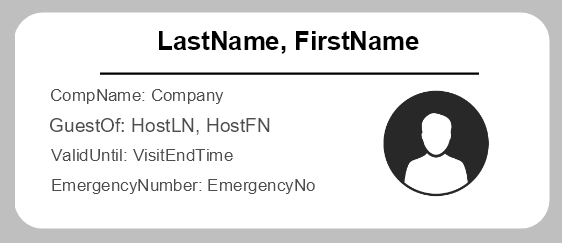
Visit data fields
Assign these field names to the dynamic data that Salto IDM sends with each visitor record:
- Visitor's surname
LastName
- Visitor's first name
FirstName
- Visitor's company name
Company
- Host's surname
HostLN
- Host's first name
HostFN
- End date of the visit
VisitEndTime
- Application emergency number (Settings > Branding)
EmergencyNo
- Visitor's PIN code
PincodeValue
- Visitor type (visitor or contractor)
VisitorTypeValue
- Booking room
BookingRoomValue
- Booking timeframe
BookingTimeframeValue
- Visitor's license plate
LicensePlateValue
- General Purpose Field 1 Value
Gpf1Value
- General Purpose Field 2 Value
Gpf2Value
- General Purpose Field 3 Value
Gpf3Value
- General Purpose Field 4 Value
Gpf4Value
- General Purpose Field 5 Value
Gpf5Value
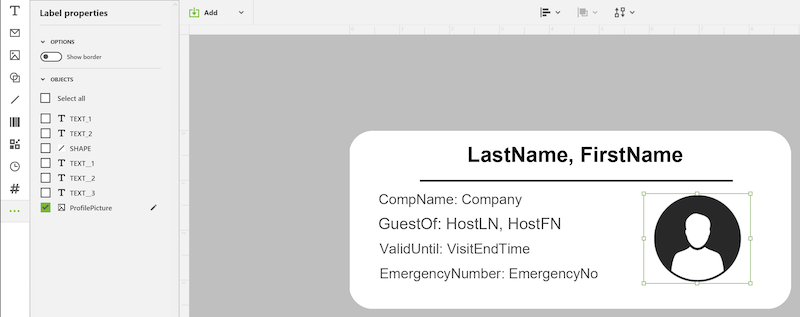
Visitor photo field
- The image placeholder for the visitor photo should use the field name:
ProfilePicture
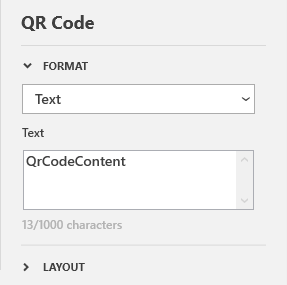
QR code field
- The QR code object's text value should be:
QrCodeContent
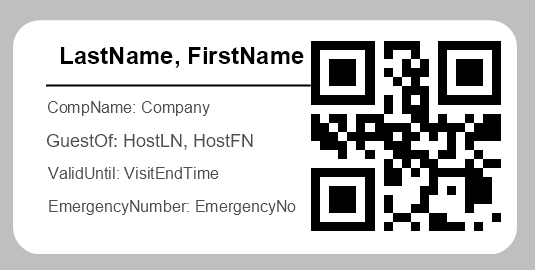
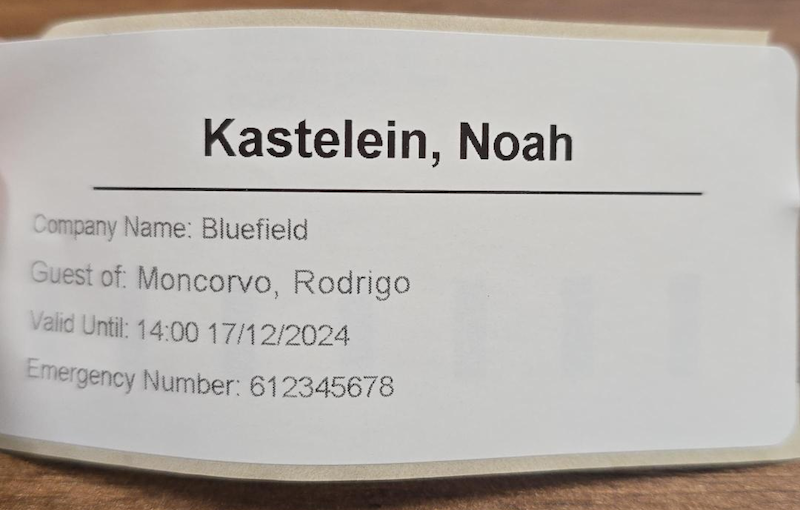
Example of a printed label
 Back
Back
