Configure Thales document scanner
How to configure Thales document scanner
This guide shows how to install and configure the Thales document scanner and the Document Scanner API for use with Salto IDM.
Perform the installation on the local machine where the scanner will be attached.
Follow the steps below to complete the setup and ensure the scanner operates reliably with the Virtual Front Desk.
Step 1: Download and execute the Thales installer
Get in touch with your usual Salto contact to find out how to obtain the installer.
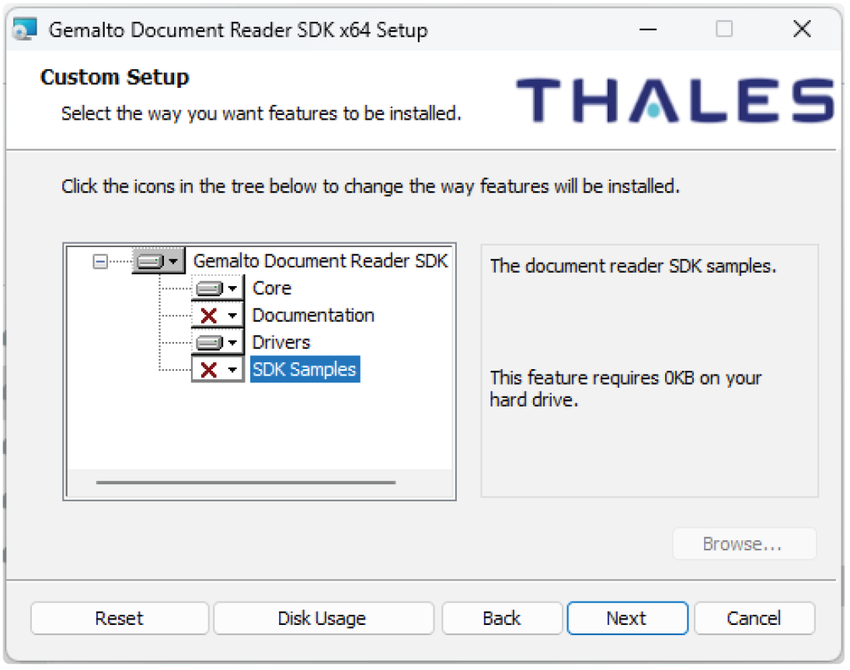
When running the installer called Gemalto Document Reader SDK x64 3.7.1.15.msi you can select which components to install.
For the scanner to work you only need the Core and Drivers components.
Install at minimum the Core and Drivers components so the scanner hardware is recognized and usable by the API.
Step 2: Install the document scanner API
Run the Document Scanner API (v2.4.0).exe installer provided by Salto Support.
Make sure to do this on the machine where the scanner is attached.
The API will by default listen on port 7210.
If a firewall or network policy is in place, ensure port 7210 is open between the kiosk and the machine running the Document Scanner API.
Step 3: Configure the Virtual Front Desk in Salto IDM
- In Salto IDM go to Configuration > Virtual Front Desk and click on Edit.
- In Passport/ID Settings find the Passport Scanner URL field and add the IP (or computer name) of the machine running the API, plus the port and endpoint. By default use the following URL:
http://localhost:7210/api/Scanner- Save the Virtual Front Desk configuration.
Don't forget to restart the server or computer after installing a new version of .NET or after installing the document scanner API.
 Back
Back
