Accept invitation
If you don't have a Danalock but need access to a lock, the owner of the lock needs to invite you.
When the owner sends an invitation, you will receive an email.
The instructions in the email vary depending on whether you already have a Danalock account.
Already have a Danalock account
If you already have a Danalock account, click the blue My Danalock button in the email and sign in.
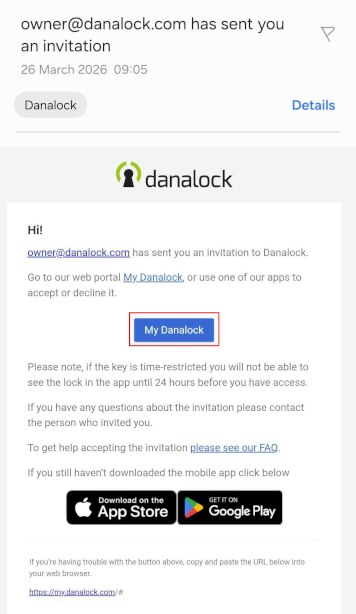 Click 'My Danalock' to sign in to your Danalock account
Once signed in, follow the steps in How to accept an invitation.
Need to create a Danalock account
If you don't have an account yet, click the blue Set Up Account button, and create an account by following the account creation guide on the apps page.
Once your account is created, return here to continue accepting the invitation.
Click 'Set Up Account' to create a Danalock account
How to accept an invitation
Follow the steps below to accept the invitation:
- On your my.danalock.com page, click the three lines in the upper right corner.
If you are accepting the invitation on a PC, you can click on Invitations to view your received invitations.
- In the dropdown menu, click the arrow next to Invitations and choose Received invitations.
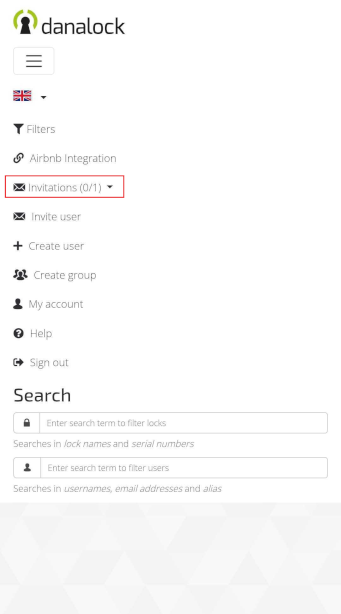 Click the arrow to see received invitations
- In the window that opens, you can accept the invitation.
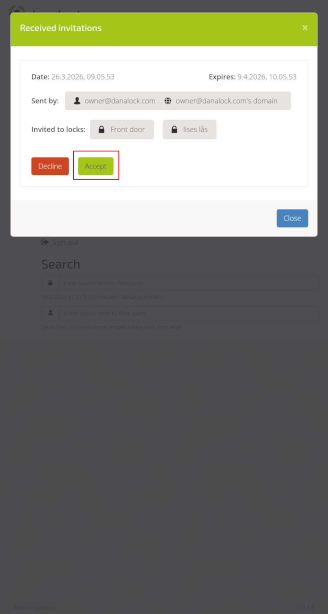 Click 'Accept' to gain access to the lock
After accepting the invitation, you can sign in to the Danalock app and access the lock.
If the lock owner has given you access for a limited time period, the lock will only appear within 24 hours before the access period begins.
 Back
iOS shortcuts
Back
iOS shortcuts Log files